Late-Arrival Notifications in Microsoft Teams
Route late-arrival alerts to Microsoft Teams. Learn how a grace period turns a late clock-in into a manager notice, and how to set Teams as your alert channel.
If your team runs on Microsoft Teams, attendance signals belong there too. When someone clocks in late, the last thing a manager wants is to open a separate dashboard to find out. This post is a Teams-focused walkthrough of how late-arrival notifications work and how to route them into the channel your managers already watch. If you also use Slack or want the combined view, see our post on late-arrival alerts in Slack and Microsoft Teams.
What a late-arrival notice actually is
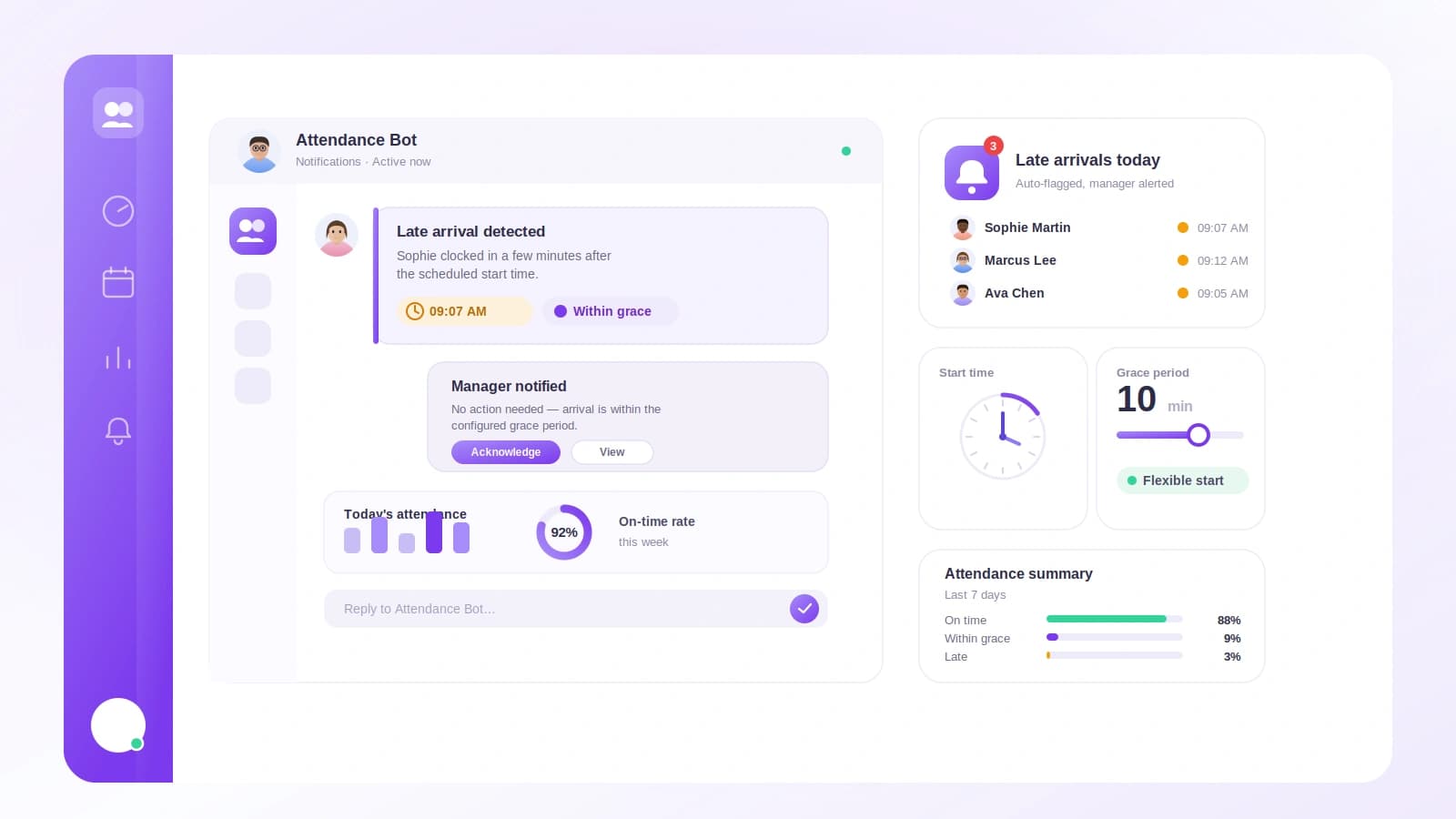
A late-arrival notice is a message to managers that fires when an employee clocks in later than they should have. The trigger is simple. When a grace period is enabled, a clock-in after the office start time plus the grace window triggers the notice. If start time is 9:00 and the grace window is 15 minutes, a clock-in at 9:16 is late and managers get told. A clock-in at 9:14 is not.
The grace period is the switch that turns this whole feature on. It is off by default, which means no late-arrival notices are sent until you deliberately enable it. That is intentional. Every workplace defines "late" differently, so the system waits for you to set the rule rather than guessing one for you.
How lateness is decided
There are a few guardrails built into the evaluation so the notices stay accurate and quiet.
Everything is measured in the workspace timezone. Whether your managers or employees are traveling, the office start time and the grace window are compared against the same clock, so a 9:00 start means 9:00 where the workspace is configured, not wherever a device happens to be.
Notices only fire on configured working days. If Sunday is not a working day, a Sunday clock-in will not generate a late-arrival notice, because there is no expected start time to be late against. The system also skips public holidays. On a day marked as a public holiday, no late-arrival notices are sent, so a team that comes in on a holiday to catch up does not get flagged for it.
Finally, the system sends at most one late-arrival notice per employee per working day. If someone clocks in late, clocks out, and clocks back in later the same day, managers still see a single notice for that person on that day. This keeps the channel readable and stops the same event from being reported over and over.
Choosing the allowed lateness
The grace window is not a free-text field. The allowed lateness is chosen from a fixed set of values: 0, 5, 10, 15, 20, 30, 45, and 60 minutes. The default is 15 minutes.
A fixed set keeps the policy clear and easy to reason about. If you want a strict on-the-dot policy, choose 0, and any clock-in after the start time is late. If your culture allows a soft start, choose 30 or 60. Most teams land somewhere in the middle, which is why 15 is the default. Whatever you pick, it applies as the window added on top of the office start time before a clock-in counts as late.
Connecting Microsoft Teams
To receive these notices in Teams, you first connect Microsoft Teams to your workspace. This uses a per-tenant Azure Bot and is available on the Scale tier. Per-tenant means the bot belongs to your organization's tenant, so the connection between Tickin and your Teams environment is scoped to you. You can read more about the integration on the Microsoft Teams feature page.
Once the Azure Bot is registered and the integration is connected, Teams becomes an available destination for alerts. This is the one piece that is specific to Teams, and it is worth getting right before you enable the grace period, so that the very first late-arrival notice has somewhere to land.
Selecting Teams as the alert channel
Connecting Teams makes it available, but you still choose where the notices go. Late-arrival notices are delivered to whichever of Slack or Microsoft Teams is connected and selected. So the routing is a deliberate choice, not automatic.
If your organization has both connected, you select Microsoft Teams as the channel for alerts, and that is where late-arrival notices are sent. If Teams is the only messaging integration you use, selecting it is still the step that tells the system to route notices there. Think of it as two independent settings that both have to be true: Teams has to be connected, and Teams has to be selected as the alert channel.
This separation matters. It means you can connect Teams for other purposes and still decide, separately, whether attendance alerts should flow into it. Nothing starts arriving in a channel until you have both connected and selected it.
Putting the setup together
Here is the practical order for getting late-arrival notices into Microsoft Teams.
First, connect Microsoft Teams on the Scale tier by registering your per-tenant Azure Bot and completing the integration. Second, select Microsoft Teams as the channel for alerts, so the system knows where to route the notices. Third, enable the grace period, since it is off by default and nothing sends until it is on. Fourth, pick your allowed lateness from the fixed set of 0, 5, 10, 15, 20, 30, 45, or 60 minutes, keeping the 15-minute default unless your policy differs.
After that, the flow runs on its own. Each working day, in the workspace timezone, a clock-in that lands after the office start time plus your chosen grace window sends a single notice per employee to your selected Teams destination. Holidays are skipped and non-working days do not apply. This ties directly into the rest of your attendance tracking, so the same clock-in that shows up in your records is the one that decides whether a manager hears about it.
Why route to Teams specifically
The value of a late-arrival notice depends on it reaching the right person quickly, and for a Teams-first organization that means Teams. Managers do not have to remember to check anything. The notice appears in the tool they already have open, tied to the employee and the day, with the one-per-day limit keeping it from becoming noise.
Because the decision is made in the workspace timezone, only on working days, and never on public holidays, the notice you see is a real late arrival against a real expected start, not a false alarm from a timezone mismatch or a day nobody was supposed to work. That accuracy is what makes it safe to put attendance signals directly into a busy Teams channel.
Frequently asked questions
How do I send late-arrival notices to Microsoft Teams instead of Slack?
Connect Microsoft Teams to your workspace using a per-tenant Azure Bot on the Scale tier, then select Teams as the channel for alerts. Late-arrival notices go to whichever of Slack or Microsoft Teams is connected and selected.
When does a late-arrival notice get sent to Teams?
When a grace period is enabled, a clock-in after the office start time plus the grace window triggers a late-arrival notice to managers. It is evaluated in the workspace timezone, only on configured working days, and it skips public holidays.
Will an employee trigger multiple Teams alerts in one day?
No. The system sends at most one late-arrival notice per employee per working day, so managers are not flooded with repeated alerts for the same person on the same day.
How long can an employee be late before Teams alerts a manager?
The allowed lateness is chosen from a fixed set of 0, 5, 10, 15, 20, 30, 45, or 60 minutes, with a default of 15 minutes. The grace period is off by default, so you enable it and pick the window that fits your policy.