Microsoft Teams Leave Management: Request and Approve Leave Without Leaving the Chat
Let employees request leave inside Microsoft Teams and let approvers decide from interactive cards. Balances, attendance, and required hours stay in sync.
Leave requests have a habit of getting lost. Someone messages a manager, the manager means to log it later, and by month end nobody is sure who was off and why the hours do not add up. When your team already lives in Microsoft Teams, the fix is to handle the whole request and approval loop right there, in the tool everyone has open all day.
Tickin brings leave management into Microsoft Teams so employees can ask for time off and approvers can decide without switching apps. Here is how it works and what it does behind the scenes.
Request leave without leaving the chat
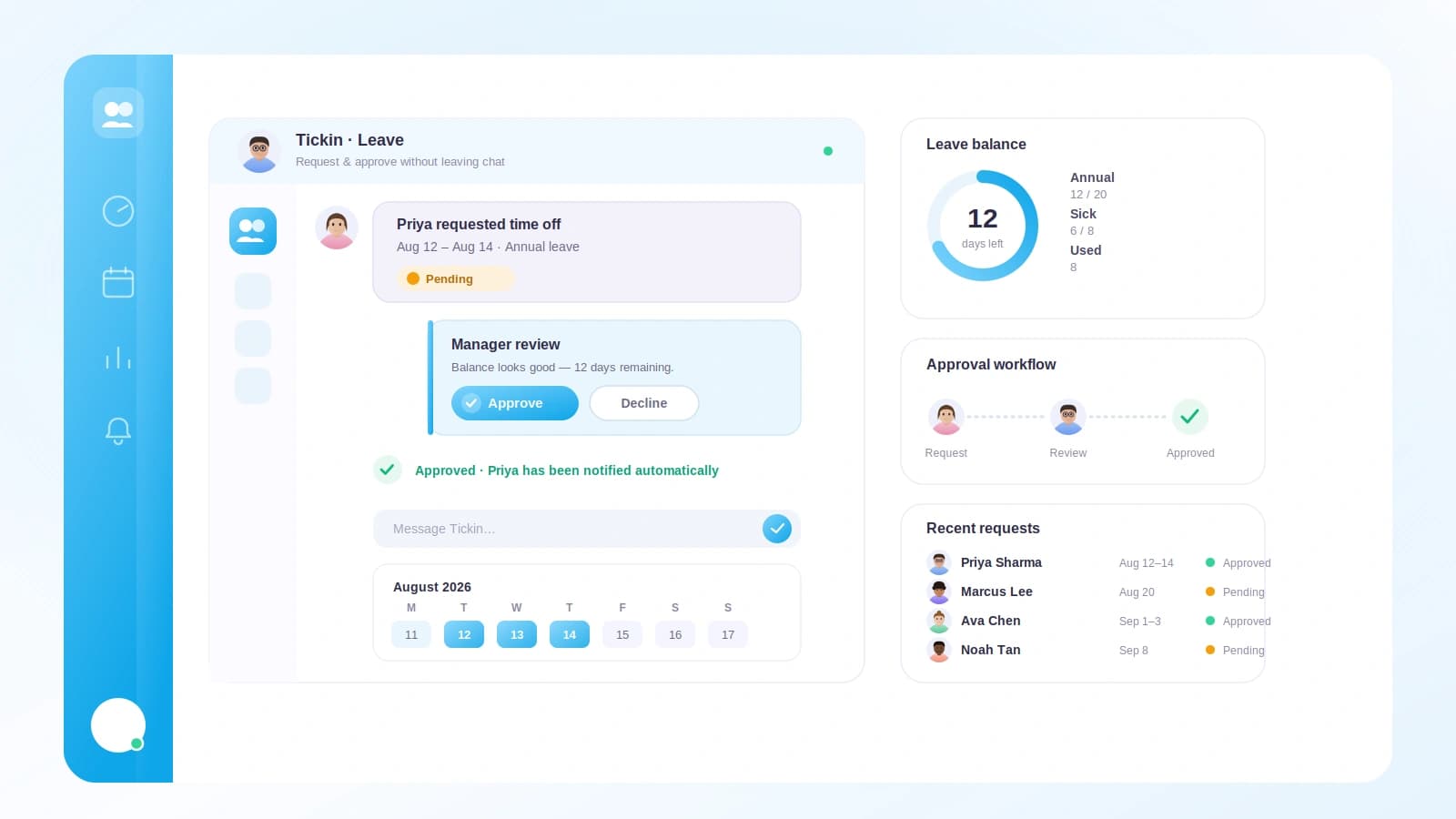
An employee starts a leave request from inside Microsoft Teams. They pick the type of leave, choose the dates, and send it. That is the whole interaction from their side. No portal login, no separate form to hunt down, no waiting until they get back to their desk.
Because the request happens where people already work, it actually gets submitted at the moment they think of it. That small change removes most of the friction that causes leave to go unrecorded, which is the root of nearly every "wait, were you off last Tuesday?" conversation.
The leave types you actually use
Tickin supports the leave categories most teams need, and each one runs through the same flow in Teams:
- Annual leave
- Sick leave
- Casual leave
- Work From Home
- Paternity leave
- Maternity leave
Keeping Work From Home in the same system as time off matters more than it looks. A WFH day is not a day off, but it is still something managers want visibility into and something that should be reflected in your records. Handling it through the same request path means one consistent place to see who is out, who is remote, and who is at their desk.
Approvers decide from an interactive card
When a request comes in, the approver receives an interactive card in Microsoft Teams. The card carries the details of the request, and it has buttons to approve or decline right on it. There is no need to open another tool, dig through email, or remember to act later.
This is the part that keeps leave moving. Approvers tend to be busy people, and every extra step between "I got the request" and "I made a decision" is a chance for it to stall. An approve or decline button sitting inside a chat they already read means requests get handled in the flow of their day rather than piling up.
Once the approver acts, the requester is notified of the outcome. Whether it is approved or declined, the employee finds out without having to chase anyone or refresh a page. The loop closes on its own.
Balances stay tracked
Every leave request draws against a balance, and Tickin tracks those balances for you. When leave is approved, the relevant balance reflects it. That means employees and approvers are working from real numbers rather than guesses, and nobody has to keep a private spreadsheet of who has how many days left.
Tracked balances also make declines fairer and clearer. If a request cannot be approved, the decision is grounded in the actual state of that person's leave rather than a rough memory of what they have taken this year.
Leave connects to attendance and required hours
A leave request is not an isolated event. In Tickin, approved leave interacts with attendance and with monthly required hours. So when someone takes an approved day off, that shows up in the picture of their attendance, and it factors into whether they have met the hours expected of them for the month.
This connection is what keeps your reporting honest. Without it, you get the classic mismatch where the attendance report shows a gap, the leave was genuinely approved, and someone has to manually reconcile the two. Because the request, the approval, the balance, and the attendance view all belong to the same system, an approval in Teams flows through everywhere it needs to. You are not stitching together separate records after the fact.
If you are running a smaller crew and want to see how this plays out at that scale, our guide to leave management for small teams walks through the day-to-day of keeping it simple.
How it fits into your Microsoft Teams setup
Teams leave management is part of the broader Microsoft Teams feature in Tickin. The integration runs on a per-tenant Azure Bot, which means your workspace gets its own bot rather than sharing one with everyone else. This is available on the Scale tier.
Setting it up is a workspace-level task done once, after which every employee and approver interacts with it as a normal part of their Teams experience. There is nothing for individual team members to install or configure.
One honest note on scheduled reports
We want to be straight about a current boundary. Tickin offers a scheduled Daily Leave and WFH report, and it is genuinely useful for giving managers a morning snapshot of who is off and who is remote. Today, that automated scheduled report posts to Slack, not to Microsoft Teams.
So if your priority is the interactive, in-the-moment loop of requesting leave and approving it from a card, Teams has you fully covered. If you also want the automated daily digest delivered on a schedule, that specific report currently lands in Slack. We are being clear about this so you can plan around it rather than expecting a scheduled Teams digest that is not there yet. If the daily digest is central to your workflow, our write-up on automating your daily leave and WFH report explains what that report does and how teams use it.
Why this beats the messaging-and-hoping approach
Plenty of teams "manage" leave by sending a message and hoping it gets recorded. It works right up until it does not, usually at payroll time or when two people book the same week off and nobody caught it.
Moving the request and approval into Microsoft Teams keeps the human convenience of chatting while adding the parts that were missing: a real record, a tracked balance, a clear approve or decline, an automatic notification, and a link to attendance and required hours. Nobody has to change how they already work, and yet the mess goes away.
Frequently asked questions
Can employees request leave directly from Microsoft Teams?
Yes. Employees submit a leave request from inside Microsoft Teams, choosing the leave type and dates. The request goes to the right approver without anyone opening a separate portal.
Which leave types are supported in Teams?
You can request Annual, Sick, Casual, Work From Home, Paternity, and Maternity leave. Each type follows the same request and approval flow, and each draws from its own tracked balance.
How do approvers respond to a leave request in Teams?
Approvers see an interactive card in Teams with the request details and can approve or decline it right there. The requester is then notified of the outcome automatically.
Does leave taken through Teams affect attendance and required hours?
Yes. Approved leave interacts with attendance records and monthly required hours, and balances update accordingly, so your reporting stays consistent no matter where the request started.