Late-Arrival Alerts in Slack and Microsoft Teams
Get a quiet, once-per-day heads-up in Slack or Microsoft Teams when someone clocks in late, right where your team already works.
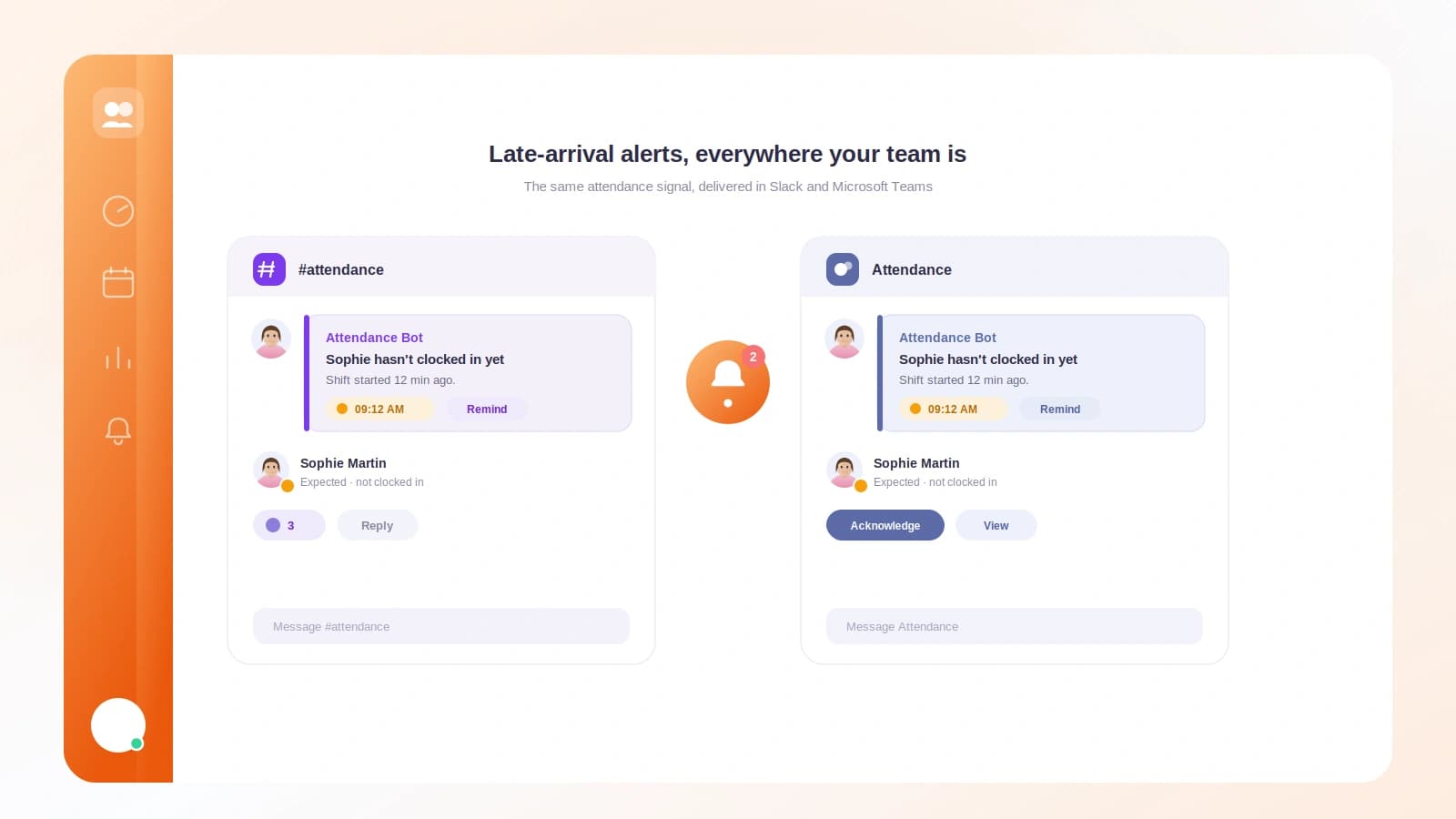
Most managers do not want another dashboard to babysit. You want to know one thing in the morning: did anyone show up late, and who? Tickin answers that question in the tool your team already lives in. When someone clocks in after your office start time, a late-arrival notice appears in Slack or Microsoft Teams, and then it goes quiet.
The one signal you actually need
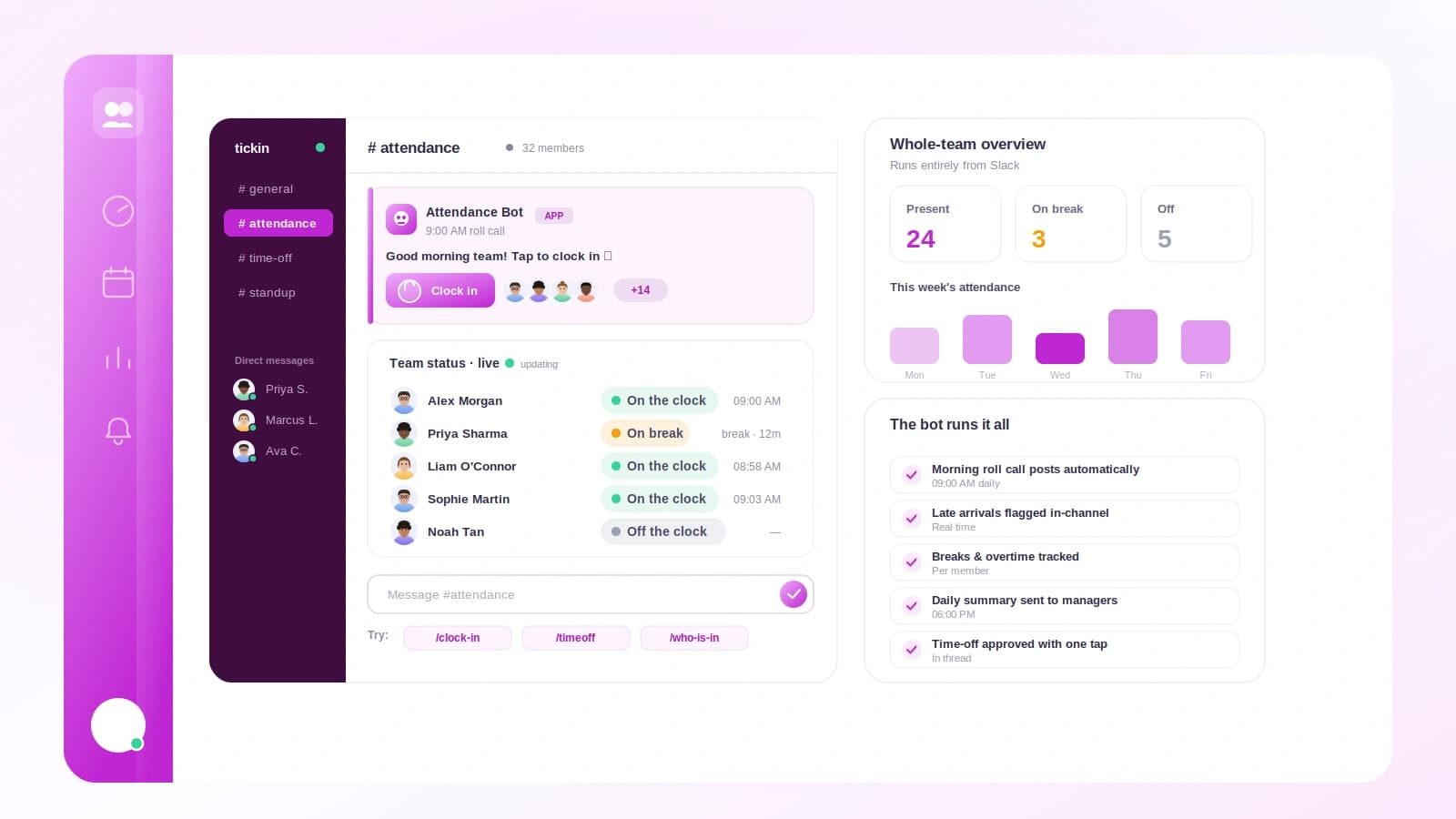
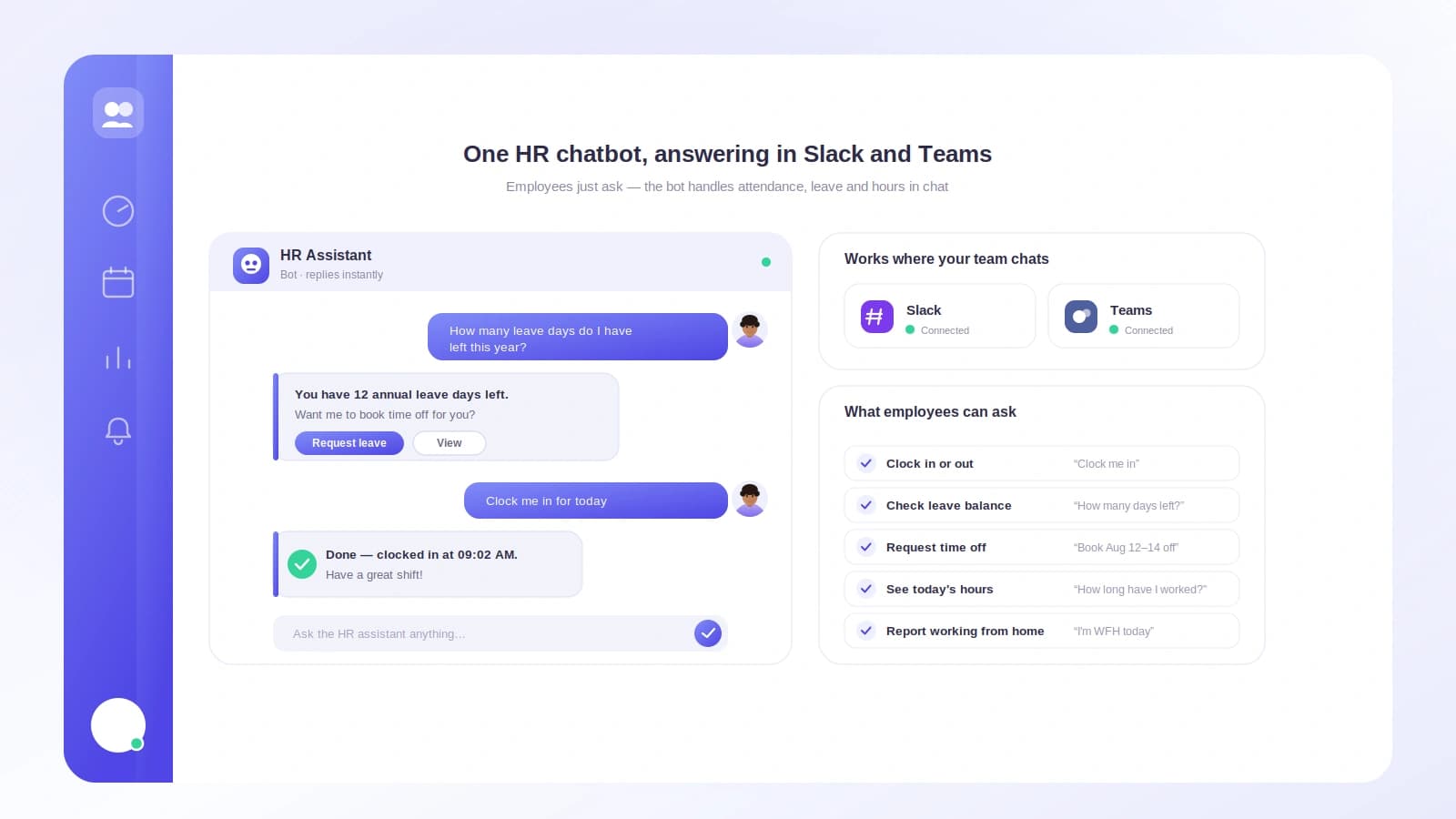
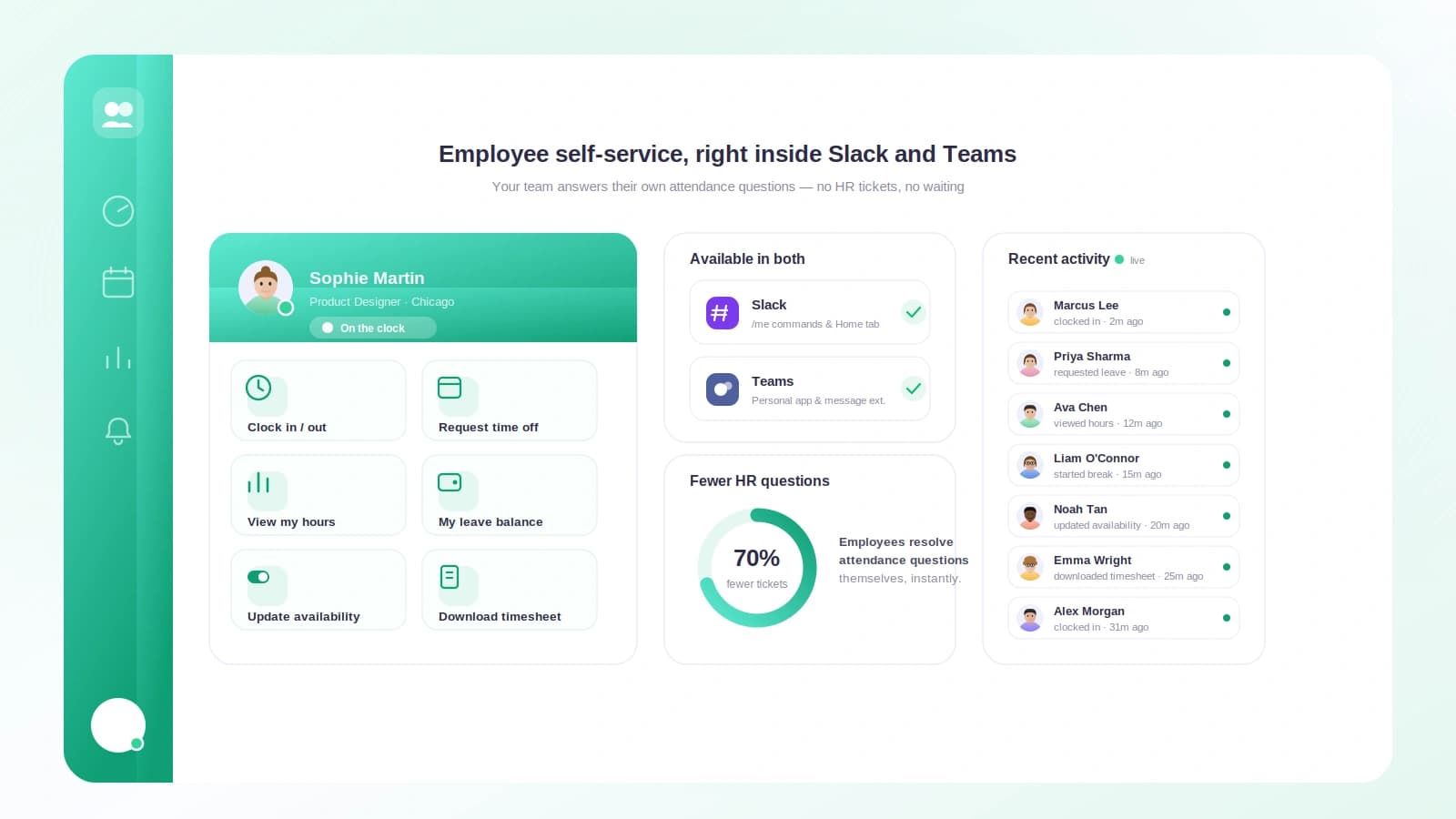
Tickin already lets your team clock in and out (and handle breaks and leave) straight from Slack and Microsoft Teams. Late-arrival alerts ride on that same connection. There is nothing new to install: connect a workspace, and the alert flows through it.
The rule is simple. You set your office hours (say 09:00 to 18:00) as the expected schedule. If someone clocks in after your start time, and you have turned on a grace period, they are counted late only once they pass start plus grace. The moment that happens on a working day, managers get a short notice with who clocked in and when.
That is the whole feature. No leaderboards, no scorecards, no daily digest to wade through. Just the signal, delivered where you can act on it.
Built to avoid noise
Attendance alerts fail when they cry wolf. A manager who gets five pings for one person, or a Saturday alert on a closed office, quickly mutes the whole thing. Tickin is designed so that never happens.
- One alert per employee per working day. Repeat clock-ins, edited entries, and background re-syncs never fire a second message. Deduplication is atomic: once per person, per work date, full stop.
- Working days only. If a day is not a working day for your tenant, no alert goes out.
- Public holidays are skipped. On a day off, there is nothing to be late for, so Tickin stays silent.
- Evaluated in your workspace timezone, so a 9:12 clock-in is judged against your local morning, not a server clock somewhere else.
- Off by default. The grace period ships off, so you opt in deliberately rather than getting surprised by alerts on day one.
The result is a channel you can leave unmuted. When a message lands, it means something.
Setting it up
Two small steps, and you are done.
First, connect your workspace. Link Slack or Microsoft Teams, then choose which one is your active channel. Alerts go to whichever workspace you have connected and selected, so a team that runs on Teams gets its notices in Teams, and a Slack shop gets them in Slack.
Second, turn on the grace period. Go to Settings, then Work schedule. The grace period is off by default; when you enable it, you pick an allowed late window from the preset options (0, 5, 10, 15, 20, 30, 45, or 60 minutes; 15 is the default). That number decides the line: clock-in after your office start plus the grace window counts as late, and triggers the alert.
Your working days and timezone are already part of your tenant setup, so the alerts respect them automatically.
The takeaway
Late-arrival alerts work best when they are boring: quiet most days, and trustworthy when they speak. Tickin leans into that. Connect the workspace your team already uses, set a grace period that matches how you actually run mornings, and let the one-alert-per-person-per-day rule do the rest. You get the visibility you need without turning a helpful heads-up into background noise your team learns to ignore.