How to Clock In and Out from Microsoft Teams
Learn how employees can clock in, clock out, take breaks, and check status from Microsoft Teams, plus how it fits alongside browser and desktop tracking.
Most teams that live in Microsoft Teams all day do not want to leave it just to record a shift. Opening a separate portal, logging in again, and hunting for a button is exactly the kind of small friction that leaves your timesheets full of holes. So a fair question is simple: can people just clock in from the same chat window they already have open?
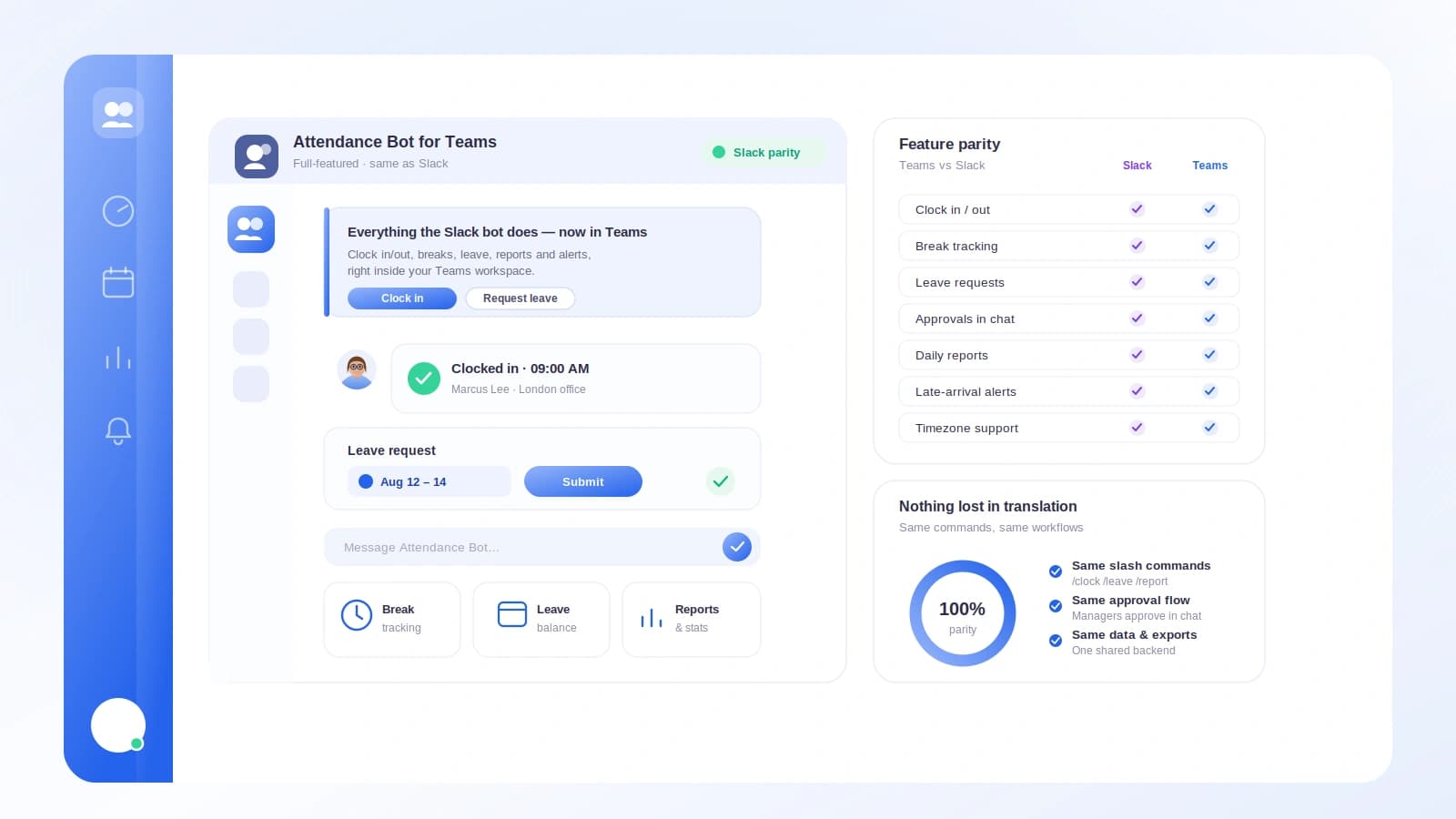
They can. Tickin includes a Microsoft Teams bot that lets employees clock in, clock out, take breaks, and check their status without leaving Teams. It mirrors the Slack experience, so if you have seen one, the other will feel familiar. This guide walks through how it works, what it does and does not do, and how it fits alongside the other ways your team can track time.
Why clock in from Teams at all
Attendance data is only as good as people's willingness to record it. A tool that asks for a detour gets skipped on busy mornings, and skipped punches turn into guesswork at payroll time.
Putting the clock inside Microsoft Teams removes that detour. Teams is already the front door to the workday for many distributed teams, so a clock-in becomes a quick message rather than a chore. The punch happens where attention already is, which is the single biggest reason chat-based attendance tends to stick.
This is the same logic behind chat-based clock-ins in general. If your team happens to use Slack instead, the reasoning carries over directly, and we cover it in detail in the best way to clock in and out in Slack.
What the Teams bot can do
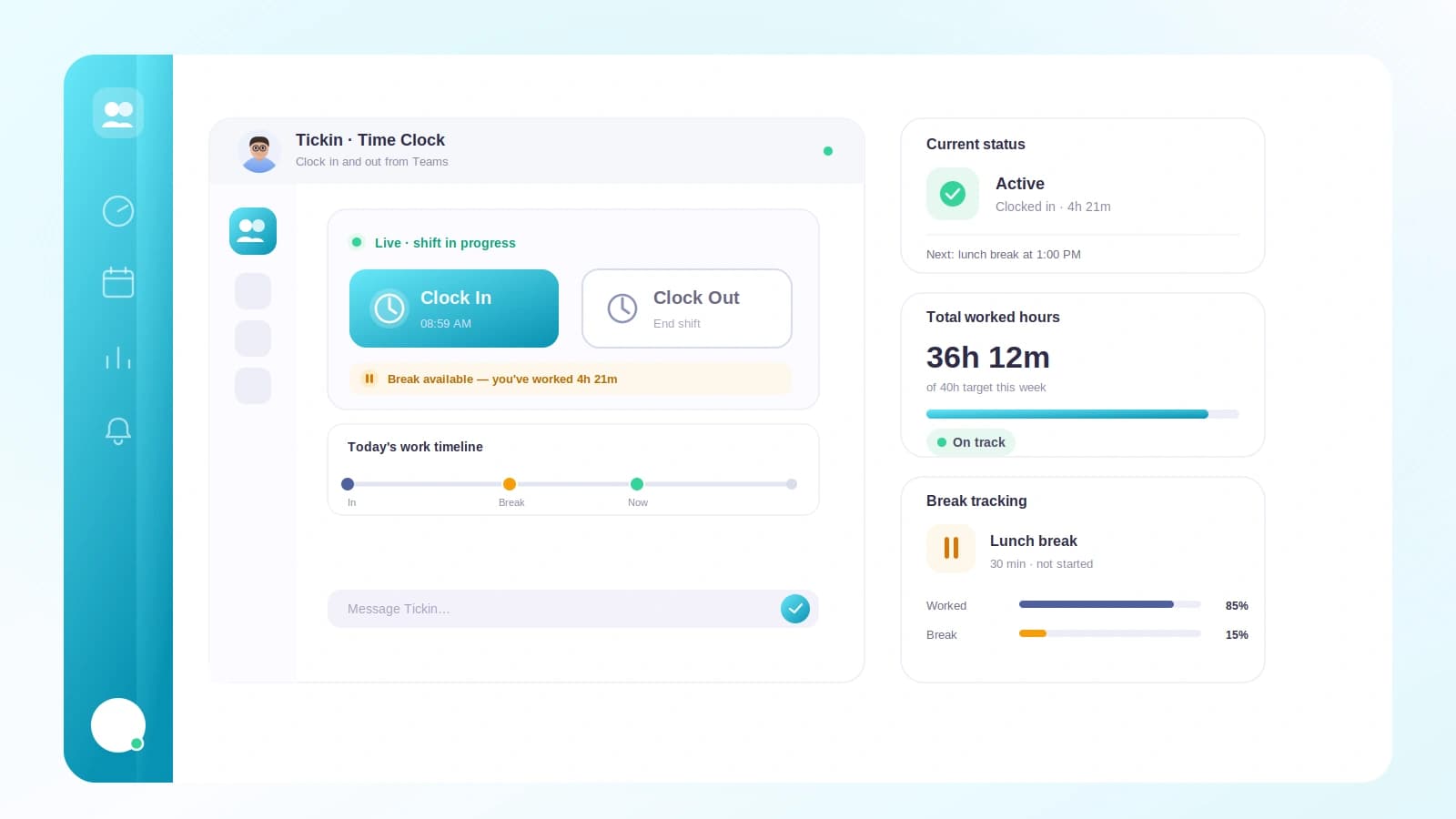
The Microsoft Teams feature gives your team a bot that handles the core attendance actions from inside a Teams chat:
- Clock in to start a shift.
- Clock out to end it.
- Take a break so paused time is recorded separately from working time.
- Check status to see where you stand, such as whether you are clocked in or currently on break.
Each of these is timestamped and logged the moment it happens, and the bot confirms the action back to you. That confirmation matters more than it looks: it closes the loop, so you know the punch landed and you are not silently missing from the record.
We are deliberately describing capabilities here rather than exact wording, because the point is what you can do, not memorizing a syntax. The experience mirrors Slack closely, so anyone who has used a chat-based clock will recognize the rhythm immediately.
How breaks and status keep totals honest
Not all time on the clock is working time. A break action pauses the clock and resumes it when you return, so lunch and short pauses are recorded separately from the hours you are actually working. This keeps totals honest and avoids both overpaying and underpaying for time that was never worked.
The status check is the quiet workhorse of the set. Before you assume you are clocked in, you can ask the bot and get a clear answer in the chat. That small habit prevents the classic mistake of thinking you started your shift when you never did, which is one of the most common sources of missing time.
Together, break and status support mean the messy middle of a real day stays accurate, not just the clean start and end.
Teams is one of several ways to clock in
Here is the part worth emphasizing: Microsoft Teams is one way to clock in, not the only way.
People can also clock in from the browser or from the optional desktop app. All of these feed the same attendance record, so your team is not locked into a single method. Someone can clock in from Teams in the morning, check their status from the browser at lunch, and clock out from the desktop app at the end of the day, and it all lands in one place.
That flexibility matters because real teams are not uniform. Some people live in Teams, some prefer a browser tab, and some want the desktop app running quietly in the background. Because every method writes to the same time tracking record, you get consistent data without forcing everyone into the same workflow.
If you are weighing chat platforms specifically, we compare the two options for attendance in Slack vs Microsoft Teams for attendance.
How Teams attendance feeds payroll
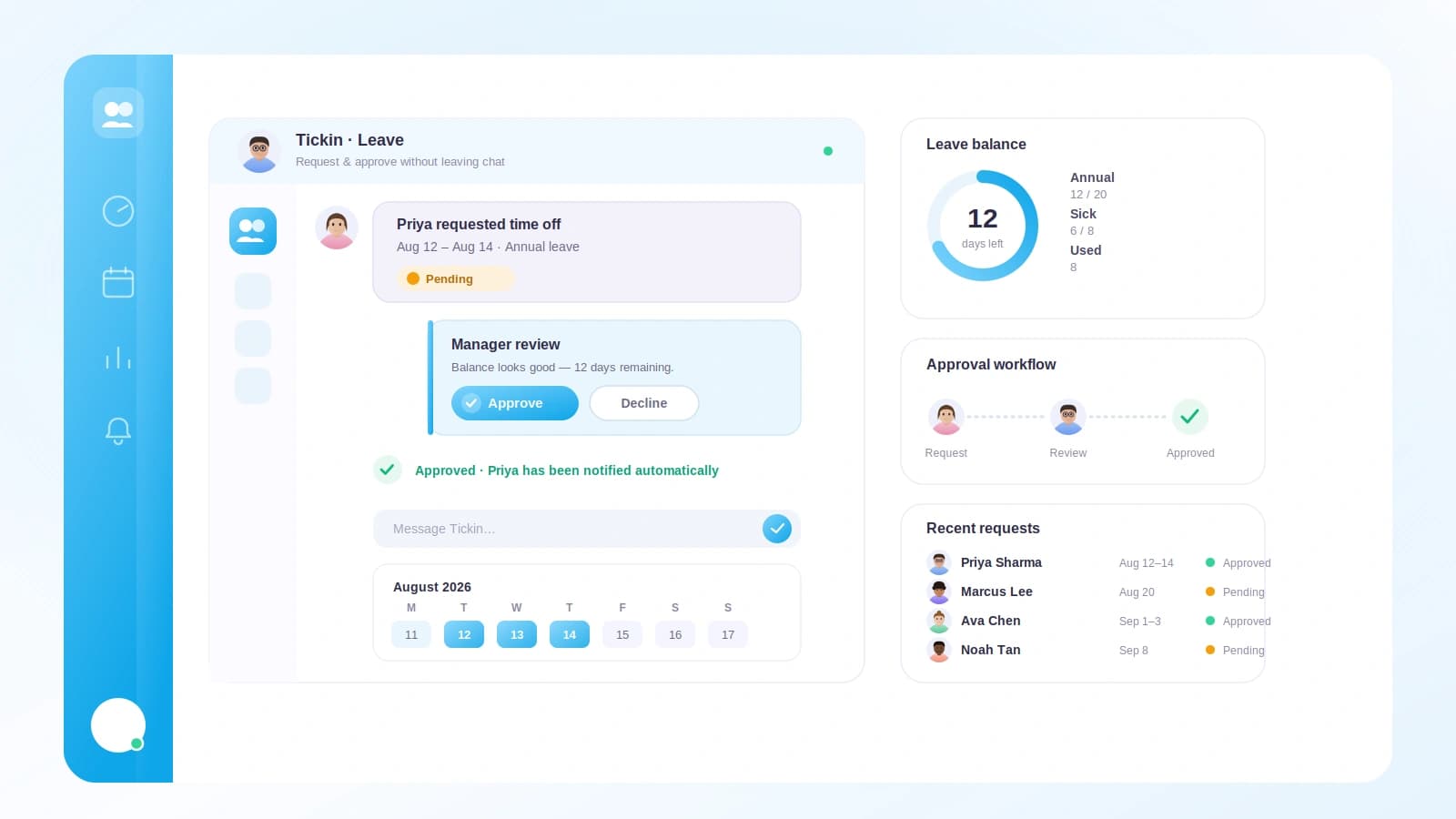
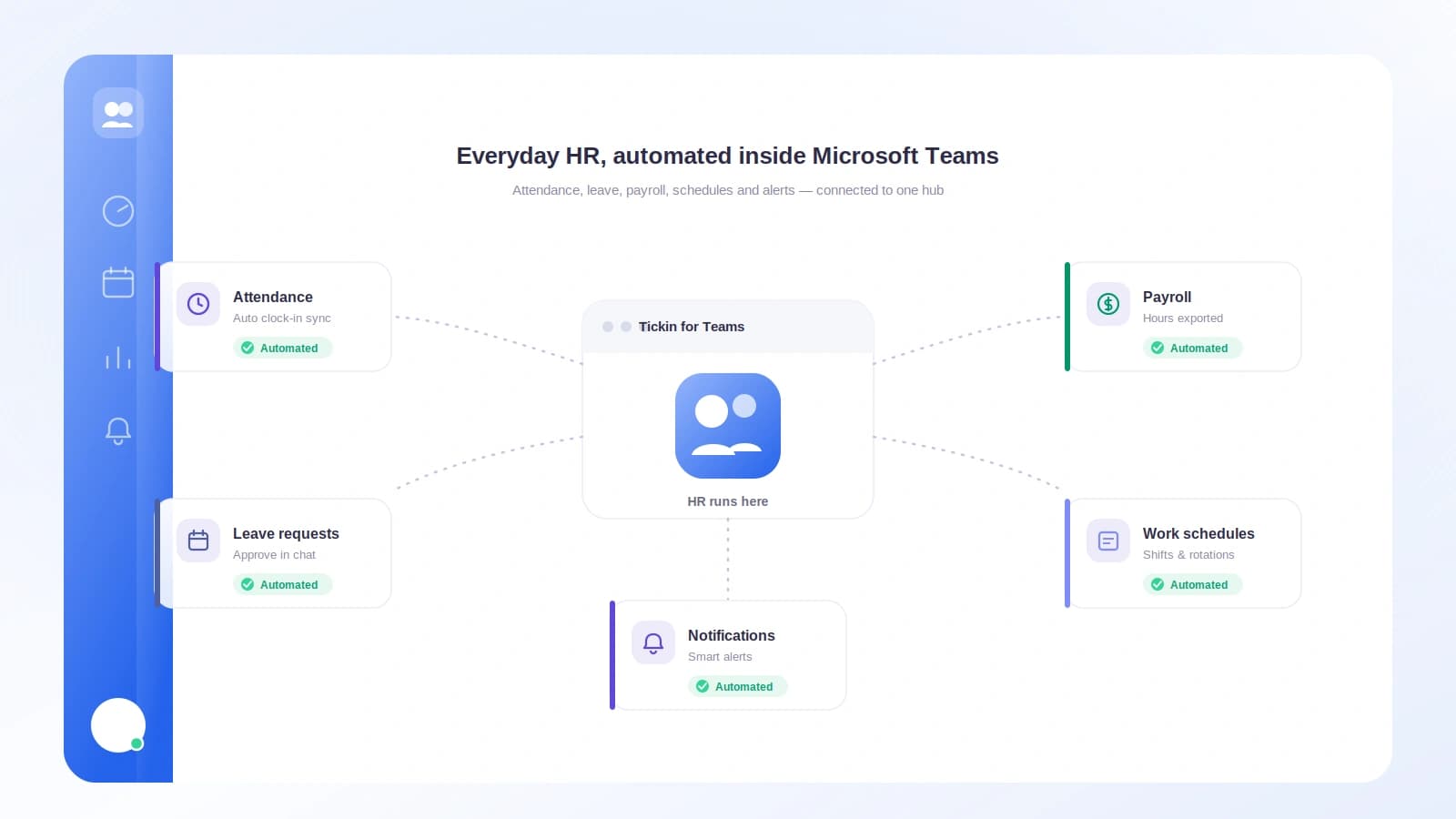
Clocking in from Teams is not a separate island of data. Every clock-in, clock-out, and break the bot records rolls up into the same monthly hours your business already relies on, and those hours feed payroll.
This is what turns quick chat messages into something your finance process can trust. Rather than someone guessing "about eight hours" at the end of the week, the attendance record holds precise, timestamped punches. Monthly totals are built from those punches, and payroll draws on the same totals. There is no re-keying, no parallel spreadsheet, and no gap between what people recorded and what they are paid for.
The practical payoff is fewer disputes. When the number that reaches payroll comes straight from timestamped punches, there is far less room for the small drift that quietly costs money over a full month across a whole team.
Setup: per-tenant Azure Bot on the Scale tier
Teams clock-in relies on a per-tenant Azure Bot. In plain terms, each workspace connects its own bot, and that bot is what carries clock-ins, clock-outs, breaks, and status checks between Teams and your attendance record.
A few things to know before you plan a rollout:
- It is available on the Scale tier. The Microsoft Teams bot is part of what the Scale tier includes, so it is the plan to be on if Teams clock-in matters to your team.
- The bot is per-tenant. Your workspace registers and connects its own Azure Bot rather than sharing a single global one.
- Once it is connected, people can clock in right away. After the bot is in place, employees clock in, clock out, take breaks, and check status straight from Teams.
Because the setup is per-tenant, it is worth treating it as a small onboarding step for whoever administers your Microsoft 365 environment rather than something every employee configures themselves. Once it is done, the day-to-day experience is just a quick message in Teams.
Getting the most out of it
A few habits make chat-based clock-ins stick:
- Encourage the status check. A quick status message before assuming you are clocked in prevents most missing-time surprises.
- Use breaks consistently. Recording lunch separately keeps paid time honest for everyone, not just the careful few.
- Let people mix methods. Since browser and desktop feed the same record, do not force Teams-only. Meet people where they already are.
- Keep clock-ins low-friction. The whole value of clocking in from Teams is that it happens without a detour, so keep it that simple.
None of this requires heavy process. The tool does the timestamping and the math. Your job is mostly to make the habit easy and let the record do the rest.
Frequently asked questions
How do employees clock in from Microsoft Teams?
A Teams bot connected to your workspace lets employees clock in, clock out, take breaks, and check their status without leaving Teams. Each action is timestamped and logged, and the bot confirms it back to the person who sent it.
Can I take breaks and check my status from Teams?
Yes. The bot supports breaks so paused time is recorded separately from working time, and it can report your current status, such as whether you are clocked in or on break, right inside the chat.
Is Microsoft Teams the only way to clock in?
No. Teams is one of several ways to clock in. People can also clock in from the browser or the optional desktop app, and all of them feed the same attendance record, so teams can mix methods.
What do I need to set up Teams clock-in?
Teams clock-in is available on the Scale tier and uses a per-tenant Azure Bot. Once the bot is registered and connected to your workspace, employees can clock in and out from Teams straight away.
The takeaway
If your team already spends the day in Microsoft Teams, clocking in and out from the same window is the path of least resistance. The bot handles clock-ins, clock-outs, breaks, and status checks, mirrors the Slack experience, and feeds the same monthly hours that drive payroll. It is available on the Scale tier with a per-tenant Azure Bot, and it sits comfortably alongside the browser and desktop app rather than replacing them.
Pick the method that fits each person, keep the punches honest, and your attendance data goes from full of holes to genuinely trustworthy.