Every feature. Every plan. The exact path from sign-up to your first payroll run.
Read it end to end on a slow afternoon, or jump by chapter when you need it.
We refresh this guide every time the product changes.
11Product modules
10Employees free
3Surfaces: Web, Slack, Desktop
~20Minute read, cover to cover
Audience
Admins, team leads, employees
Last updated
May 2026 release
Format
One page. Print to PDF anytime.
Chapter 01
Welcome to Tickin
Tickin replaces the spreadsheets, the email threads, and the three tools your team has been
gluing together. Time, leaves, payroll, overtime, shifts, and reports in one workspace.
Accessible from the web, from Slack, and from an optional desktop client.
What you can do with Tickin
Track
Time & attendance
Clock in from the web, Slack, or desktop. Pause for breaks with one Slack command. Idle detection on the desktop client.
Approve
Leaves & approvals
Custom leave quotas per type, balances tracked from approved requests. Admin approval on every plan; two-stage team-lead → admin approvals and overtime detection on Growth.
Pay
Payroll & salary slips
Pro-rated salary and overtime calculated automatically. PDF slips per locale.
Plan
Shifts & schedules
Weekly work schedules per employee or department. Set working hours and active days.
See
Reports & insights
Weekly email time summaries on every plan; monthly summaries on Growth. Attendance and leave data in the admin portal.
Audit
Append-only audit log
Employee, integration, and tax changes recorded with actor, timestamp, and before/after. Available on Growth.
Figure 1. How Tickin connects your team, your tools, and your billing. Every plan gets time tracking, leave, payroll, shifts, weekly reports, and Slack; overtime detection, two-stage approvals, monthly reports, and the audit log are on Growth, and the Desktop App is an optional add-on.
Chapter 02
Getting started in five steps
Most teams are fully onboarded in an afternoon. No implementation consultants, no setup calls.
Sign up & create your workspace
Go to tickin.pro/signup. Continue with Google or use your work email. Pick a workspace name and a slug; your workspace lives at your-slug.tickin.pro. The slug — the your-slug part — uses lowercase letters, numbers, and hyphens; dots aren't allowed (spaces and dots are turned into hyphens automatically), because the slug is a single web address.
Set your country, currency and time zone
From Workspace settings, pick the country you operate in. Tickin auto-fills the matching currency and time zone, you can override either one. The time zone is what every scheduled job (the daily leave report, weekly and monthly summaries, salary slips) and all "today" calculations run on, so set it to where your team actually is. Multi-zone countries (US, Australia, etc.) default to a representative zone; use the time-zone picker to choose your exact one. Tickin also localizes payroll, shifts and salary slips around these values.
Invite your team
Open People → Invite. Add emails individually or paste a CSV. Each invite carries the role you assigned: Admin, Team Lead, or Employee.
Connect Slack (optional but recommended)
Under Integrations → Slack, click Add to Slack. Once connected, employees can clock in, request leave, and approve overtime without leaving Slack.
Pick your plan
You start on the Free plan — free forever for up to 10 employees, with no card. Upgrade to Starter or Growth any time from Workspace → Billing.
Pro tip. Onboard one team first (say, five people) before rolling out company-wide. Use that team to validate your leave policies and shift templates, then scale.
Chapter 03
Your workspace, end to end
A workspace is your company's private home in Tickin. People, policies, payroll, and history all live inside it.
What lives inside a workspace
People. Employees, team leads, and admins. Each profile holds employment details, salary, leave balances, and reporting line.
Teams. Group people for delegated approvals. A team lead manages their own team only; admins see everyone.
Policies. Leave types, accrual rules, working hours, overtime thresholds. Set once, applied everywhere.
Records. Time entries, leave history, payroll runs, salary slips. Immutable once finalized.
Audit log. Every meaningful change is logged with who, what, and when.
Workspace settings to configure on day one
Currency & locale
Drives payroll, salary slips, and the symbols shown everywhere in the product.
Country preset
Pick from 17 country profiles to apply local tax brackets and payroll rules. Brackets stay editable from Money → Tax once loaded.
Work schedule
Daily working hours (default 9), the days of the week your team works (any combination, default Mon to Fri, e.g. Sun to Thu), an optional override for the monthly required total, and the day your weekly digest email goes out (default Monday). Working days and public holidays drive the overtime trigger, the monthly summary, leave-day counting, and which days the daily report posts.
Leave quotas
Annual, sick, casual, unpaid, parental. Set the annual quota and whether each type needs approval.
Salary components
Define earnings and deductions beyond basic pay. Choose fixed amounts or percentages of basic, gross, or CTC, with optional caps.
Slack workspace
Connect your Slack workspace for clock-in commands, OT confirmations, and leave notifications.
Workspace contact
The admin who receives billing emails, dunning notices, and payment reminders.
Email (SMTP)
Connect your own SMTP so invites, salary slips, and reports go out from your domain.
A first-run setup checklist on the admin dashboard tracks which of these you've completed and links straight to the right page for each.
Chapter 04
Three roles. Clear boundaries.
Each role sees what they need and nothing more. Promote or demote any time from the People page.
Figure 2. Roles flow top-down. A user can hold one role per workspace.
Capability
Admin
Team Lead
Employee
Edit company settings & policies
✓
—
—
Manage billing & plan
✓
—
—
Invite or remove people
✓
—
—
Edit salaries
✓
—
—
Approve leaves & overtime
✓ (any)
✓ (their team)
—
Adjust time entries
✓ (any)
✓ (their team)
Request only
Clock in, request leave, confirm OT
✓
✓
✓
View own salary slip
✓
✓
✓
View team-wide reports
✓ (company)
✓ (their team)
—
Chapter 05
Plans & pricing
Three plans, one optional add-on, two billing cycles. All amounts in USD. Invoices and tax handled for you.
The Desktop App is optional on every plan. It runs on macOS, Windows, and Linux, captures activity-aware time entries, and syncs to your workspace automatically. Pricing is consistent across tiers, and is never discounted on annual billing.
Plan
Desktop App pricing
How it's added
Starter
$3 / employee / month
Toggle on in Billing. Applies to your seat count.
Growth
$3 / employee / month
Toggle on in Billing. Applies to your seat count.
Scale
$3 / employee / month
Toggle on in Billing. Applies to your seat count.
Monthly or annual
Switch billing cycle from Workspace → Billing. Annual prepays 12 months and applies a 20% discount to your base plan. The Desktop App add-on is billed at its full rate either way.
No seat minimum. Both plans bill per seat for exactly your team size — if you have 7 people, you pay for 7, from a single seat up. Starter is $2 per employee per month and Growth is $3, with no minimum or employee cap on either.
The Free plan
Every workspace starts on the Free plan — free forever for up to 10 employees, with full feature access and no credit card. Upgrade to Starter or Growth any time from billing when your team grows, and nothing pauses by surprise.
Chapter 06
Managing your billing
Everything you'd otherwise need a support ticket for is a button in your dashboard. Change plan, toggle the Desktop App, see what you'll be charged, before you confirm.
Where to find it
Open Workspace → Billing. Only admins see this page. From here you can:
Switch plan (Starter ↔ Growth)
Switch billing cycle (monthly ↔ annual)
Toggle the Desktop App add-on
Toggle auto-renewal
Open your billing portal to update card details or download invoices
View payment history
Switching plan, with a prorated preview
When you change plans mid-cycle, Tickin shows you the exact prorated charge or credit before you confirm. The new rate applies immediately and your next renewal moves to the new plan. Add-ons stay attached.
Figure 3. A subscription's life. Failed payments enter an 8-day grace period before anything pauses. Nothing is ever deleted.
What happens if a payment fails
You get an 8-day grace period. We email and Slack-DM the workspace contact on day 0, day 2, and day 5 with a one-click link to update the card. If the card still hasn't cleared by day 8, the workspace pauses. Your data stays safe; only write access is locked until billing is current. Reactivation is instant once payment goes through.
Auto-renewal
Auto-renewal is on by default. Turn it off from Billing to let your subscription expire at the end of the current cycle. You'll still have full access until then. Turn it back on any time to keep going.
Adjusting seats
On per-seat plans, your seat count updates automatically as you add or remove people. Bills prorate; you'll never be billed twice for the same period. There's no seat minimum — your bill always reflects exactly your current team size.
Canceling
From Billing, click Cancel subscription. You retain full access until the end of the current billing period. After that the workspace becomes read-only; your data remains exportable for 90 days.
Chapter 07
Features in depth
A reference tour. Skim by heading, or read end to end on a slow afternoon.
Time tracking & attendance
Employees clock in from the web, from Slack with /tickin start, or from the Desktop App. Breaks are toggled with /tickin break, which pauses and resumes the work timer; the Desktop App also captures idle periods automatically and deducts them from worked time. Net worked time is gross hours minus break time, end of story. Admins and team leads can adjust entries with a reason; employees submit adjustment requests for their approver to action.
Office hours, daily working hours & grace period
In Settings → Work schedule you set your workspace's office hours — a start and end time such as 09:00 AM – 06:00 PM. These are your expected attendance schedule: they drive lateness and show on each employee's My day view. Separately, daily working hours is the payable figure every business calculation uses — overtime, monthly required hours, payroll, and reports all read it, never the office window. By default daily hours track the office span (09:00–18:00 → 9), but you can set them manually, for example a 09:00–18:00 office with an 8-hour paid day to account for an unpaid lunch. Once you set daily hours by hand, changing office hours never overwrites them until you choose Reset to Auto. Monthly required hours keep working exactly as before (daily hours × working days, or a manual override).
Turn on a grace period to allow a short late window (5 to 60 minutes). If someone clocks in after the start time plus the grace window — evaluated in your workspace timezone, only on your configured working days, and never on a public holiday — Tickin posts a late-arrival notice to your managers' channel on Slack or Microsoft Teams (whichever you've connected and ticked under “Notify managers via”). Each employee triggers at most one alert per working day, so attendance edits and repeat clock-ins never spam. The grace period is off by default, so nothing changes until you enable it.
GPS-based attendance verification Scale
For teams that need clock-ins to happen on-site, admins can require GPS verification. In Integrations → GPS-Based Attendance Verification, turn it on and enter your office address, that's the only input. Tickin geocodes the address and draws a geofence (a 250 m radius by default) around it. From then on, when an employee clocks in from the web portal or Desktop App, their device location is checked against that geofence: inside the radius clocks in normally, outside is blocked, and if the location can't be read the entry is marked for review rather than refused, so nobody is ever stranded. Every clock event is stamped Office, Off-site, or N/A in the attendance history for admins and team leads.
Because Slack and Microsoft Teams can't report a reliable device location, clock-in and clock-out from chat are disabled while GPS verification is on; employees use the web portal or Desktop App instead (status, breaks, and everything else in chat keep working). The login screen also asks for location permission up front so verification is ready at clock-in. This feature is on the Scale plan.
Leave management
Define leave types at the workspace level: annual, sick, casual, unpaid, parental. Each type has an annual quota, a flag for whether it requires approval, and a unique color in the calendar. Employees submit requests from the web portal; team leads approve their team, and admins sign off. Used days are tracked automatically from approved requests, and a daily Slack roll-up shows who's out today.
Payroll & salary slips
Tickin calculates pro-rated salary, deductions, and overtime automatically. Run payroll for any period; review line by line; publish. Salary slips render as PDFs in each employee's locale, with full CJK font support for Japanese, Chinese, and Korean names, and ship monthly on the 3rd to every employee's email.
Overtime detection
Set a daily threshold per workspace (default: 9 hours, editable in Settings → Work schedule). When an employee clocks out having exceeded it, Tickin asks how to record the extra time. In the web dashboard a modal offers Count extra as overtime or Cap at the threshold; where Slack or Microsoft Teams is connected, the same choice arrives as a DM with two buttons (continue as overtime / cap at the threshold). The session stays open until a choice is made, then closes on it — the decision is logged with the session, and confirmed overtime flows straight into the monthly report and the admin's approval queue.
Monthly summary
On the 1st of every month, Tickin snapshots the previous month's overtime per employee and shows a 3-step breakdown: how much approved OT was absorbed into the monthly required hours (gap-fill), how much offset desktop-tracked idle time (idle-cover), and the leftover payable surplus. Admins see everyone, team leads see their reports, employees see themselves. The view sits next to the daily OT log on the Overtime page.
Monthly required hours are computed automatically from your Work schedule (daily hours × working days in the month, minus paid public holidays, minus each employee's approved leave). Admins can pin a custom monthly total if the auto value doesn't fit.
Shift management
Design weekly work schedules per employee or per department. Set working hours, active days, and minimum hours from the Shifts page. Employees and team leads see their week at a glance from the home screen.
Team-lead approvals
Tickin delegates without losing oversight. Team leads handle adjustments and leaves for their own team only; admins see everything across the workspace. The team lead role is a clean middle layer between admin and employee.
Slack-native workflow
Slack is a first-class surface, not a bolt-on. Clock in, take breaks, check status, request leave, and confirm overtime, all without leaving the channel where your team already lives. Leave and WFH requests can be filed right in Slack with /tickin leave (Full-Day; use the web dashboard for a half day), and approvers act on them with Approve / Decline buttons in Slack or in the web portal, whichever they prefer.
Reports & insights
Weekly and monthly time-entry summaries land in your inbox: sessions and hours per employee. Overtime, attendance, leaves, and a daily roll-up are available in the admin portal, filterable by employee, department, and date range.
Self-serve billing
Switch plans, add or drop the Desktop App, toggle auto-renewal, update your card, download invoices, all from Billing. Every change shows its prorated impact before you confirm.
Activity log
Employee, integration, and tax changes are recorded append-only with actor, timestamp, and before/after values. Key day-to-day events (clock-ins, leave approvals, OT decisions) are recorded separately in the activity log. Both are filterable and useful for compliance and forensics.
The best HR software is the one your team doesn't notice. It just works, quietly, while the people you hired get on with the work you hired them for.
The Tickin operating principle
Chapter 08
Projects & tasks
Plan the work, not just the hours. Group tasks into projects, move them across a simple board, and let the time people log against a task flow into the same approvals you already trust.
The Projects module sits alongside time and leave as a place to organise actual work. A project is a container — a client engagement, a product, an internal initiative — with its own members and its own board of tasks. Each task is a card you can describe, assign, prioritise, schedule, break into sub-steps, attach files to, and discuss. When an assignee works on a task, they log time against it, and that time runs through a two-stage approval before it counts. Everyone reads the same board, so there's no separate status meeting to keep it honest.
Projects · tickin.pro
To Do
designMobile checkout
In Progress
apiCard validation
Done
Address picker
frontendRedesign checkout
Task
Redesign checkout flow
Saved-address picker
Inline card validation
Sticky order summary
Sara · Looks great @Ali — ship it 🚀
⏱ 2h 30m logged
🧑💻
Logged
🧭
Team lead
✅
Admin
Approved · synced to payroll
A quick look at the module: drag a task across the board, check off sub-steps and discuss, then log time through the two-stage approval that feeds reports and payroll.
Creating a project & adding members
Open Projects from the side navigation and click New project. Give it a name and an optional description, then add the people who'll work on it. Only the members you add can see the project and its board — it isn't visible workspace-wide — so a project is also a quiet way to scope who sees what. Add or remove members at any time from the project's Members panel; a removed member loses access immediately but any time they already logged stays on the record.
Admins and team leads create projects and manage their members. An employee added to a project sees its board, works the tasks assigned to them, and comments — but doesn't create or restructure the project itself.
The board: To Do, In Progress, Done
Every project opens on its board — three columns, To Do, In Progress, and Done, with each task shown as a card. Move work forward by dragging a card from one column to the next; the new status saves the moment you drop it, and everyone watching the board sees the change. A card shows its title, priority, due date, assignee avatars, and labels at a glance, so the state of the whole project reads in a single scan.
Only a task's assignee can move it between columns. This keeps the board truthful — progress is reported by the person doing the work, not by someone reshuffling cards from the outside. Managers who need to recategorise a task can do it by editing the task itself.
Creating a task
Click Add task at the top of any column, or New task from the project header. A task carries:
Title — a short, plain summary of the work.
Description — the full detail, context, and acceptance criteria.
Priority — Low, Medium, High, or Urgent, shown as a colored tag on the card.
Due date — when it's expected; overdue cards are flagged so nothing slips quietly.
Assignees — one or more people responsible. Each assignee can move the task's progress and log time against it.
Labels — free-form tags (design, backend, blocked, a client name) to group and filter work however suits your team.
Tasks are created and edited by admins and team leads. You can fill in as much or as little as you like up front and refine the rest later — every field is editable from the task view.
Searching & filtering the board
As a project grows, use the controls above the board to narrow what's shown. Type in the search box to match task titles and descriptions, or filter by label, assignee, or priority. Filters combine — for example, High-priority tasks assigned to one person carrying the blocked label — and the columns redraw instantly to show only the matching cards. Clear the filters to return to the full board.
The full task view
Click any card to open the full task view — a focused page with everything about that task in one place:
Detail
Description
The complete write-up of the work, plus its priority, due date, assignees, and labels — all editable in place by a manager.
Steps
Checklist
Break a task into sub-steps and tick them off as you go. A progress bar shows how many are done, so a half-finished task reads at a glance.
Files
Attachments
Attach files — mockups, specs, screenshots — directly to the task so the reference material lives with the work, not in a chat thread.
Talk
Comments
Discuss the task in a threaded conversation. Type @ to mention a teammate and pull them in; they're notified right away.
The checklist turns a big task into a sequence of small, checkable steps and rolls them into a single progress indicator. Comments with @mentions keep the discussion attached to the task rather than scattered across messages — anyone who can see the task can comment, and a mention or a reply on a task you're assigned to reaches you through your notifications.
Who can do what
The Projects module follows the same clear boundaries as the rest of Tickin:
Action
Manager (admin / team lead)
Assignee
Other project member
Create & edit projects, manage members
✓
—
—
Create & edit tasks
✓
—
—
Move a task between columns
via editing
✓
—
Log time on a task
—
✓
—
Comment & @mention
✓
✓
✓
In short: managers shape the work, the assignee reports progress and logs the hours, and anyone who can see a task can join the conversation.
Time tracking on tasks
When you work on a task you're assigned to, open it and log time in minutes — say, 90 minutes against "Build the export endpoint." Logged time doesn't count the moment you enter it; it enters a two-stage approval so the numbers that reach reports and payroll have been reviewed.
An assignee logs time
The person assigned to the task records the minutes they spent. The entry is created in a pending state and shows up for review.
The team lead approves first
The team lead who created the task reviews the entry and approves it. This first sign-off confirms the work and the time were as described.
The sys-admin gives final approval
After the team lead, a sys-admin gives the final approval, at which point the time is confirmed and flows into the dashboard and reports.
A sys-admin's own logged time is auto-approved — there's no one above them to sign off, so their entries skip the queue and count immediately.
The Projects dashboard
The dashboard turns all those tasks and hours into a picture of where the work stands. It breaks the numbers down three ways — by project, by task, and by employee — so you can see which project is absorbing the most effort, which tasks are carrying the hours, and how each person's logged time is distributed.
It also hosts the approvals board: every pending time entry waiting on a first or final sign-off, in one queue, so team leads and sys-admins can clear reviews in a sitting rather than hunting task by task. Employees get their own History view — a running record of the time they've logged and where each entry stands (pending, approved, or sent back) — so everyone can see their own contribution without seeing everyone else's.
Notifications
Projects plug into the same notification channels as the rest of Tickin, so you hear about the things that involve you without watching the board. Each of these lands in the in-app bell, and is also delivered as a direct message in Slack and Microsoft Teams where those integrations are connected:
Assignments — when a task is assigned to you, so you know it's now yours to move and to log against.
@mentions — when someone names you in a comment to pull you into the discussion.
Comments on your task — when there's new conversation on a task you're assigned to.
Time approvals — when your logged time is approved (or sent back), and, for reviewers, when an entry is waiting on your sign-off.
The bell is always on. Slack and Microsoft Teams DMs only arrive when that integration is connected for your workspace — see the next chapters to set them up.
Chapter 09
Slack workflow
Tickin treats Slack as a primary surface. Clock in, take a break, check your status, all without leaving the channel where your team already lives.
Slash commands
Tickin registers a single command, /tickin, with sub-keywords. Type /tickin help anytime to see the list. Short aliases are shown in parentheses.
Command
What it does
Who can run it
/tickin start
Start a time entry for the current shift. Announces in the attendance channel.
Any employee
/tickin end
End the current time entry. Closes any open break automatically and posts the net worked time.
Any employee
/tickin break (br)
Toggle a break. Run it once to pause the work timer, again to resume. Tickin tracks your current state.
Any employee
/tickin attendance (att)
Private summary of today: clock-in time, hours worked, total break time, and whether a break is active.
Any employee
/tickin overtime (ot)
Your overtime status for the current session.
Any employee
/tickin balance (bal)
Your remaining leave balances, showing only the leave types you're eligible for.
Any employee
/tickin leave
Opens a form (modal) to request Full-Day leave or WFH. Submits through the same engine as the web dashboard.
Any employee
/tickin holidays (hol)
Upcoming public holidays on your workspace calendar.
Any employee
/tickin help (?)
List every command and what it does.
Any employee
start/end also accept the aliases clockin/clockout. Leave and WFH from Slack are Full-Day only; for a half day, use the web dashboard.
How breaks work
Breaks pause your work timer. Type /tickin break when you step away; type it again when you're back. Tickin tracks the state for you. Net worked time is always clock-out minus clock-in minus the sum of all break time for that session. Take as many breaks as you need; they all add up.
Daily and weekly summaries in your dashboard show three numbers side by side: gross hours, break hours, and net hours. Admins see the same breakdown for their team. Overtime detection uses net hours, so a long lunch never trips the daily threshold by accident.
How the math lands for one work session, side by side:
Gross worked9h 12mclock-out − clock-in
−
Break time0h 48msum of every /tickin break
=
Net worked8h 24mcounts toward pay & OT
Two breaks of 30 and 18 minutes total 48 minutes, which Tickin subtracts from the 9h 12m between clock-in and clock-out, leaving 8h 24m of net worked time. Half-day or seconds-level breaks are handled the same way — every break is summed and deducted.
Forgot to end a break before clocking out? Tickin closes it for you automatically and uses the elapsed time. Your timesheet stays clean either way.
Notifications you can expect
Overtime check. DM the moment your net work crosses the workspace daily threshold, with two buttons: continue working (counts as OT) or clock out now (caps at the threshold).
Leave requests. DM to the team lead (or admin if no lead) when an employee submits a leave request, with an "Open in dashboard" button.
Leave outcomes. DM back to the requester when their request is approved or denied, including the admin's note.
Adjustment notifications. Attendance adjustments and overtime decisions DM the team lead, admin, and requester at each step.
Public holiday announcements. When an admin adds a public holiday, the attendance channel gets a heads-up message.
Daily leave report. Once a day, a clean summary posts to the report channel as a table listing who's out and why (WFH, sick, casual, annual, paternity, maternity), with a per-type and total count. It sends only on your working days, skips public holidays, and goes out at the hour you choose, in your workspace time zone.
Choosing when the daily report posts
The daily leave report is on by default. From Integrations → Daily leave report you can turn it off or pick the hour (0–23); it posts once that day, at that hour, in your workspace time zone (the one from Settings, see above), on working days only, to your Slack Leave channel — or the Default channel if you haven't set a Leave channel. Because the scheduler is aligned to the minute, the post lands right at the top of the hour you choose, in your workspace time zone (within about a minute), rather than drifting later in the hour. Want to see it immediately? Click Send test now on the same row — it fires the report straight away so you can confirm the format and that your channel is set, without waiting for the scheduled time.
Connecting Slack to your workspace
Connecting Slack is a one-click Add to Slack flow. There are no tokens, signing secrets, or webhooks to copy, and no slash commands to register by hand. Tickin runs a single Slack app that serves every workspace; you authorize it once and choose where notifications post.
Open the Slack integration
In the admin portal, go to Integrations → Slack and click Add to Slack.
Authorize Tickin in your workspace
Slack shows the access Tickin requests, posting messages, reading basic profile info to match employees by email, and running the /tickin command. Review and click Allow. Slack sends you back to Tickin, now connected. The workspace's access token is stored encrypted; nothing sensitive ever touches your browser.
Choose notification channels
Back in Integrations → Slack, set your channels. The Default channel is required for channel posts — clock-in/out and attendance announcements, holidays, and the daily leave report all post there. Until you pick one, a setup checklist flags "Default Channel required" and those channel messages simply aren't posted. The Leave and Holiday channels are optional (each falls back to the Default). Direct messages, such as overtime checks and leave approvals, go straight to the right person, so they work with no channel selected.
That's it. /tickin works for everyone in the workspace right away, and the interactive parts, the leave form, the Approve / Decline buttons, and the overtime buttons, are already wired. There is nothing else to switch on.
Reconnect, disconnect & uninstall
Reconnect. Running Add to Slack again for the same workspace refreshes access and keeps the channels you already chose.
Disconnect. Use Disconnect in the Slack panel to stop all Slack messages for your workspace.
Uninstall or token revoke. If someone removes Tickin from Slack, or revokes its token, Tickin notices automatically, marks the connection disconnected, and stops messaging. Reconnecting later restores the same setup.
Each Slack workspace connects to exactly one Tickin account. If a workspace that's already linked elsewhere is connected to a new account, the previous link is released automatically, so a workspace is never shared across tenants.
Approving requests from Slack
When someone files a leave, WFH, or attendance-adjustment request, the approver gets a direct message from the Tickin app (not a channel post, so the buttons stay private) with Approve and Decline buttons. On Growth's two-stage flow the request goes to the team lead first; approving forwards it to an admin for final sign-off, and either decline ends it. The employee is notified on Slack the moment a decision is made, and every Slack approval is written to the audit log just like a decision made in the dashboard.
The buttons work as soon as Slack is connected, there is nothing to enable. If a request can't be actioned (for example it was already handled elsewhere), the button reply says so instead of failing silently.
Integration
Microsoft Teams
Run attendance where your team already collaborates. On the Scale plan, your team clocks in and out, takes breaks, checks status, checks leave balances, requests time off, and views holidays inside Microsoft Teams — full command parity with Slack — and managers approve leave and overtime without ever leaving Teams.
Two surfaces
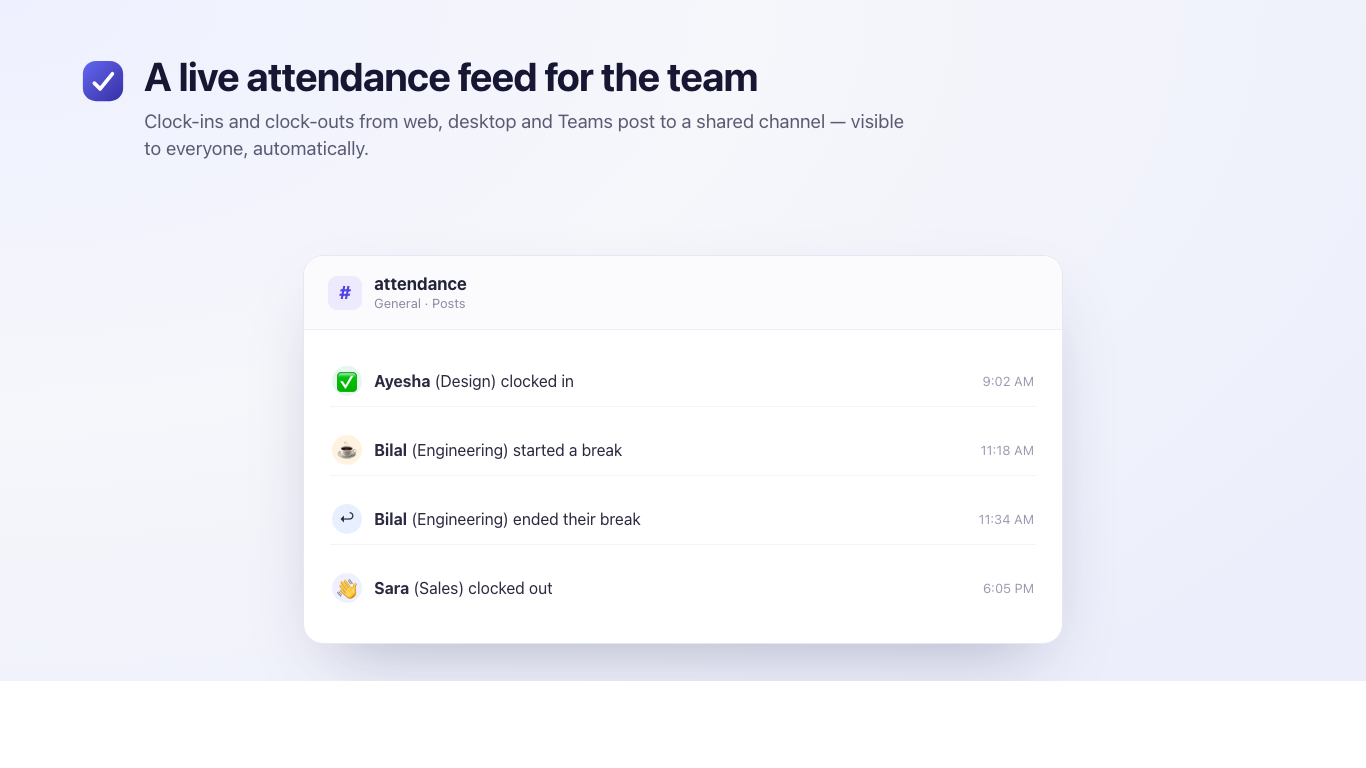
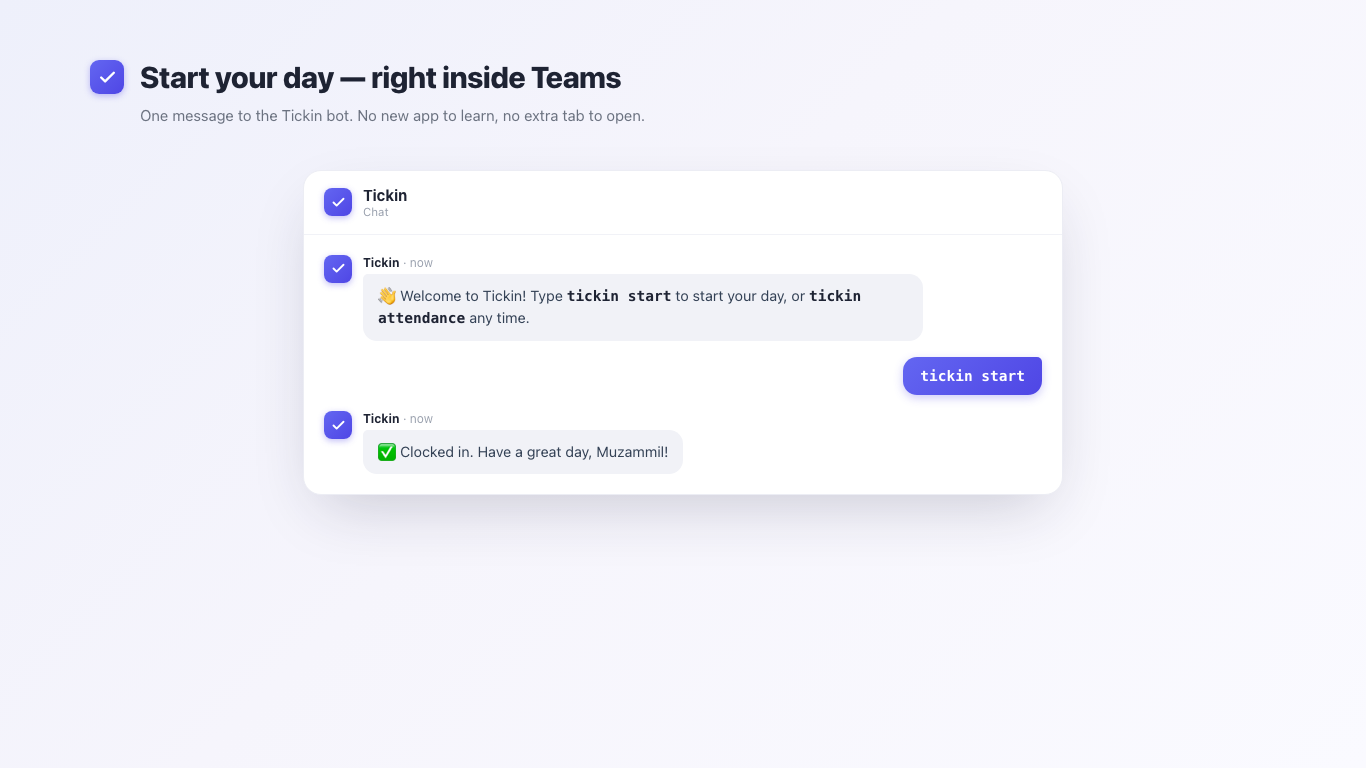
Each person gets a private chat with the Tickin bot for commands, and the team gets a shared channel that shows a live attendance feed:
tickin attendance — a private summary of hours worked and breaks taken
tickin balance — your remaining leave balances, for the leave types you're eligible for
tickin leave — request Full-Day leave from a card (same engine as the web dashboard)
tickin holidays — upcoming public holidays on your workspace calendar
tickin help — list every command
Clock in from chat. Type tickin start in your private chat with Tickin and you're tracked — privately, in one message.
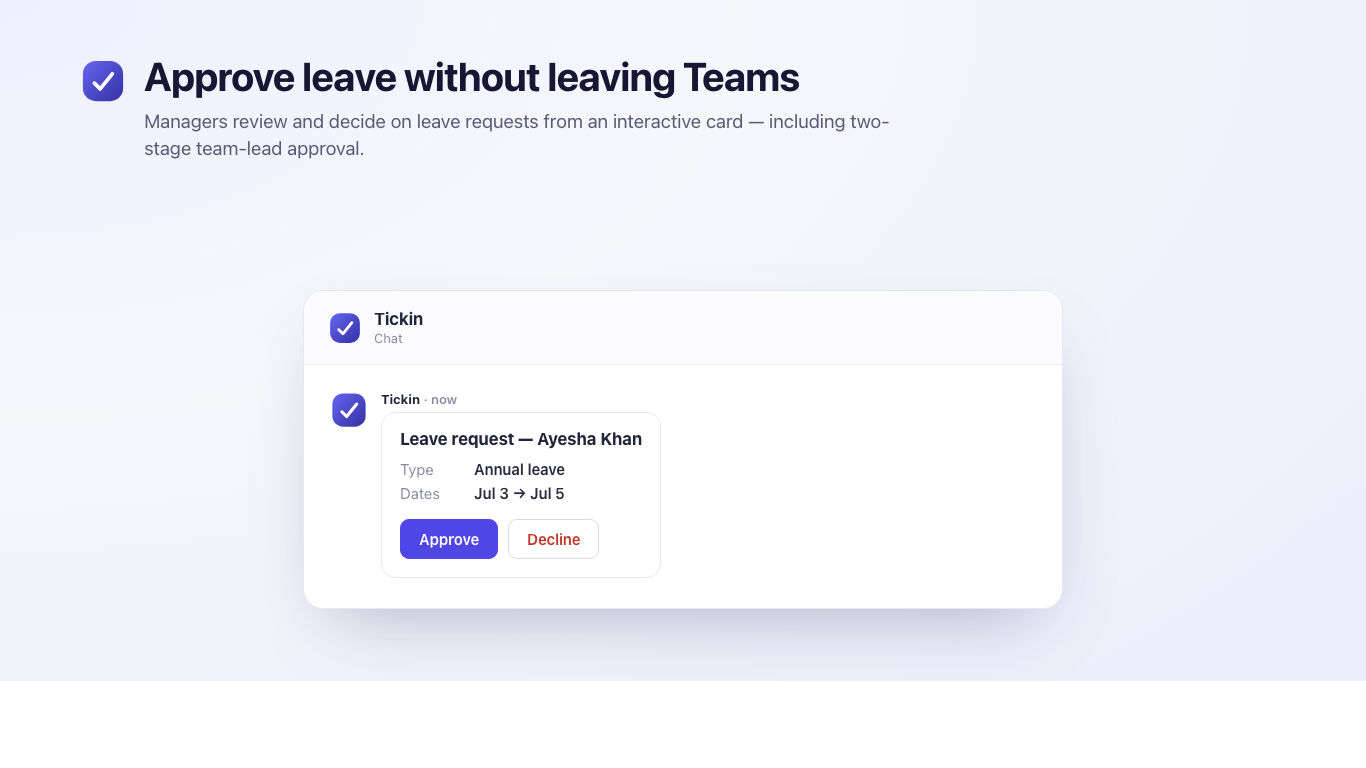
Employees are matched automatically by their work email. Managers receive interactive Approve / Decline cards for leave (including two-stage team-lead review) and one-tap overtime prompts. It's one clock everywhere — a clock-in from Teams shows on the web dashboard and in reports, and the channel feed updates whether someone clocked in from Teams, the web, or the desktop app.
Approve from a card. Managers approve or decline leave right inside Teams — no switching apps.
Installing & connecting Microsoft Teams
Microsoft Teams is a Scale-plan feature, and these steps are done once by a Workspace System Administrator. You install the Tickin app by uploading it to your organization in Teams (there is no public Teams Store listing yet), then link your workspace.
In Tickin, go to Settings → Integrations → Microsoft Teams and click Download Microsoft Teams App to get the app package (a .zip).
In Microsoft Teams, open Apps → Manage your apps → Upload a custom app, choose Upload for your organization (or Upload for me if you don't have org permissions), and select the downloaded Tickin .zip. Approve the requested permissions if prompted.
If “Upload a custom app” is greyed out, custom app uploading must be enabled in the Teams admin center — ask your Microsoft 365 admin, or use Upload for me.
Find your Microsoft 365 Directory (tenant) ID: in the Azure portal, go to Microsoft Entra ID → Overview → Tenant ID.
Back in Tickin (Settings → Integrations → Microsoft Teams → Connect workspace), paste your Directory ID, click Test connection, then Save and enable it.
In Teams, open the Tickin app and message it — type tickin start (or tickin help) to confirm it's working.
Optional: for the team attendance feed, add the Tickin app to a standard channel and @mention it once — Tickin will post clock-ins and clock-outs to that channel.
Desktop tracking requirement
If an admin has turned on Require Desktop App for Clock In (Admin → Desktop App), clocking in from Microsoft Teams follows the same rule as the web and Slack: the employee must have the Tickin Desktop app open and tracking first. If it isn't ready, the bot won't clock them in — it replies asking them to open the Desktop app (and, on macOS, grant the Accessibility permission and relaunch) before trying again. This keeps idle and activity tracking accurate no matter where someone clocks in from.
Microsoft Teams is a Scale-plan feature. Like Slack, it's a chat integration — a workspace uses one at a time, so enabling Teams turns Slack off. (Email/SMTP is separate and runs alongside either.)
Integration
Chat Command Center
One /tickin command turns Slack and Microsoft Teams into a full HR surface. It works identically on both platforms and adapts to who is asking: employees self-serve, managers run their team, and admins run the workspace. Slack renders these as Block Kit; Teams as Adaptive Cards.
Type /tickin on its own to open your role-aware home with quick-action buttons, or /tickin help for a role-based list of everything you can run. Everything below is enforced server-side against your authenticated Tickin role: employees only ever see their own data, team leads only their direct reports, and admins the whole workspace, and search is scoped the same way.
Browse or search every employee, grouped by department.
Whole workspace
/tickin report / report subscribe
Company-wide reports, on demand or scheduled.
Whole workspace
/tickin dashboard / approvals / corrections
Workspace-wide dashboard and approval queues.
Whole workspace
Interactive approvals
Leave requests and attendance corrections aren't just listed, they're actionable. Each pending item carries Approve, Reject, and View Details buttons (Block Kit in Slack, Adaptive Cards in Teams). Tapping one runs the same approval workflow and writes to the same audit log as the web app, so nothing in chat is a shortcut around your process. The message refreshes with the outcome.
Scheduled reports
Run /tickin report subscribe to receive a daily, weekly, or monthly attendance report as a direct message, scoped to your role: your own summary, your team, or the whole workspace. Delivery reuses the same scheduler as every other Tickin job and respects your notification preferences, so turning scheduled reports off stops delivery.
Notification preferences
Run /tickin notifications to toggle categories, late arrivals, early departures, leave requests, attendance corrections, missing clock-outs, overtime, and scheduled reports, on or off. If you disable a category, Tickin stops sending you those chat messages. Alerts auto-route to whichever platform (Slack or Teams) your workspace has connected.
Slack and Teams are at parity. Every command and behaviour here is identical on both platforms; only the rendering differs. Slack is a one-click marketplace install (OAuth). Microsoft Teams is configured per tenant with your own Azure Bot and is available on the Scale plan.
Permission model
Every command is checked on the server against your authenticated Tickin role, never trusted from the chat message. The rule is simple and consistent across search, lookups, dashboards, and reports:
Role
Can see
Cannot see
Employee
Only their own attendance, leave, schedule, and profile.
Anyone else.
Team lead
Themselves and the people who report to them (via reports to); attendance corrections are scoped to their department.
Anyone outside their team, even in search results.
System admin
The whole workspace: every employee, company reports, and the workspace summary.
Nothing within their own workspace (tenant-isolated from others).
At a glance, who can run what:
Command
👤 Employee
👥 Team Lead
🛡 System Admin
My attendance / balance / today
✅
✅
✅
Apply leave
✅
✅
✅
My schedule / profile / history
✅
✅
✅
Employee balance / attendance / profile
❌
✅ Team only
✅ All
Team dashboard & summaries
❌
✅ Team only
✅ All
Approvals & corrections
❌
✅ Team only
✅ All
Search & directory
Self
✅ Team only
✅ All
Reports & scheduled reports
Self
✅ Team
✅ Company
Workspace summary
❌
❌
✅
How approvals flow
Both flows happen entirely in chat, and each stage reuses the same workflow and audit log as the web app.
Clock-in
Leave request
Employee runs /tickin start → Tickin records the time entry → attendance updates → a late arrival (if any) notifies the manager.
Employee runs /tickin leave → team lead approves in /tickin approvals → admin approves → leave approved, balances update, employee notified.
If an employee has no reporting line, or is themselves a lead/admin, the request routes straight to the admin approval stage. Correction (attendance adjustment) approvals follow the same two-stage pattern.
Command details
The tables above are the quick reference; here is the fuller shape for a few of the most-used commands.
/tickin balance
Purpose: View your own leave balance.
Permission: Any employee (self only).
Example:/tickin balance
Returns: Remaining, used, and pending days for each leave type, plus your last request. For example, Annual: 12 remaining · 8 used · 20 total.
/tickin leave
Purpose: Request time off.
Permission: Any employee.
Example:/tickin leave (opens a form/card)
Returns: A submitted request that routes to your approver; you get a confirmation and a notification when it's actioned.
/tickin team today
Purpose: A live snapshot of your team right now.
Permission: Team lead (their reports) or admin (whole workspace).
Example:/tickin team today
Returns: Counts for working, on break, late, on leave, and not checked in.
/tickin approvals
Purpose: Review and action pending leave requests.
Permission: Team lead (their reports) or admin (all).
Example:/tickin approvals
Returns: Each pending request with Approve, Reject, and View Details buttons; acting refreshes the message and notifies the employee.
Quick start
Connect the integration. For Slack, install Tickin from the marketplace and authorize with OAuth. For Teams, register your Azure Bot and point it at Tickin (Scale plan).
Open your home. Type /tickin on its own to see your role-aware home with quick-action buttons.
Clock in. Run /tickin start to begin your day, /tickin break to pause, and /tickin end to finish.
Try self-service. Check /tickin balance, /tickin today, and /tickin schedule.
Managers: run /tickin dashboard for your team and /tickin approvals to clear pending requests.
Subscribe to a report. Run /tickin report subscribe weekly to get a recurring summary in your DMs.
Best practices
Post the essentials. Pin the top commands, start, end, break, leave, balance, in your team channel so nobody has to remember them. Everyone can always run /tickin help.
Let managers self-tune alerts. Ask team leads to run /tickin notifications and keep only the categories they act on, so alerts stay meaningful.
Use scheduled reports instead of manual check-ins. A weekly team report replaces a recurring "how did we do?" message.
Approve in chat. Handle leave and corrections from /tickin approvals and /tickin corrections so nothing waits for someone to open the dashboard.
Keep reporting lines current. Team-lead visibility follows the reports to field, so accurate org structure keeps the right people seeing the right teams.
Troubleshooting
Symptom
Likely cause & fix
"Your account isn't linked" when running a command
Your chat email doesn't match a Tickin user. Ask an admin to confirm your email, or that you've been invited and activated.
A manager command says it's for team leads/admins only
Your Tickin role is Employee. Employee accounts only see their own data by design; an admin sets team-lead or admin roles.
An employee doesn't appear in a lookup or search
They're outside your scope. Team leads only see their direct reports; this is enforced and expected.
Not receiving alerts or scheduled reports
Check /tickin notifications, the category (or scheduled reports) may be turned off. Also confirm your workspace's active chat integration is the one you're messaging in.
Commands don't respond in Teams
Confirm the Azure Bot is registered and pointed at Tickin and that your plan includes Teams (Scale).
Chat Command Center FAQ
Can employees clock in from Slack or Teams?
Yes. /tickin start clocks in and /tickin end clocks out, from either platform, and the times flow straight into the timesheet.
Can managers approve leave from Teams?
Yes. /tickin approvals shows pending leave as Adaptive Cards with Approve, Reject, and View Details buttons, using the same workflow and audit log as the web app. The same works in Slack with Block Kit.
How do attendance alerts work?
Tickin sends late-arrival and early-departure alerts to managers, auto-routed to whichever integration (Slack or Teams) your workspace has connected. Each manager tunes which categories reach them with /tickin notifications.
Can team leads see only their own teams?
Yes. Team leads only ever see themselves and their direct reports. This is enforced on the server, including in search, so a lead can never surface someone outside their team.
How do scheduled reports work?
Run /tickin report subscribe and pick daily, weekly, or monthly. Tickin delivers the report to your chat DMs, scoped to your role (yourself, your team, or the workspace), on the same scheduler as every other job. Reports respect your notification preferences, so turning them off stops delivery.
How do notification preferences work?
/tickin notifications lets each person toggle categories, late arrivals, early departures, leave requests, attendance corrections, missing clock-outs, overtime, and scheduled reports, on or off. Disable a category and Tickin stops sending you those chat messages; your in-app notifications are unaffected.
Chapter 10
Connecting your email
Tickin sends a lot of email on your company's behalf: invites, password resets, leave updates, weekly reports, salary slips, billing alerts, birthday and anniversary greetings. To send from your domain, connect SMTP credentials once.
What we send, so you know what to expect
Onboarding
Invites & password resets
Sent to new hires and to people resetting their portal password.
Operations
Leave updates
Request submitted to the approver. Outcome (approved or denied) back to the requester.
Reports
Weekly & monthly
Personal time report to each employee. Team report to the admin contact.
Payroll
Salary slips
Monthly PDF salary slip to each employee in their locale.
Billing
Payment alerts
Billing and payment reminders, failed-payment dunning on day 0 / 2 / 5, final notice before pause.
Culture
Birthdays & anniversaries
Greeting to the employee. Day-before reminder to the admin contact.
Setup with Gmail (app password)
Gmail is the most common choice. The setup uses an app password, not your regular Google password. This requires 2-Step Verification to be on, which we recommend anyway.
Turn on 2-Step Verification
Open myaccount.google.com → Security. Under Signing in to Google, click 2-Step Verification and follow the prompts. This is required before app passwords become available.
Create an app password
Still in Google account settings, search for App passwords or open myaccount.google.com/apppasswords. Name the password Tickin and click Create. Google shows you a 16-character password. Copy it now; you won't see it again.
Open Tickin's Integrations page
In the admin portal, click Integrations. On the Email (SMTP) card, click Connect.
Fill in Gmail's SMTP settings
Use these values:
SMTP host
smtp.gmail.com
Port
587
Username
your Gmail address, e.g. hr@yourcompany.com
Password
the 16-character app password from step 2
From name
how the sender appears, e.g. Acme HR
From email
same address as username, or an alias
Test the connection
Click Test connection. Tickin opens a TLS connection to Gmail and verifies your credentials. A green confirmation means the credentials are valid. If it fails, the most common cause is using your regular Google password instead of an app password.
Save & enable
Make sure the Enabled checkbox is on. Click Save. Your password is encrypted before it's stored. From now on, all Tickin emails for this workspace go through your Gmail account.
Setup with a generic SMTP provider
SendGrid, Postmark, Amazon SES, Mailgun, or your own corporate SMTP all work the same way. Open the same Integrations → Email (SMTP) → Connect modal, then fill in:
SMTP host: whatever your provider gives you, e.g. smtp.sendgrid.net, email-smtp.us-east-1.amazonaws.com, smtp.postmarkapp.com.
Port: usually 587 (TLS) or 465 (SSL). Port 465 automatically uses SSL; everything else uses STARTTLS.
Username: the SMTP username from your provider's credentials page. Often apikey for SendGrid, or an IAM-derived username for SES.
Password: the SMTP password or API key.
From name / From email: a sender identity verified with your provider. For SES this must be a verified sender; for SendGrid you'll need domain authentication set up first.
Click Test connection, then Save.
If you don't connect your own SMTP, Tickin will fall back to a platform default for non-billing emails. We strongly recommend connecting your own so messages go out from your domain and land in inboxes reliably.
Make sure your mail actually lands (SPF, DKIM, DMARC)
Connecting SMTP lets Tickin send as your domain, but mailbox providers (Gmail, Outlook, corporate filters) will only trust that mail if your domain's DNS says the sending server is allowed to use it. Without this, your invites and slips can quietly land in spam, or be rejected outright. This is a one-time DNS setup at your domain registrar or DNS host, and it's the single most common reason a perfectly valid SMTP connection still doesn't deliver.
SPF — a TXT record on your domain listing who may send for you. Add the include your provider gives you (e.g. include:_spf.google.com for Gmail, include:sendgrid.net, include:amazonses.com). Keep a single SPF record; multiple SPF records is itself a failure.
DKIM — a cryptographic signature so receivers can verify the mail wasn't altered. Your provider gives you one or more CNAME (or TXT) records to publish. Enable DKIM signing in the provider's dashboard, then add their records.
DMARC — a TXT record at _dmarc.yourdomain that tells receivers what to do when SPF/DKIM fail. Start with v=DMARC1; p=none; rua=mailto:you@yourdomain to monitor, then tighten to quarantine once you've confirmed alignment.
Gmail app-password setup needs no extra DNS if you're sending from the same Google Workspace domain you already use for mail, since SPF/DKIM are usually in place. Dedicated providers (SendGrid, SES, Postmark, Mailgun) always require you to publish their SPF and DKIM records before delivery is reliable, do this in their dashboard's domain authentication step before you rely on it.
If a send fails, your dashboard tells you. When Tickin's SMTP server rejects a message, the admin dashboard shows a warning banner to your workspace's system administrator, with the exact error returned by your provider (bad credentials, an unverified From address, a TLS problem) and a one-click link to Settings → Integrations to fix it. You don't have to dig through logs; a failing mail server surfaces on the first screen you see after signing in.
Disconnecting
From the same Integrations page, click Disconnect. Your encrypted credentials are removed. Future sends fall back to the platform default. You can reconnect any time without losing history.
Chapter 11
The Desktop App
Optional. Runs quietly in the background. Designed for teams that want activity-aware time entries.
What it adds
Activity tracking that starts automatically when you clock in from Slack or the web.
Idle detection: 15 minutes without keyboard or mouse activity is logged as idle and deducted from your worked hours.
A small status indicator so you always know whether the tracker is running.
Desktop Tracking
The Desktop App can enforce desktop-based attendance tracking. From Admin → Desktop App, under Desktop Tracking, administrators can choose to:
Require the Desktop App so idle time is always running and captured accurately.
Require the Desktop App for Clock In — employees and team leads can only clock in from the Web Dashboard, Slack, Microsoft Teams, or other supported chat integrations while the Tickin Desktop app is running and actively tracking.
These are optional controls. Normally enable them only after the Desktop App has been deployed to everyone in your organization — otherwise users may be prevented from clocking in. When enforcement is on and the app isn't ready, the clock-in is blocked with a prompt to open the app (and, on macOS, grant the Accessibility permission and relaunch), so idle and activity tracking stay accurate on every shift, no matter where someone clocks in.
Available platforms
macOS Apple Silicon (M1 / M2 / M3) and Intel as separate .dmg installers.
Windows 10 and 11 (x64) as a portable .zip — extract anywhere and run Tickin.exe.
Linux as a universal .AppImage (works on every distro) or a Debian / Ubuntu .deb.
Installing it
An admin toggles the Desktop App add-on on from Workspace → Billing. Once active, a Desktop tab appears in every user's portal.
Each user opens the Desktop tab. Tickin auto-detects the OS and highlights the recommended installer; other platforms are listed below it with SHA-256 fingerprints for integrity verification.
Run the installer, then sign in with the same email or Google account used in the web portal. The app pairs automatically and starts tracking idle time the moment you clock in.
First launch on macOS
Tickin for Mac is signed but not notarized by Apple — no Apple ID is needed to run it, but macOS blocks the very first launch of a freshly downloaded app. It's a one-time step per Mac:
Double-click Tickin, then dismiss the “Apple could not verify…” warning.
Open System Settings → Privacy & Security, scroll down, and click “Open Anyway” next to Tickin → confirm.
Tickin opens normally from then on.
Prefer the Terminal? Run this once instead, then open Tickin:
xattr -cr /Applications/Tickin.app
macOS Sequoia note. Sequoia removed the old right-click → Open shortcut, so use “Open Anyway” in Settings or the xattr command above — both work without an Apple ID.
Granting Accessibility (macOS)
To measure idle time, Tickin needs macOS Accessibility permission. Without it the app still runs, but it can’t see keyboard or mouse activity, so idle time isn’t tracked (and if your admin requires the desktop app to clock in, clock-in stays blocked until it's granted).
When Tickin prompts, click Open Accessibility Settings — or open System Settings → Privacy & Security → Accessibility yourself.
Turn ON the switch next to Tickin.
Quit and reopen Tickin — the permission is read when the app starts.
Pricing recap
$3 / employee / month on every plan. Annual customers pay the same per-seat rate; the Desktop App is not discounted on annual.
Privacy
The app only registers keyboard and mouse activity to measure idle time. It does not record keystroke content, application names, browser history, or screenshots. Admins see net worked hours and idle deductions, not the underlying activity stream.
Chapter 12
Data, exports & security
Your data is yours. You can take it out the same day you bring it in.
Accessing your data
Admins can view and filter the full set of records inside the admin portal: employees, salaries, time entries, leave requests, payroll, and the activity log. Monthly salary slips are delivered as PDFs to each employee's email, and the daily Slack leave report and weekly time emails give you running visibility.
For bulk data extracts or migrations off Tickin, our team can run the export for you. Reach out from tickin.pro/contact and we'll send a packaged dataset. Self-serve CSV export from the admin portal is on the roadmap.
How your data is protected
Encrypted in transit and at rest. TLS on every connection, AES-256-GCM on stored integration credentials.
Workspace isolation. Each workspace lives in its own dedicated storage; one tenant cannot reach another's data.
Role-bound access. Permissions are enforced server-side at the route layer, not just in the UI.
Append-only audit log. Employee, integration, and tax changes are recorded with actor, timestamp, and before/after values.
Working toward SOC 2 Type II. SSO/SAML and a formal Data Processing Agreement are available on request; talk to us at sales@tickin.pro if these are a buying requirement.
If you cancel. Your workspace becomes read-only at the end of the billing period. We hold your data and can package it for you on request. Reach out from the contact page before you need it removed permanently.
Chapter 13
Frequently asked questions
Short answers to common questions. The longer answers live in the chapters above.
How long does setup take?
Most teams are fully onboarded in an afternoon. The five steps in Chapter 2 take about an hour end to end; the rest is inviting people and watching the first few clock-ins land.
Do I need a credit card to start?
No. The Free plan is free forever for up to 10 employees — no card needed. You only add a card when you upgrade to Starter or Growth.
Can I switch between Starter and Growth later?
Yes, from Workspace → Billing. You'll see the exact prorated charge or credit for today before you confirm. Add-ons stay attached. The change applies immediately; your next renewal moves to the new plan's price.
What happens if a payment fails?
You get an 8-day grace period. We email and Slack-DM the workspace contact on day 0, day 2, and day 5 with a one-click link to update the card. If the card still hasn't cleared by day 8, the workspace pauses; your data stays safe, only write access is locked until billing is current. Nothing is deleted.
Is there a minimum or maximum team size?
No. Both plans bill per employee for exactly your team size, from a single seat up — Starter at $2 and Growth at $3 per employee per month, with no minimum or maximum.
Is the Desktop App required?
No. It's optional on every plan and can be toggled on or off any time from Billing. Charges prorate for partial periods. Web and Slack clients are included on every plan at no extra cost.
Which countries and currencies do you support?
Tickin works globally. Set your workspace currency and time zone, and the platform adapts. Localized tax brackets and payroll rules are available for major markets.
Can I import data from another HR tool?
For now, our team handles imports for you. Send us a CSV of your existing roster (plus historical leave or timesheet data if you have it), and we'll load it into your workspace. Migration assistance is included on Growth and above. Self-serve CSV import in the admin portal is on the roadmap.
Can I cancel any time?
Yes. Plans are month-to-month or annual; you can cancel from settings at any time and you'll retain full access through the end of your current billing period.
Who can see the audit log?
Admins only. The audit log is available on the Growth plan. It records every meaningful change, with actor, timestamp, and the before / after values where applicable.
Chapter 14
Getting help
A few ways to reach us. Pick the one that fits the size of the question.
Quick question
In-app chat
Click the help bubble at the bottom right of your dashboard. We aim to reply within a business day.
Detail-heavy
Email
Write to support@tickin.pro. Include your workspace slug and a brief description of the issue.
Hands-on
Book a session
Growth customers can book a setup or training session from tickin.pro/contact.
Status
System status
Check status.tickin.pro for live system health and incident history.