Microsoft Teams Attendance Tracking: How to Clock In Where Your Team Already Works
Track attendance in Microsoft Teams: clock in, take breaks, request leave, get late-arrival notices, and see a live activity feed without leaving your chat.
If your team lives in Microsoft Teams all day, asking people to open a separate app just to punch a clock is friction nobody enjoys. The good news: you can bring attendance into the same window where standups, DMs, and project chatter already happen. This is an overview of how attendance tracking works when Microsoft Teams is your home base, what you get out of the box, and one honest limitation worth knowing before you roll it out.
Clock in without leaving the chat
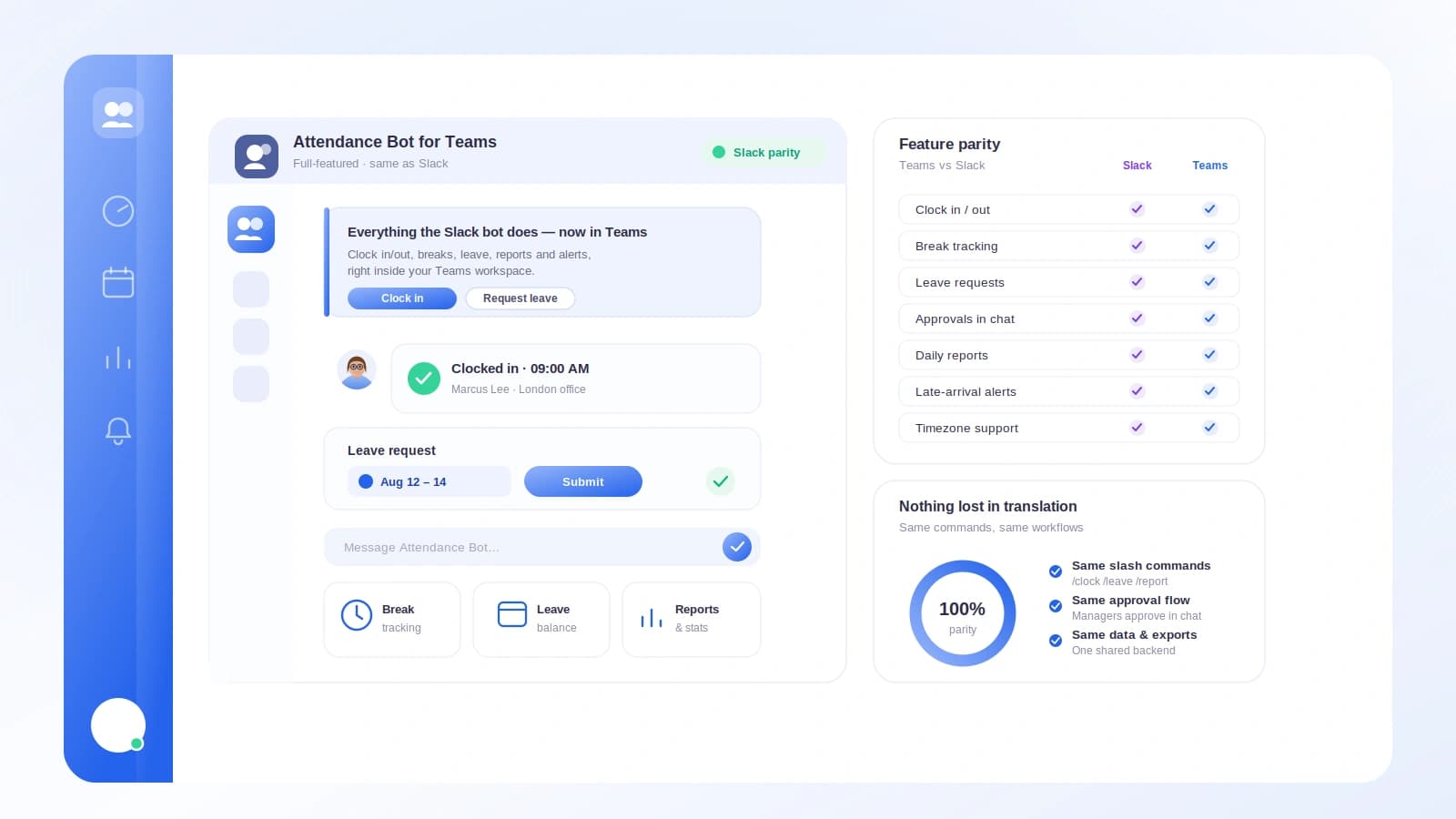
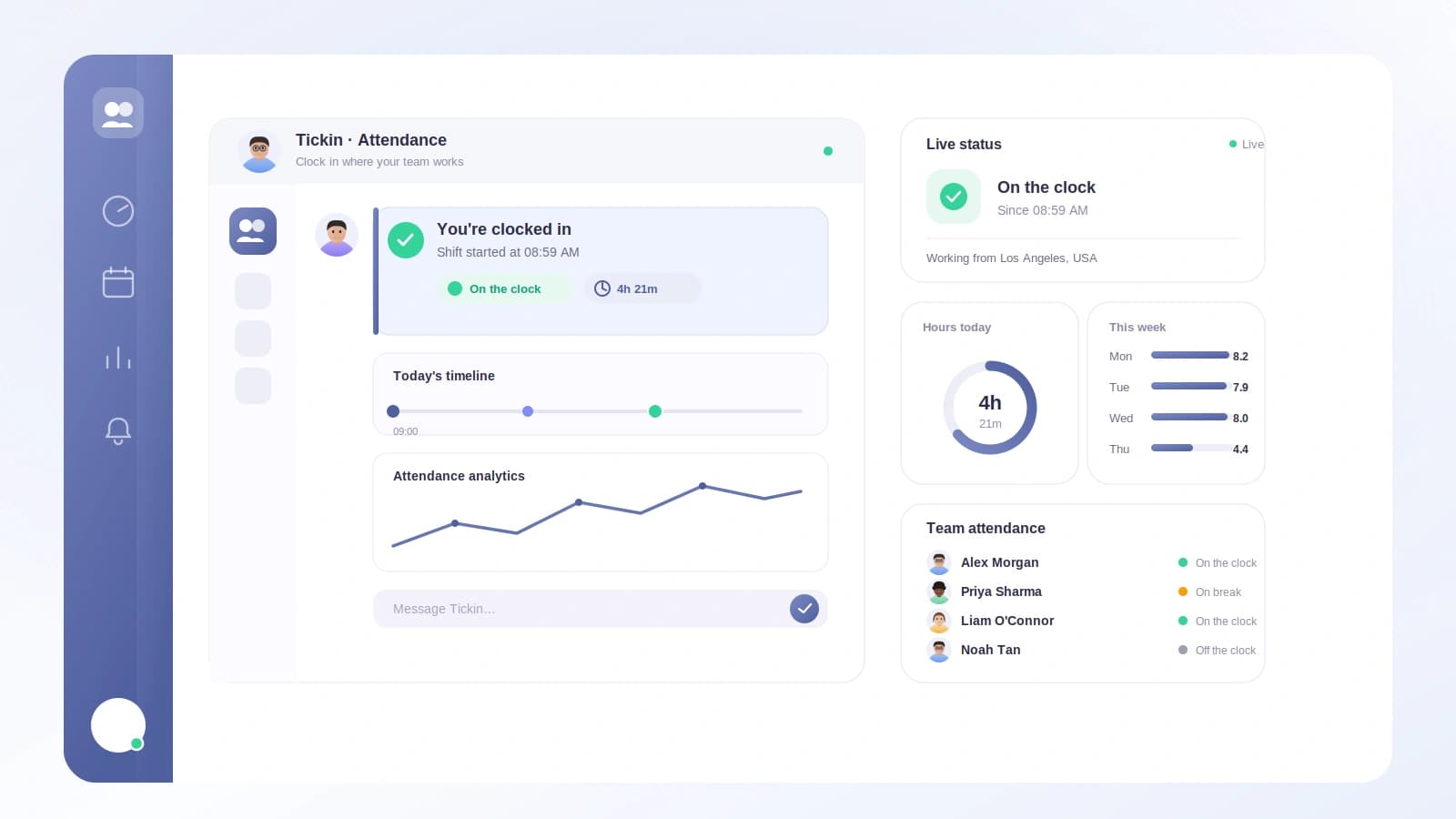
The core of Teams attendance tracking is the Tickin bot. Once it is connected to your workspace, employees can run their whole day from a Teams message:
- Clock in when they start
- Clock out when they finish
- Take breaks and end them
- Check their current status if they are not sure whether they are clocked in
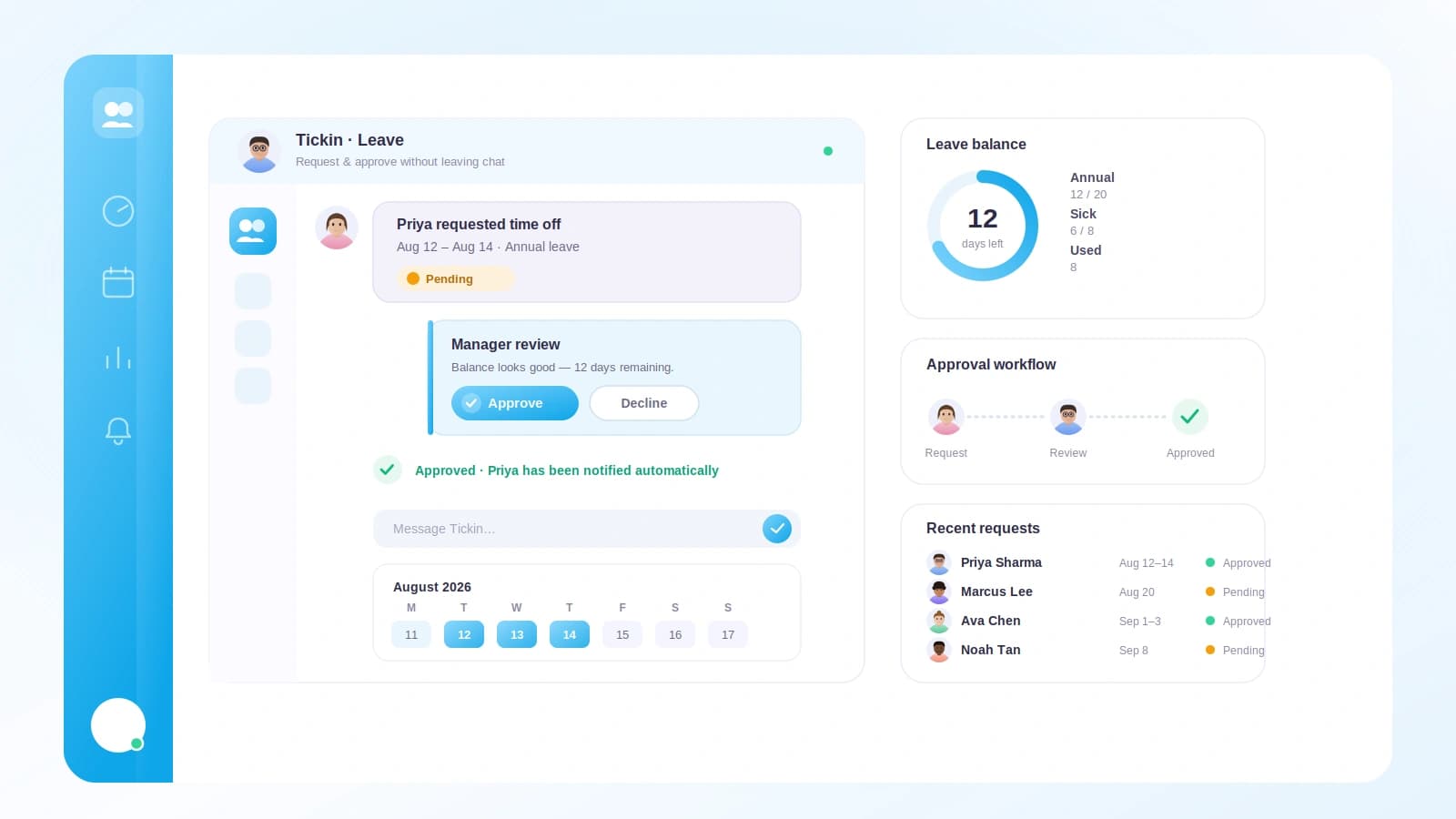
- Request leave
There is no context switch and no second tab. Someone finishing lunch just tells the bot they are back, and the record updates. Someone who needs a day off can request leave from the same place they message their manager. Because the actions run through the bot, they land in the same attendance record the rest of the product reads from, so nothing is stranded inside chat.
This is the same idea we cover for tracking attendance for a remote team: meet people where they already are instead of adding another destination to their morning routine.
Late-arrival notices for managers
Knowing who is running behind is one of the quieter but more useful parts of attendance tracking. When you turn on a grace period, a late-arrival notice can go out to managers automatically.
A few things make these notices practical rather than noisy:
- Alerts go to whichever of Slack or Teams you have connected and selected, so you are not managing two channels for the same signal.
- Lateness is evaluated in your workspace timezone, which matters the moment you have people in more than one place.
- Notices fire on working days only, so nobody gets pinged about a Saturday.
- Public holidays are skipped, so a day off never looks like a late arrival.
- You get at most one notice per employee per working day, which keeps the channel calm even if someone clocks in and out a few times.
The result is a heads-up when it is genuinely useful, without turning your management channel into an alert firehose.
A live activity feed in a Teams channel
Beyond individual actions, you can post a live feed of clock-ins and clock-outs to a Teams channel. As people start and end their day, those events show up in the channel you choose.
This is handy for a shared sense of who is on and when the day is winding down, especially for distributed teams that never physically see each other start work. It is a lightweight pulse, not a formal report, and it lives right alongside your normal team conversation.
Where the full picture lives: the web portal
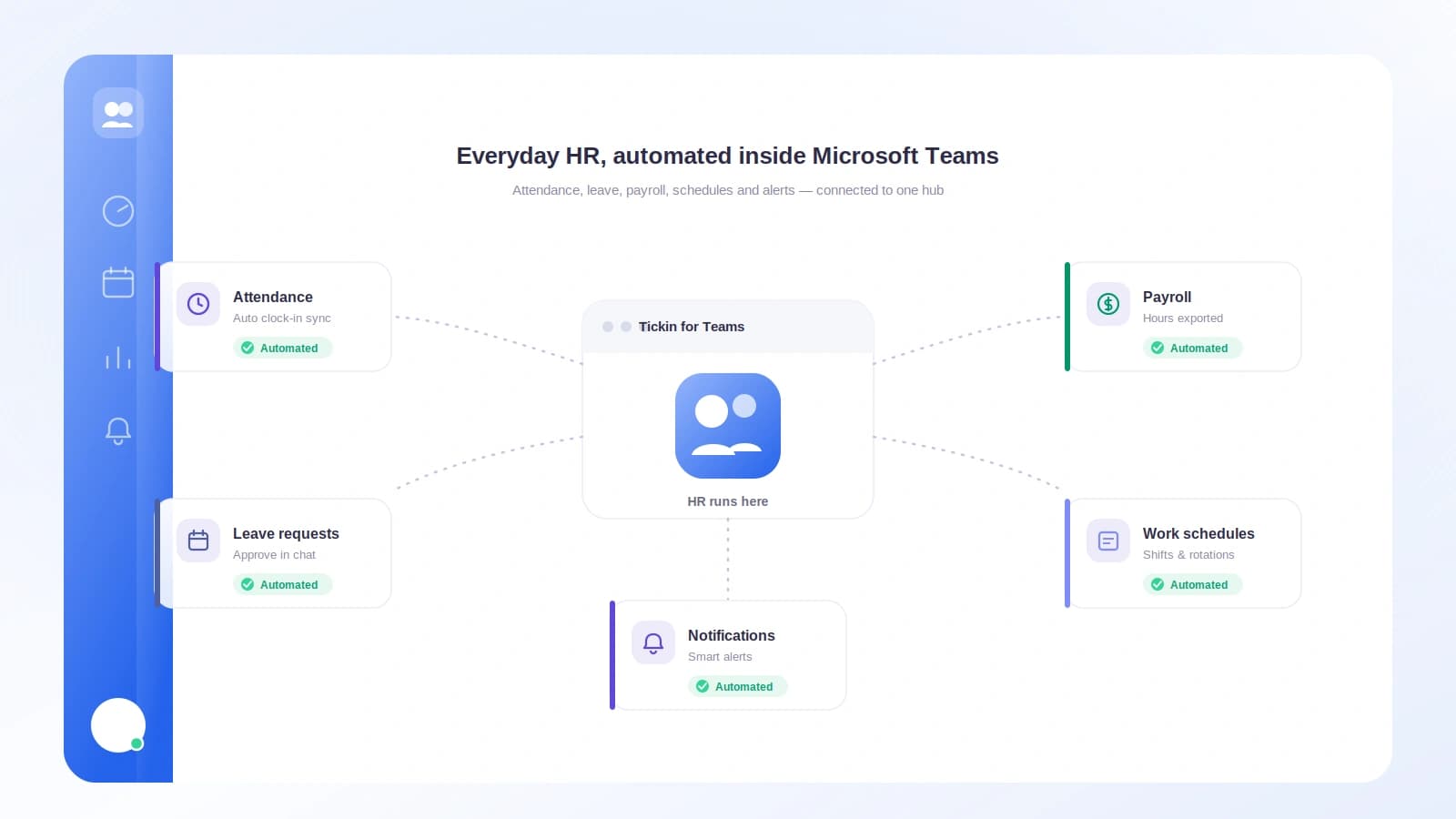
The Teams bot is the front door for employees, but the complete attendance view lives in the web portal. Admins and team leads see attendance there, and that same attendance data does real work downstream:
- It feeds monthly hours.
- It feeds payroll.
So the clock-in someone taps in Teams is not just a chat message that disappears. It rolls up into hours worked and, ultimately, into what people get paid. That connection is the whole point of tracking attendance in the first place, and it is why the Teams actions and the portal are two views of the same underlying record rather than separate systems.
For a broader look at everything attendance touches, the features overview is a good starting map.
One honest limitation: scheduled reports
Here is the nuance we want to be straight about, because it affects how you plan your rollout.
Microsoft Teams gives you the live activity feed of clock-ins and clock-outs described above. What Teams does not currently give you is the automated scheduled Daily Leave and WFH report. That specific scheduled report posts to Slack, not Teams.
So if a recurring, scheduled summary dropped into a channel every morning is a must-have for you, know that today that report lands in Slack. In Teams you get the real-time feed plus everything in the web portal, where admins and team leads can review attendance in full. We would rather set that expectation now than have you discover it after setup.
If you are weighing the two chat platforms against each other, our Slack vs Microsoft Teams for attendance comparison lays out what each one does today so you can choose with eyes open.
Setup and availability
Microsoft Teams attendance is a per-tenant setup built on an Azure Bot, and it is available on the Scale tier. In practice that means your workspace connects its own Azure Bot, and once that is registered and connected, your team can start clocking in, receiving late-arrival notices, and posting a live activity feed to a Teams channel.
You can read more about what is included on the Microsoft Teams feature page. Because the setup is per tenant, the connection is scoped to your workspace rather than shared, which keeps your attendance data with your organization.
Putting it together
If Microsoft Teams is where your team spends the day, attendance tracking should live there too. With the bot in place, people clock in and out, take breaks, check status, and request leave from chat. Managers get calm, well-scoped late-arrival notices when a grace period is on. A live feed keeps everyone loosely aware of who is on the clock. And behind it all, the web portal gives admins and team leads the full view while the same data feeds monthly hours and payroll.
Just remember the one honest caveat: the live feed is a Teams strength, but the scheduled Daily Leave and WFH report posts to Slack today. Plan around that and Teams attendance tracking becomes a low-friction way to capture the hours your team already works.
Frequently asked questions
Can employees clock in and out directly from Microsoft Teams?
Yes. With the Tickin Teams bot connected, employees can clock in, clock out, take breaks, check their current status, and request leave without leaving Teams. Every action flows straight into the same attendance record the web portal uses.
Do managers get notified when someone arrives late in Teams?
Yes, when you turn on a grace period. Late-arrival notices go to whichever of Slack or Teams you have connected and selected. They are evaluated in your workspace timezone, only on working days, skip public holidays, and are limited to one notice per employee per working day.
Is there a scheduled daily attendance report in Microsoft Teams?
Not yet. Teams gives you a live activity feed of clock-ins and clock-outs posted to a channel. The automated scheduled Daily Leave and WFH report currently posts to Slack only. For full attendance history, admins and team leads use the web portal.
How do I set up Microsoft Teams attendance tracking?
Teams attendance is a per-tenant setup using an Azure Bot and is available on the Scale tier. Once your Azure Bot is registered and connected, your workspace can clock in, get late alerts, and post a live activity feed to a Teams channel.