Grace Period, Explained
What an attendance grace period is, why it exists, and how to set a fair one in Tickin without turning it into a loophole.
Traffic happens. A train runs late, a school drop-off drags on, an elevator crawls. If your office day starts at 09:00, do you really want a 09:03 clock-in flagged as late? For most teams, the honest answer is no. That small buffer between "on time" and "officially late" is your grace period, and getting it right keeps your attendance policy fair, calm, and trusted.
What a grace period actually is
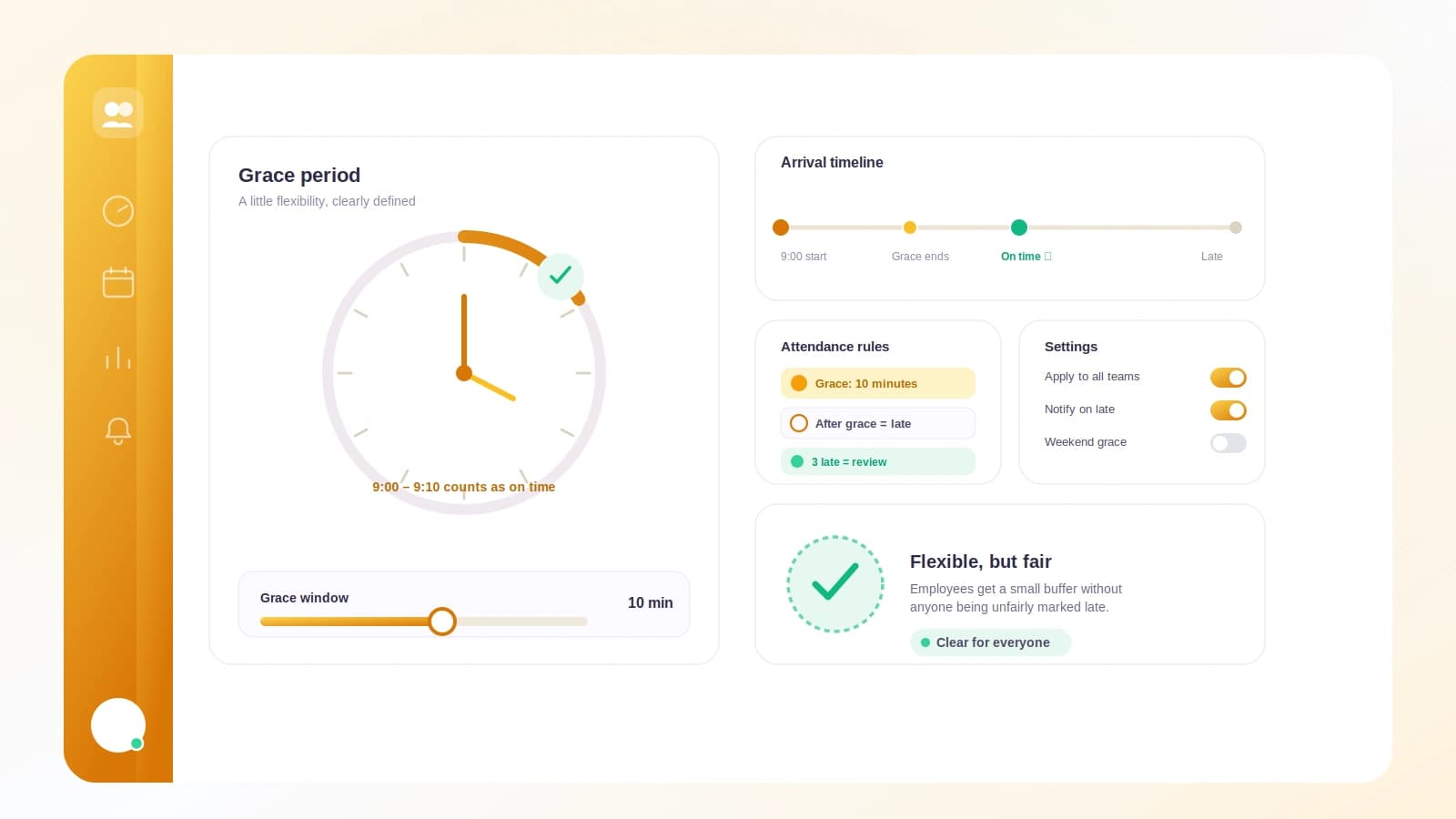
A grace period is a short window after your office start time during which a clock-in still counts as on time. If start is 09:00 and grace is 15 minutes, anyone who clocks in by 09:15 is on time. At 09:16, they are late.
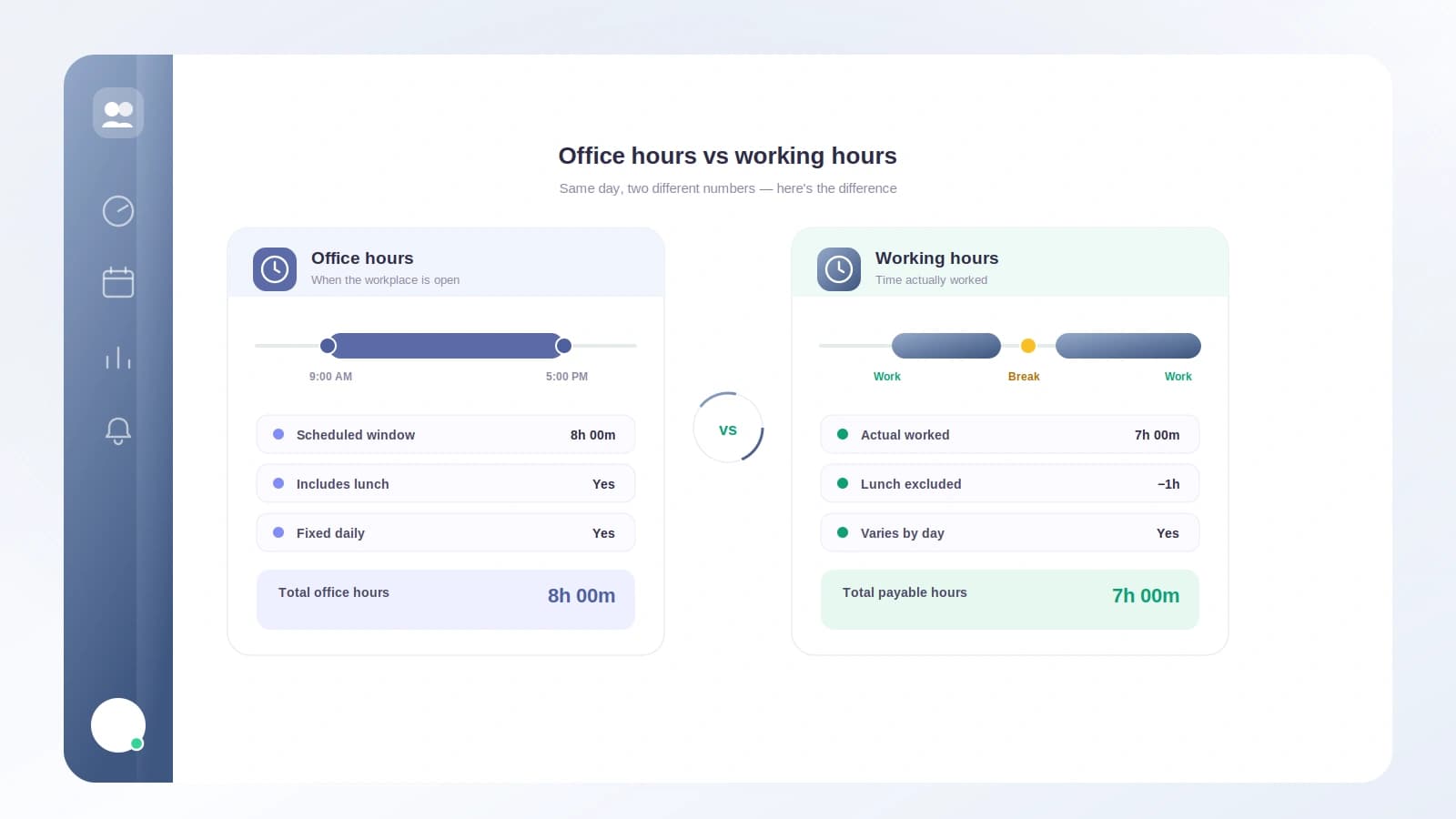
It helps to know what grace does not touch. In Tickin, your office hours (say 09:00 to 18:00) set the expected schedule and drive lateness and display. Your daily working hours are the separate, payable value that overtime and payroll rely on. Grace only shifts the line for lateness. It never changes how much time is payable, so nobody earns or loses minutes by clocking in at 09:12 instead of 09:00.
Why it exists (and why it is off by default)
Grace exists to absorb the noise of ordinary life so your late signal means something. Without a buffer, every trivial delay becomes a flag, managers tune out, and the metric loses meaning. With a sensible one, "late" points to a pattern worth a friendly conversation.
In Tickin, grace is OFF by default, and nothing changes until you turn it on. That is deliberate: some teams genuinely want a hard 09:00 line, and we would rather you make that choice on purpose than inherit it by accident.
How to set one that is fair, not a loophole
You will find everything under Settings then Work schedule. Toggle "Enable grace period" on, then pick your "Allowed late arrival" from the built-in options: 0, 5, 10, 15, 20, 30, 45, or 60 minutes. The default is 15, which suits most office teams.
A few practical notes as you choose:
- Match it to reality. If your commute is genuinely unpredictable, 15 or 20 minutes is reasonable. If not, 5 or 10 keeps things tight.
- Bigger is not kinder. A 60-minute grace on a 09:00 start quietly turns your day into a 10:00 start, which is the loophole you want to avoid.
- Be consistent. Everyone shares the same office hours, working days, and grace, so the rule reads the same for the whole team.
- Say it out loud. Tell people the buffer exists. A grace period people know about builds goodwill; a secret one just breeds confusion.
How late arrivals actually surface
Once grace is set, Tickin handles the rest quietly. When someone clocks in later than start time plus your grace minutes, the right managers get a late-arrival notice in Slack or Microsoft Teams (whichever you have connected). It is evaluated in your workspace timezone, only fires on your configured working days, and it skips public holidays. Best of all, there is at most one alert per employee per working day, so repeat clock-ins or edits never spam the channel.
The result is a signal you can trust: not a firehose of trivia, just a gentle heads-up when someone is genuinely running behind.
The practical takeaway
A grace period is not about being soft; it is about being fair and accurate. Pick a buffer that reflects your team's real commute, tell everyone what it is, and let a truthful "late" signal guide the occasional check-in instead of a mountain of noise. Turn it on in Settings then Work schedule, choose your minutes, and you are done. Fair by design, no loopholes required.