Configuring Work Schedules for Distributed Teams
Set up office hours, working days, timezone, and grace so one clear, timezone-correct schedule applies consistently across your distributed team.
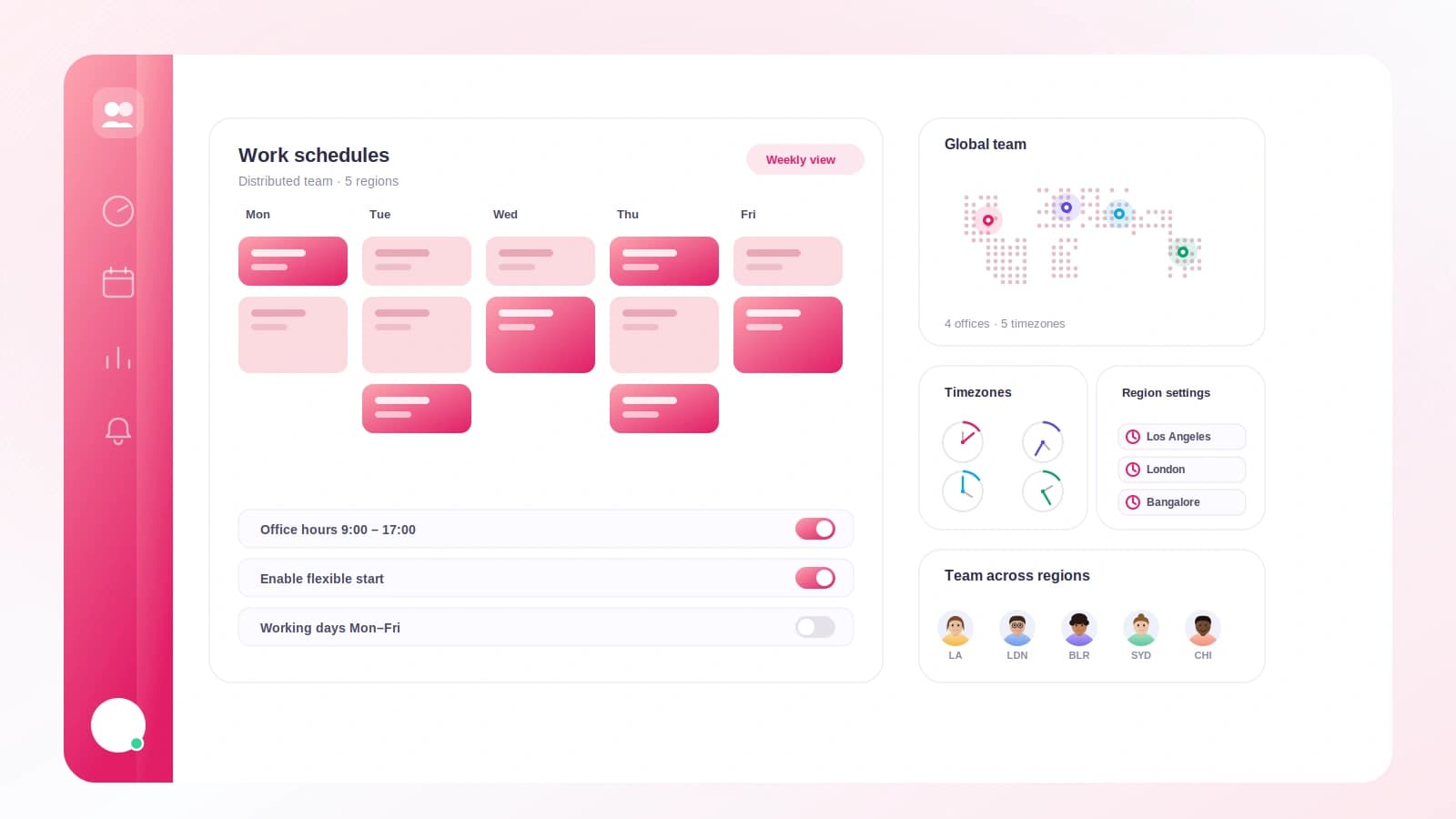
When your team is spread across cities (or countries), the hardest part of attendance is not the tracking, it is agreeing on what "on time" and "a full day" even mean. Tickin solves this with one clear workspace default schedule: a single, timezone-correct standard that applies to everyone the same way. This guide walks you through the setup, step by step.
Everything below lives in one place: Settings, then Work schedule. Open that page and follow along.
1. Set your office hours
Office hours are your expected schedule: a start time and an end time, for example 09:00 to 18:00. This is what drives lateness and the schedule your team sees.
One thing to keep in mind: office hours describe when you expect people at work, but they are not the payable duration on their own. That is the next step.
2. Confirm daily working hours (Auto or Manual)
Daily working hours is the payable value. It is what overtime, monthly required hours, and payroll all use.
By default this field is on Auto, which means it tracks your office span automatically. Set office hours to 09:00 to 18:00 and daily working hours becomes 9. Change the office span later and the Auto value follows along.
But paid time and clocked-in time are not always the same. Say your office runs 09:00 to 18:00, but you give everyone a one-hour unpaid lunch. The paid day is really 8 hours, not 9. Here is how Tickin handles that:
- Type
8into daily working hours. The field switches to Manual. - Because it is now Manual, Tickin will not silently overwrite it when you later adjust office hours. Your 8 stays 8.
- Changed your mind, or your lunch policy changed? One click returns the field to Auto, and it resumes tracking the office span.
This distinction matters for distributed teams because payroll math has to be identical for everyone, no matter where they clocked in from.
3. Pick your working days
Choose which days of the week actually count, for example Monday through Friday. Working days feed two important things: your monthly required hours calculation and the days on which late-arrival alerts can fire.
Monthly required hours is simply daily working hours multiplied by working days. With a manual daily value of 8 and a Monday-to-Friday week, that math is done for you. If you need a specific target instead, you can pin a manual monthly override.
4. Set the workspace timezone
This is the step that makes distributed teams actually work. Tickin uses one timezone per workspace, and every time-sensitive decision is evaluated in it:
- Lateness (was a clock-in late or not)
- What counts as "today"
- Where each working day starts and ends
It is DST-safe, so you do not have to babysit clock changes twice a year. Pick the timezone that represents your business, and everyone is measured against the same clock, whether they are logging in from a home office two time zones away or from the road.
A note on scope: the schedule you are building is the workspace default. Tickin does not set different office hours per person or per team, and timezone is per workspace, not per employee. For most distributed teams that is the point: one honest standard, applied consistently, with no per-person exceptions to argue about.
5. Turn on a grace period and alerts
Grace is off by default. Turn it on when you want a little breathing room before a clock-in counts as late.
Once enabled, pick your allowed late arrival from the preset options: 0, 5, 10, 15, 20, 30, 45, or 60 minutes (the default is 15). An arrival is late only when the clock-in, measured in the workspace timezone, lands after your start time plus the grace window.
Finally, wire up late-arrival alerts so you are not manually watching the clock:
- Connect Slack or Microsoft Teams, then select the one you want.
- Alerts respect the workspace timezone and fire on working days only.
- Public holidays are skipped automatically.
- You get one alert per employee per working day, so no notification spam.
The takeaway
Your team can clock in from Slack, a browser, or the desktop app, and Tickin tracks sessions, hours, and daily breakdowns automatically. The setup above is what makes those numbers trustworthy: office hours define the expectation, daily working hours (Auto or Manual) define what you pay, working days and timezone define when everything is measured, and grace plus alerts keep lateness fair and visible. Spend ten minutes getting the Work schedule page right once, and every distributed teammate is held to the same clear, timezone-correct standard from day one.