Office Hours vs Working Hours: What's the Difference?
Office hours are your schedule; working hours are what you pay. Here's why keeping them separate makes attendance, overtime, and payroll accurate for every team.
"Office hours" and "working hours" get used interchangeably in conversation, but in a payroll system they are two different things, and treating them as one is where attendance and pay quietly drift apart. Keeping them separate is the single change that makes lateness, overtime, and monthly totals all line up.
Office hours are the schedule
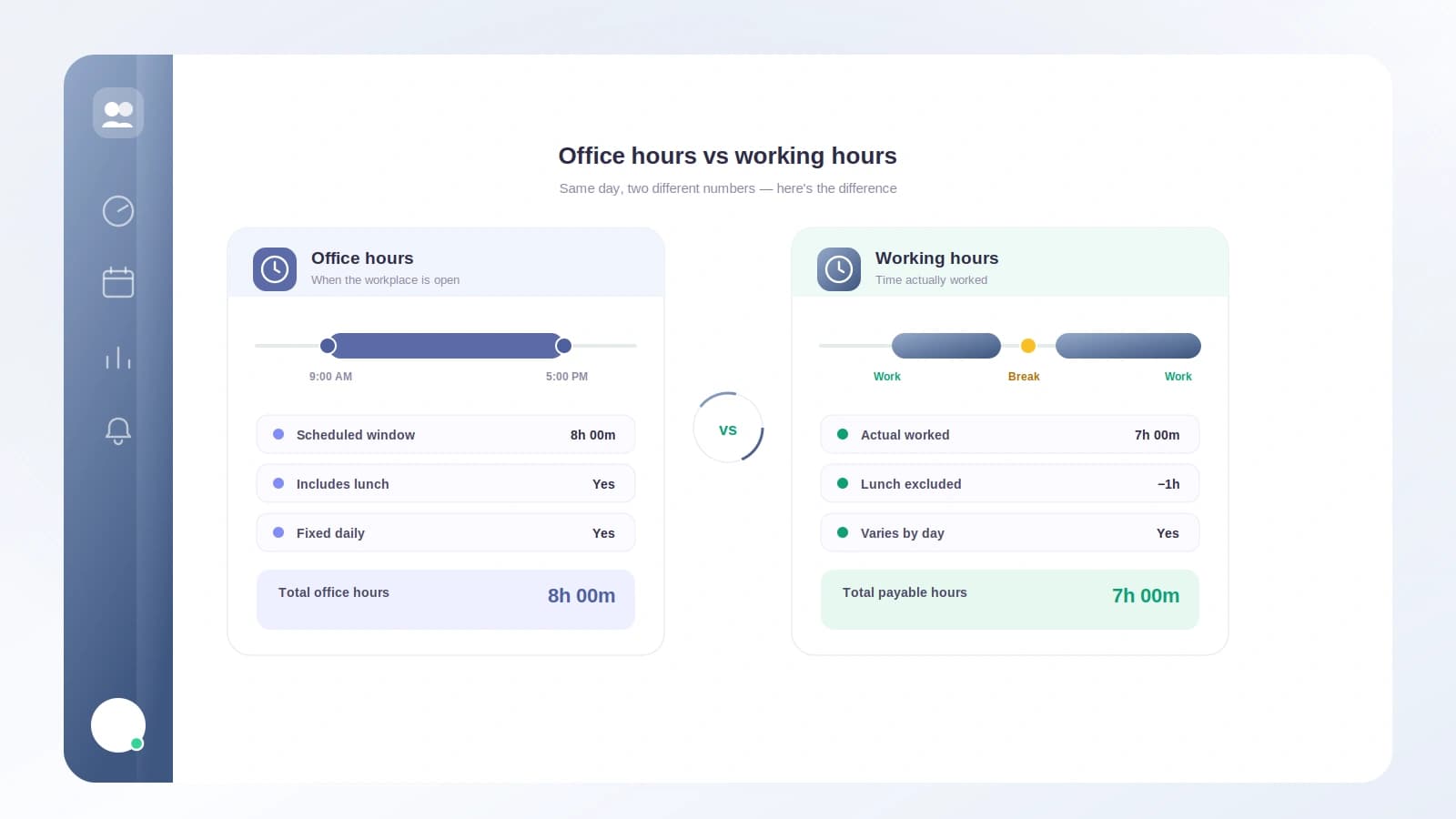
Office hours are the window your team is expected to be at work, for example 09:00 AM to 06:00 PM. They answer a scheduling question: when should someone be here? Office hours drive things like lateness and what an employee sees on their day view. They are presentation and expectation, not a number you multiply into a paycheck.
Working hours are what you pay
Daily working hours are the payable figure, for example 9 hours (or 8 if there's an unpaid lunch). This is the number every calculation reads: the overtime threshold, the monthly required total, payroll, and reports. It answers a different question: how many hours count?
The reason to separate them is simple: an office window and a paid day are not always the same length. A 09:00–18:00 office with a one-hour unpaid lunch is a 9-hour window but an 8-hour paid day. If a system only stores one number, it has to fudge one of those questions.
How Tickin keeps them in sync
In Settings → Work schedule, Tickin stores both:
- Office hours (start and end) as your expected schedule.
- Daily working hours as the payable value that every business calculation uses.
By default, daily working hours track the office span automatically (09:00–18:00 becomes 9). If your paid day differs, type it in, say 8 for that unpaid lunch, and it becomes a manual value that Tickin will never silently overwrite when you adjust office hours. When you want it to follow the schedule again, one click returns it to Auto.
Everything downstream keeps reading the working-hours value, unchanged: overtime still triggers at your daily threshold, and monthly required hours are still daily hours × working days (or a manual override you pin). Office hours never sneak into those numbers.
Where office hours earn their keep: lateness
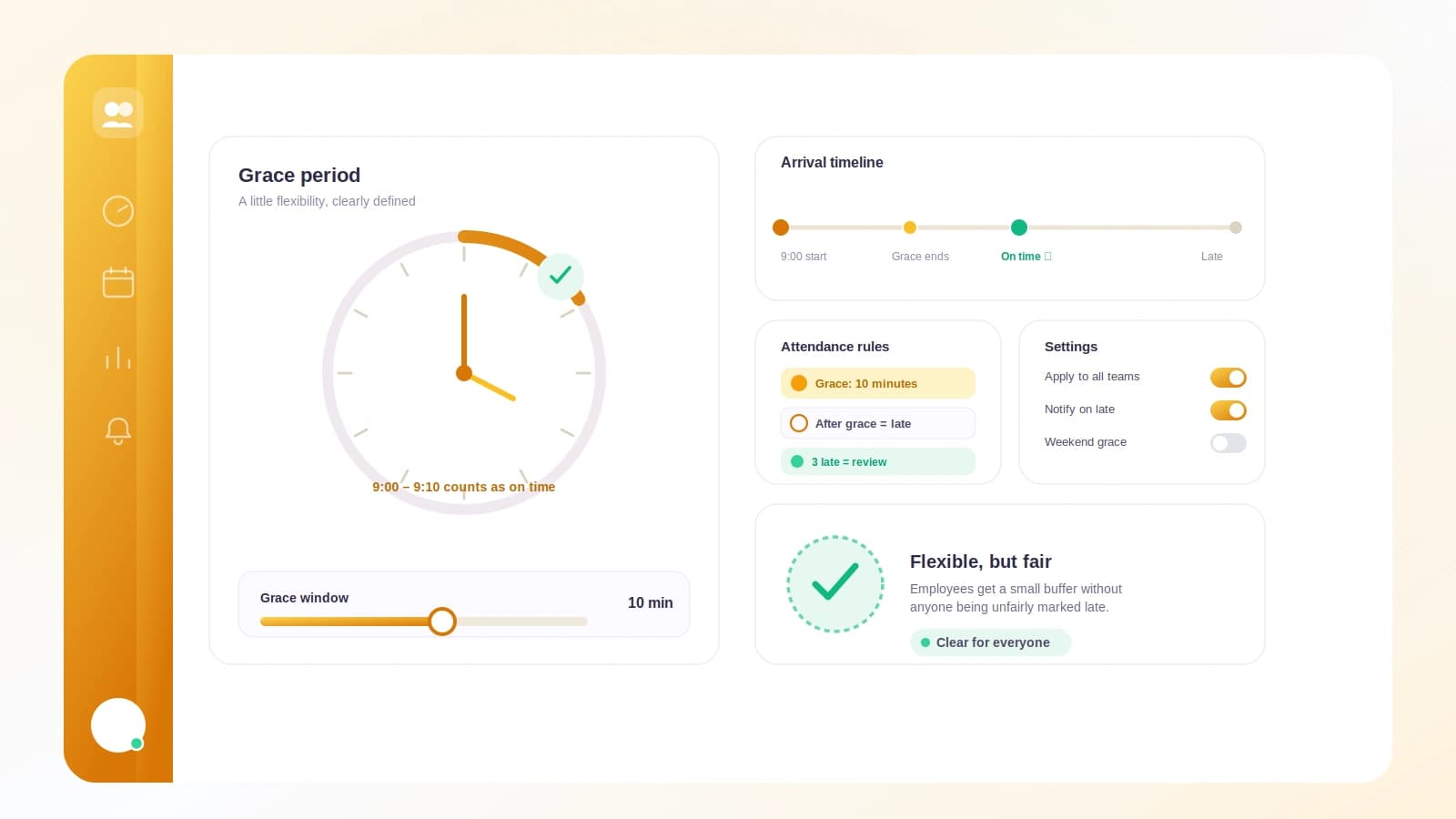
Once you have a real schedule, you can act on it. Turn on a grace period, a short window (5 to 60 minutes) after the start time, and Tickin watches for late arrivals:
- If someone clocks in after start time plus grace, a late-arrival notice goes to your managers in Slack or Microsoft Teams (whichever you've connected and chosen).
- It's evaluated in your workspace timezone, only on your working days, and it skips public holidays, so nobody gets pinged for clocking in on a day off.
- Each employee triggers at most one alert per working day, so edits and repeat clock-ins never turn into a stream of duplicate messages.
The grace period is off by default. Nothing about your existing attendance changes until you decide to switch it on.
The takeaway
Store the schedule and the payable day as two values, not one. Your office hours describe when the team works and power lateness; your daily working hours stay the single source of truth for overtime, payroll, and monthly totals. Keep them separate, and every downstream number stays honest, no matter how your office window is arranged.