Timesheet Software for Small Businesses: What to Actually Look For
A practical guide to timesheet software for small business: what a timesheet must capture, must-have features, pricing traps, and migration tips.
The first time I ran payroll for a small team, I did it with a shared spreadsheet and a lot of hope. People typed their own hours into a tab named after the month. Someone always forgot Friday. Someone else logged nine hours on a day they left at lunch. By the third month I was spending a full afternoon reconciling numbers that should have taken ten minutes, and I still wasn't sure they were right.
That afternoon is the reason timesheet software exists. Not to add process for its own sake, but to make sure the hours you pay for are the hours that actually happened. This guide walks through what a timesheet must capture, which features earn their keep, where pricing hides its teeth, and how to switch tools without losing a pay period.
TL;DR
- A real timesheet captures who, when, breaks, and total hours. Anything past that is a bonus, not a baseline.
- Sort features into must-have (approvals, edits with history, exports) and nice-to-have (GPS, project codes, billing).
- Cheap headline prices often hide seat minimums, setup fees, and paywalled essentials.
- The biggest win is timesheets that feed payroll directly, so nobody retypes numbers.
- Plan a two-week switch: one pay period running old and new side by side, then cut over.
What a timesheet actually has to capture
Strip away the marketing and every timesheet answers the same four questions.
- Who worked. A named person, not a vague initial.
- When they worked. The date, and ideally a start and end time.
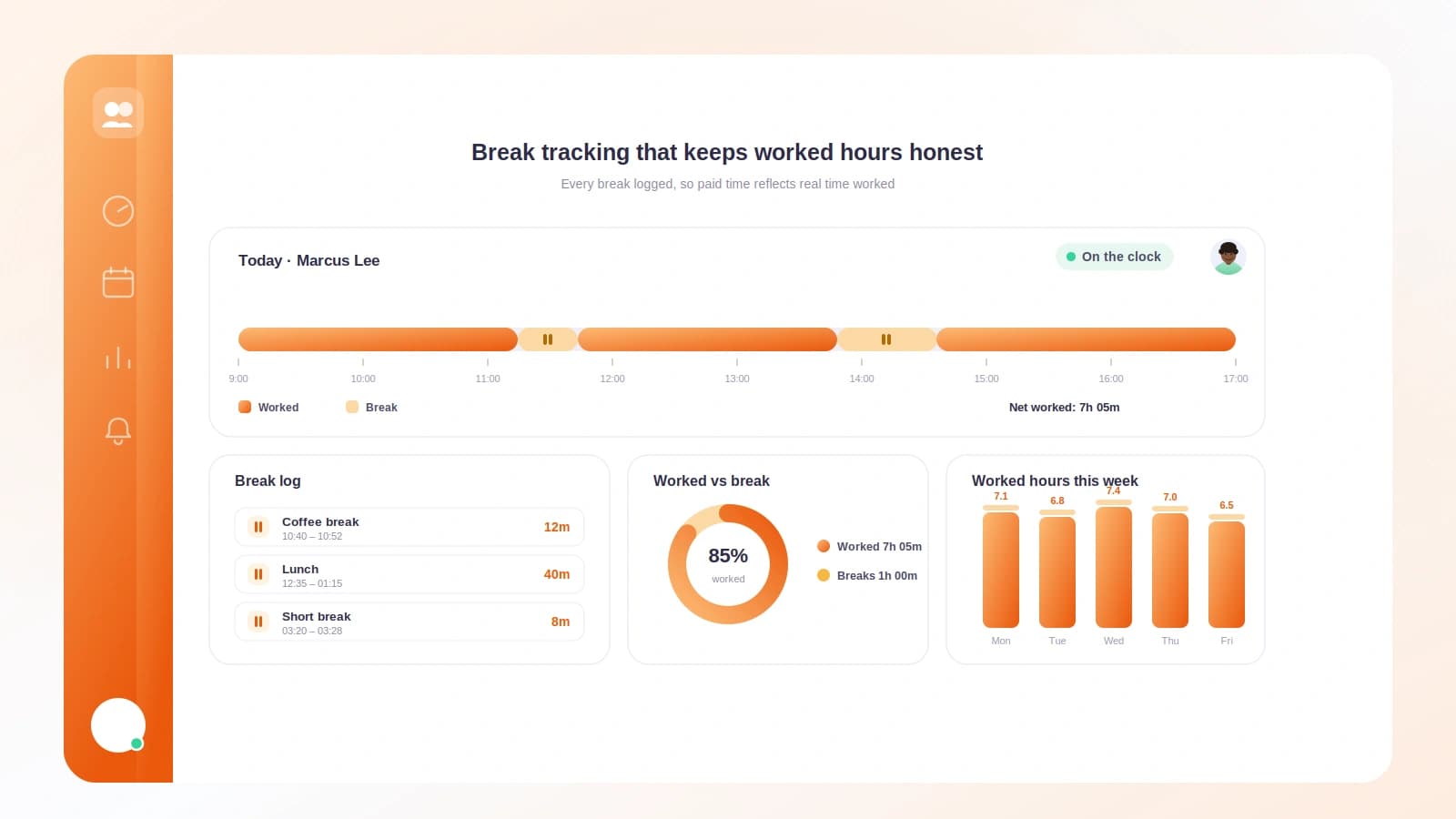
- What came off the clock. Unpaid breaks and lunch, so paid hours are honest.
- How much in total. Daily and weekly totals that add up on their own.
If a tool captures those cleanly, it can do payroll. Everything else, project tags, client codes, billable rates, is a layer on top for businesses that need it. A design studio billing clients by the hour needs project tracking. A cafe paying an hourly crew does not. Buy for the four questions first, then add layers you can name a reason for.
One thing worth deciding early is how you treat breaks, because it changes every total on the sheet. If you are unsure what counts, our guide on whether breaks count as hours worked walks through the common rules.
Must-have versus nice-to-have
Not every feature deserves to influence your choice. Here is how I sort them after buying a few of these tools the hard way.
Must-have
- Simple entry. If logging time takes more than a few seconds, people skip it and guess later. Guessed hours are the enemy.
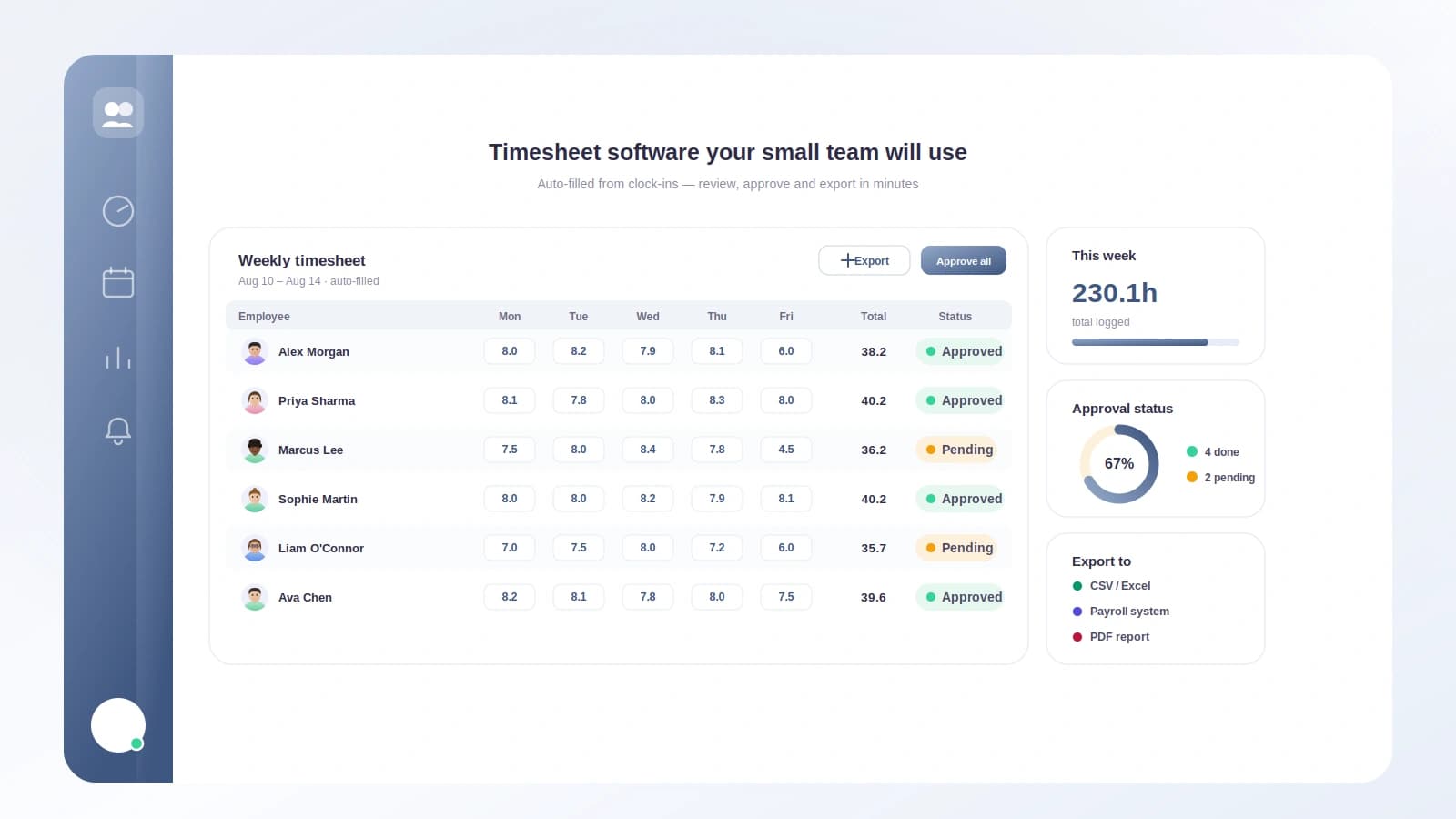
- Approvals. A manager should confirm the week before it hits payroll. This one feature prevents most disputes.
- Edits with an audit trail. Corrections are normal. Silent corrections are not. You want to see who changed what and when.
- Exports. CSV at minimum, plus a clean report per person and per period.
- Break handling. Automatic or one-tap, so unpaid time is deducted the same way every time.
Nice-to-have
- Project and task codes for teams that bill or report by client.
- GPS or location stamps for field crews, useful but overkill for desk teams.
- Scheduling built in, handy if you also run shifts. If that is you, see shift scheduling for small teams.
- Integrations with Slack or chat, so clocking in happens where people already are.
- Photos or notes on an entry, occasionally useful, rarely essential.
The trap is treating a nice-to-have as a must-have because a sales page made it sound urgent. GPS tracking on a five-person remote design team is friction, not value.
A feature comparison to steal
Rather than compare named products that change every quarter, compare the shapes of tools you will meet. Most timesheet software falls into one of these buckets.
| Feature | Spreadsheet | Basic timesheet app | Full time and HR platform |
|---|---|---|---|
| Cost | Free | Low per person | Moderate per person |
| Time to set up | Minutes | An hour | A day or two |
| Approvals | Manual | Built in | Built in |
| Edit history | None | Usually | Always |
| Break handling | Manual | Yes | Yes |
| Payroll export | Copy paste | CSV | Direct to payroll |
| Slack or chat clock-in | No | Sometimes | Yes |
| Best for | 1 to 5 people | 5 to 25 people | 15 people and up |
The pattern is clear. Spreadsheets are free until they cost you an afternoon a month. Basic apps carry most small teams comfortably. Full platforms make sense once timesheets connect to payroll, leave, and scheduling, and you want one source of truth instead of four. For a broader look at that jump, our overview of time tracking for small business covers when it is worth it.
Pricing traps to watch
The sticker price is the beginning of the conversation, not the end. These are the ones that catch people.
- Seat minimums. A "$3 per user" plan that bills for ten seats minimum costs a five-person team $6 per head. Read the floor.
- Setup or onboarding fees. One-time charges that don't appear until checkout.
- Paywalled essentials. Approvals, exports, or an audit trail parked on a higher tier. These are must-haves, so a plan without them is not really cheaper.
- Annual-only discounts. The advertised price often assumes you pay a year up front. The monthly rate is higher.
- Per-integration charges. Some tools bill extra to connect payroll or chat, the exact connection that makes the tool worth having.
A worked example
Say you have 8 employees and you are comparing two plans.
- Plan A: $2 per user per month, no minimum, exports and approvals included. Cost: 8 x $2 = $16 per month.
- Plan B: advertised at $1.50 per user, but with a 10-seat minimum and a $99 one-time setup fee, and exports live on the next tier at $4 per user.
To get exports on Plan B you need the $4 tier at a 10-seat minimum: 10 x $4 = $40 per month, plus $99 once. Over the first year Plan A costs $192. Plan B costs $480 plus $99, so $579. The cheaper-looking plan is three times the price once you need it to do the job. The headline number told you almost nothing.
Migrating without losing a pay period
Switching tools feels risky because payroll is unforgiving. It goes smoothly when you run the old and new systems in parallel for one cycle.
- Pick a start date that lines up with the first day of a pay period, not the middle.
- Add your people and their pay rules in the new tool before that date. Breaks, overtime thresholds, and working days matter here.
- Run one period in both. Everyone logs in the new tool while the old process continues as backup.
- Reconcile. Compare totals per person. Differences are usually break rules or rounding, and finding them now is the whole point.
- Cut over. Once the numbers match, retire the old system and keep an export of its history somewhere safe.
Keep the old records. Most regions expect employers to retain time and pay records for several years; the general principle behind that is covered in guidance from the International Labour Organization. Whatever your local rule, do not delete the archive on switch day.
Once hours flow cleanly, the natural next step is connecting them to pay. If you still build payslips by hand, automating salary slips removes the last manual copy in the chain.
Where Tickin fits
Tickin is built for exactly this: small and mid-sized teams that want honest hours without a heavy rollout. People clock in and out from Slack or Microsoft Teams, right where they already work, so timesheets fill themselves instead of getting reconstructed on Friday. Breaks, overtime thresholds, and working days are per-team settings, so totals come out correct the first time.
Approvals, edit history, and exports are standard, not upsells. When it is time to pay, the same hours flow into payroll and payslips without anyone retyping a number. Free covers up to 10 employees, and paid plans start at $2 per person per month with no seat minimum, so the price you see is the price you pay.
You can explore the full feature list or start for free and run a single pay period through it to see if the numbers match your current process. If they do, you have found your source of truth. If Slack is your home base, our roundup of Slack apps for HR and time tracking shows how clock-ins fit into a channel.
Frequently asked questions
What should a timesheet actually capture?
At minimum: who worked, on which day, start and end times, unpaid breaks, and total hours. Everything else, like projects or billing codes, is optional and depends on how you bill or run payroll.
Do small businesses really need timesheet software, or is a spreadsheet fine?
A spreadsheet works until roughly five to ten people or the first payroll dispute. Software pays off when manual copying, chasing, and correcting hours starts eating real hours of your week.
How much should timesheet software cost for a small team?
Expect a low per-person monthly fee, often a few dollars each. Watch for minimum seat counts, setup fees, and paywalled essentials like approvals or exports that quietly raise the real price.
How long does it take to switch timesheet tools?
For a team under fifty people, a clean switch usually takes a week or two: one pay period of parallel running, then a full cutover once the numbers match.
Can timesheets and payroll share the same data?
Yes. The best setup captures hours once and feeds them straight into pay, so nobody retypes numbers. That single flow removes most timesheet errors before they reach a payslip.
The short version
Good timesheet software is quiet. It captures who worked and when, deducts breaks the same way every time, lets a manager approve the week, and hands clean numbers to payroll without a fuss. Judge tools by the four questions a timesheet has to answer, not by the longest feature list. Watch the real price, not the headline. And when you switch, run one period in parallel so a bad number surfaces before it reaches someone's pay.
Start with your actual week: how much time do you lose chasing and correcting hours right now? Start for free and run one pay period through it, then decide with real numbers. If you want the bigger picture first, read time tracking for small business next.