Time Doctor Alternatives Without Screenshot Monitoring
Looking for a Time Doctor alternative without screenshots? Compare 5 trust-based time trackers that record hours without surveillance, and how to switch cleanly.
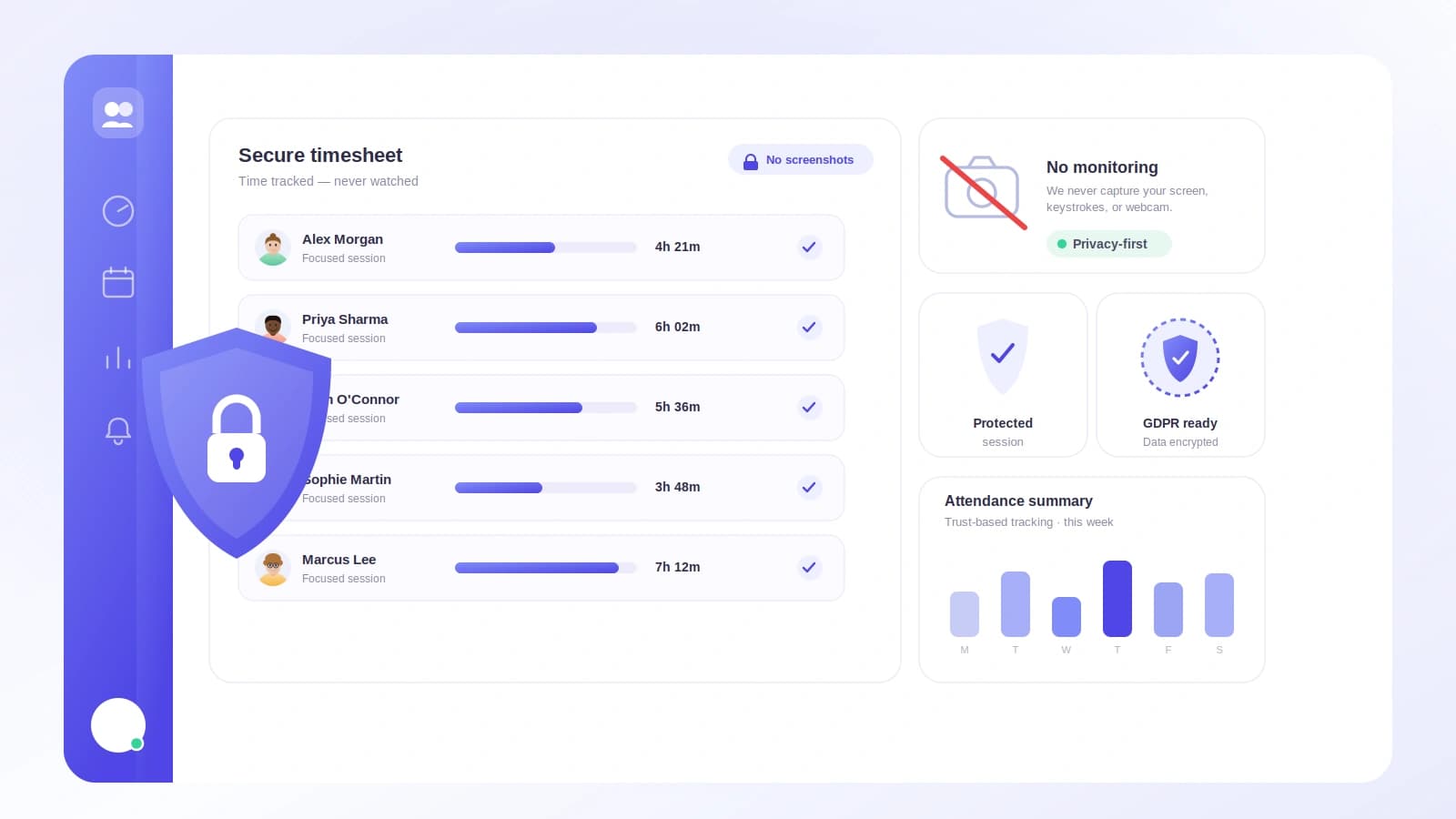
If you have used Time Doctor, you know the trade-off. You get detailed time tracking, but it comes with screenshots, activity levels, and a level of oversight that not every team wants. For a lot of managers, that is the reason they start looking for something else.
This guide is for teams that want to track hours honestly without watching people's screens. It covers why teams move away from screenshot monitoring, what to look for in a replacement, and the best Time Doctor alternatives that track time without surveillance. Tickin is one of the options here, and this piece explains where it fits and where other tools may suit you better.
Why teams look for a Time Doctor alternative without screenshots
Time Doctor is built around monitoring. Screenshots and activity tracking are central to how it works, and for some operations that is exactly what they need. For many teams, especially remote and knowledge-work teams, it becomes a problem.
The most common reasons teams switch:
Trust and culture. Screenshots send a clear message: we do not trust you to work unless we can see your screen. That message is hard to walk back once it is set.
Privacy. Remote employees work from home. Screen capture in a personal space feels intrusive, and it can sweep up things that were never meant for an employer to see.
It measures activity, not outcomes. Mouse movement and keystrokes are not the same as good work. People can look busy and deliver nothing, or think quietly and deliver a lot. Activity scores reward the wrong thing.
Admin overhead. Someone has to review screenshots and activity reports. That is time your managers could spend on actual management.
There is a growing body of writing from management researchers on how heavy monitoring can backfire, reducing trust and even encouraging the behavior it tries to prevent. You do not need a study to feel it. If your team asked you to move off screenshots, they are telling you something worth listening to.
None of this means you should stop tracking time. It means you can track time without the surveillance layer.
What to look for in a screenshot-free time tracker
Not every alternative solves the actual problem. A tool that swaps Time Doctor's screenshots for its own screenshots is not an alternative, it is a lateral move. Use these criteria.
Trust-based tracking. Look for clock in and out, timers, or automatic time logging that does not capture the screen. The record should be timestamps and hours, not images of what someone was doing.
It meets the team where they work. Adoption is the whole game. A tracker people forget to open does not track anything. Clocking in from a browser, a chat tool, or a lightweight desktop app all beat a separate window nobody remembers.
Idle is fine, screenshots are not. Some tools flag idle time so you do not overcount a session left running. That is reasonable and privacy-safe because it records inactivity, not content. Keep that distinction in mind when you compare tools.
Hours you can act on. Attendance and payable hours are more useful than an activity percentage. If the tool feeds timesheets, overtime, or payroll, you get real operational value instead of a dashboard nobody trusts.
Fair and transparent. Employees should be able to see their own record. Tracking that people can check themselves is tracking they will accept.
Price and a free tier. For small teams, a genuine free plan lowers the risk of trying something new.
The best Time Doctor alternatives without screenshot monitoring
These tools focus on tracking time rather than watching screens. Product details and pricing change often, so confirm the current feature set on each vendor's own site before you commit.
| Tool | Best for | Screenshot monitoring | All-in-one HR (attendance, leave, payroll) |
|---|---|---|---|
| Tickin | Teams in Slack or Microsoft Teams | Optional, off by default | Yes |
| Toggl Track | Simple manual time tracking | Not a focus | No |
| Clockify | A free, no-frills tracker | Not a focus | No |
| Harvest | Agencies billing clients | Not a focus | No, plus invoicing |
| Timely | Automatic, private tracking | Not a focus | No |
The table is a starting point, not a verdict. The right choice depends on how your team works, which is why the notes below explain who each tool suits.
1. Tickin: best for teams that live in Slack or Microsoft Teams
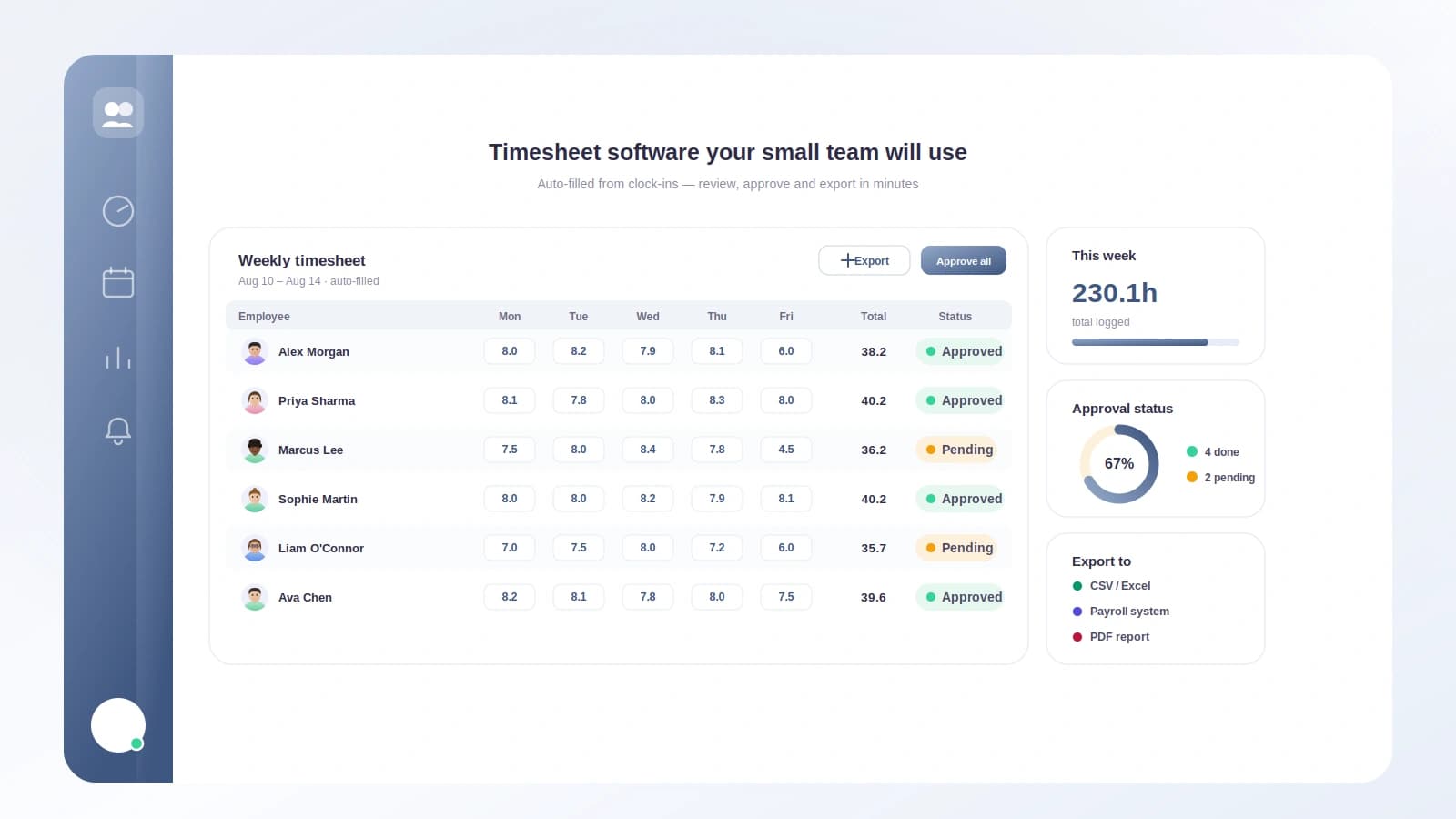
Tickin is an all-in-one HR platform that treats time tracking as part of attendance, leave, and payroll rather than a monitoring product. Screenshot capture is not part of the core product and is off by default, so out of the box there are no screens to review; it exists only as an optional module an admin can switch on if a team ever needs it. People clock in and out from Slack, Microsoft Teams, the browser, or an optional desktop app, and their hours and daily breakdowns are recorded automatically.
The optional desktop app includes idle detection, which marks a session idle after a period of inactivity so you do not overcount. By default that is the extent of the activity signal: no screens, no keystroke logs. Screenshot and activity monitoring is a separate optional module that stays off unless an admin turns it on.
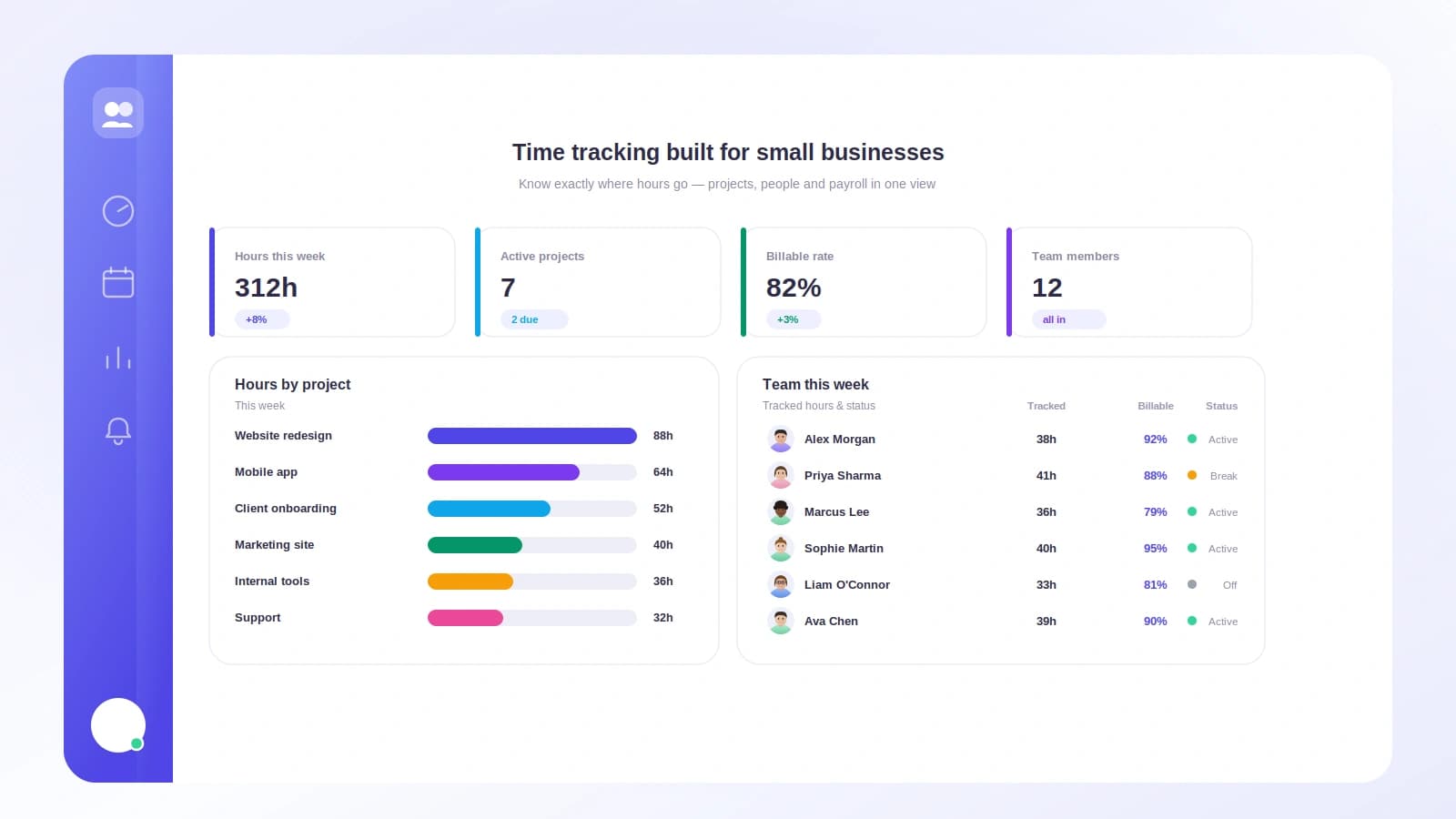
Because Tickin also handles office hours, grace periods, leave, and payslips, the hours you track roll straight into attendance records and payroll. It suits distributed and knowledge-work teams that want an honest record without the surveillance baggage.
If you are evaluating Time Doctor mainly for its monitoring, see how a trust-based approach compares in Tickin vs Hubstaff, which covers the monitoring-versus-trust question directly. For the product itself, the time tracking and attendance tracking pages go deeper.
2. Toggl Track: best for simple manual time tracking
Toggl Track is a long-standing, well-liked time tracker built around starting and stopping timers and tidy reporting. Its reputation is ease of use, not oversight, so it is a natural fit for teams that want people to log time themselves without a monitoring layer.
It is strongest for individuals, freelancers, and teams that mainly need clean timesheets and project reports. If you also need attendance rules, leave, and payroll in one place, you will likely pair it with other tools.
3. Clockify: best for a free, no-frills time tracker
Clockify is known for a generous free plan and straightforward time tracking, timesheets, and reporting. It is a standalone tracker rather than an all-in-one HR system, which makes it a light, low-cost way to move off a monitoring tool.
If your only goal is to record hours across a team without surveillance, it does that job. If you want attendance, Slack or Teams clock-ins, and payslips too, compare the trade-offs in Tickin vs Clockify.
4. Harvest: best for agencies billing clients
Harvest pairs time tracking with invoicing and is aimed at client-service work where billable hours matter. It is built for logging time against projects and turning that into invoices, not for watching how people work.
Agencies and consultancies that live and die by billable accuracy tend to like it. Teams that need workforce features like attendance policies, leave balances, and payroll will find those elsewhere.
5. Timely: best for automatic, private time tracking
Timely takes a different route with automatic time tracking that helps people reconstruct their day and fill timesheets with less manual effort. It positions itself as employee-friendly and does not center on screenshots.
It suits teams that want low-friction logging and are comfortable with an automatic approach, as long as you confirm exactly what is captured and how it is presented to employees before rolling it out.
How Tickin tracks time without watching screens
It helps to see what trust-based tracking looks like in practice, so here is Tickin's actual approach.
People clock in and out wherever they already work. In Slack, that is the /tickin command. In Microsoft Teams, it is the Teams bot. There is also a browser client and an optional desktop app. The point is that tracking lives inside the tools people use, so they remember to do it.
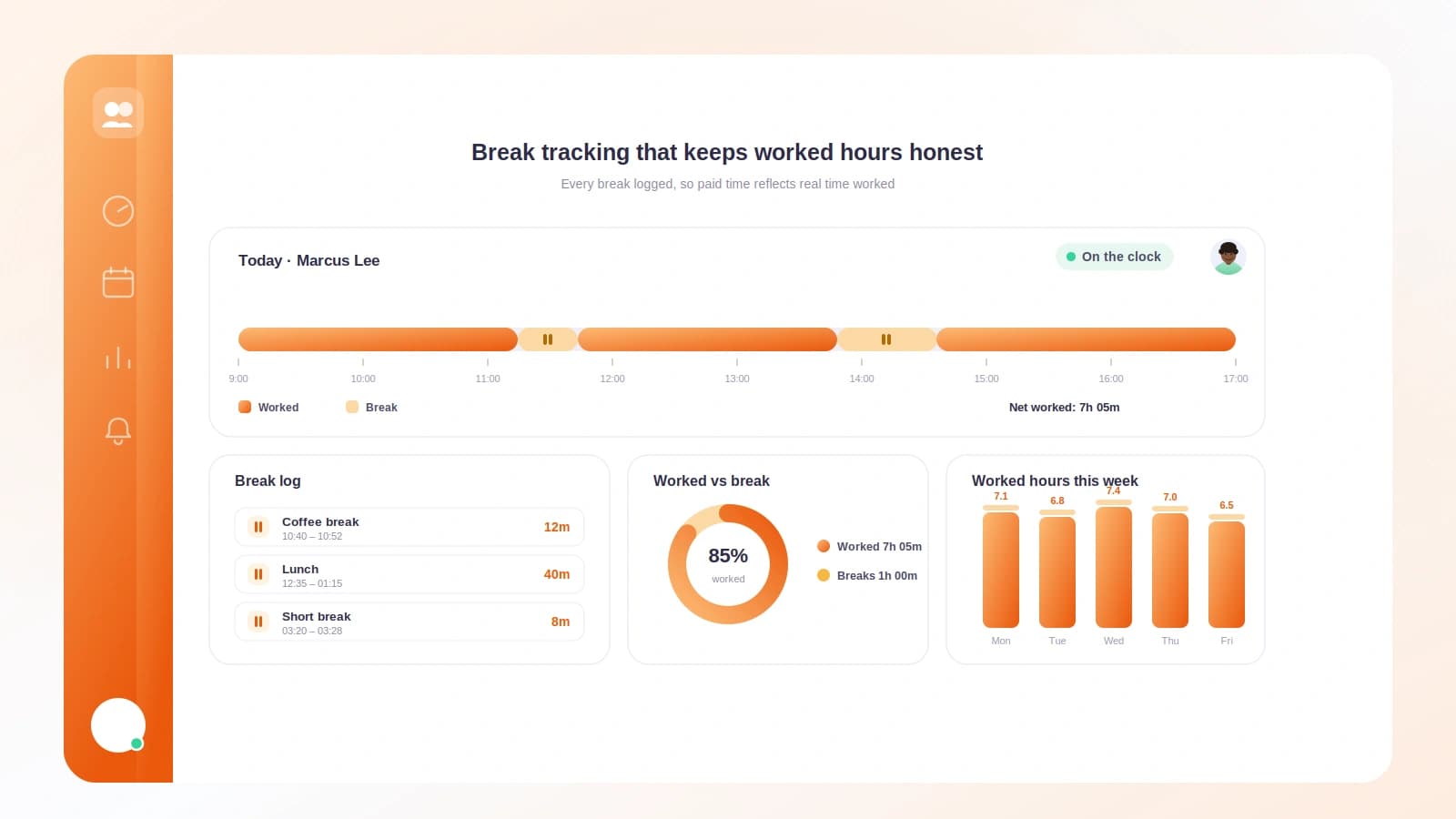
Hours, sessions, and daily breakdowns are recorded automatically. Breaks are tracked and deducted, so worked time is accurate without anyone doing timesheet math. When someone passes your configured daily threshold, Tickin sends a prompt in Slack or Teams asking whether to record the extra time as overtime or cap it, and the choice is logged with the session.
The optional desktop app adds idle detection so you are not counting a laptop left open over lunch. That is an inactivity signal, not a screenshot. Employees can see their own records, which is what makes the whole thing feel fair rather than covert.
Around that sits the rest of the platform: office hours and grace periods, late-arrival alerts, leave requests and approvals, and payslips. Tracked hours feed straight into attendance and payroll, so the time you record actually does something. For remote and distributed setups specifically, time tracking for distributed teams walks through the fit, and how to track time in Slack shows the day-to-day flow.
None of this requires screenshots, activity scores, or keystroke logging. That is the entire idea.
How to switch from Time Doctor without disrupting your team
Changing a time tool touches everyone's daily habit, so plan the move.
Export your Time Doctor data first. Pull your historical time and reports before you cancel anything. You want a clean record for past pay periods and any client billing.
Pick the tool that matches how your team works. If your team lives in chat, a Slack or Teams native tracker will get adopted faster than a standalone app. If you bill clients by the hour, prioritize a tool with strong project and invoicing support.
Tell the team what is changing, and what is not. This is the part most rollouts skip. Say plainly that you are moving off screenshots and why. The absence of surveillance is a feature worth naming out loud, because it rebuilds trust that monitoring quietly spends.
Set clear expectations. Define your working hours, what counts as tracked time, and how breaks and overtime work. Clarity here prevents the disputes that vague rules create. If you need a starting point, a timesheet template or an attendance policy template gives you a base to edit.
Overlap, then cut over. Run the new tool alongside Time Doctor for a short window, confirm the numbers reconcile, then switch fully and close the old account.
Done this way, most teams move in a single pay cycle without losing a day of data.
Frequently asked questions
Does Time Doctor take screenshots?
Yes. Screenshots and activity tracking are core parts of Time Doctor's monitoring model. Settings vary by plan and configuration, so check your current setup, but monitoring is central to how the product works.
Can you track time without screenshots or surveillance?
Yes. Plenty of tools record hours through clock-ins, timers, or automatic logging without capturing screens. Trust-based tracking gives you accurate timesheets and payable hours without the oversight layer.
Is idle detection the same as monitoring?
No. Idle detection flags inactivity so a forgotten session does not inflate hours. It records that no input happened, not what was on the screen. Screenshot and activity monitoring capture content and behavior, which is a different thing entirely.
Which Time Doctor alternative is best for remote or distributed teams?
Teams that work in Slack or Microsoft Teams usually get the best adoption from a chat-native tool like Tickin, because people clock in without opening a separate app. Agencies that bill hourly often prefer a project-and-invoicing tool like Harvest. Match the tool to how your team already works.
Does Tickin do screenshot monitoring?
Only if you switch it on. Screenshot and activity monitoring is an optional module that is off by default, so out of the box Tickin's core product captures no screenshots and logs no keystrokes. Left off, the only activity signal is optional idle detection on the desktop app, and employees can see their own records. You can run Tickin entirely screenshot-free.
Try trust-based time tracking
If you are leaving Time Doctor because you want the hours without the surveillance, that is the gap Tickin was built to fill. Your team clocks in from Slack, Teams, or the browser, their hours feed attendance and payroll automatically, and nobody has to defend a screenshot.
Start free for up to 10 employees, no credit card required, or book a demo to see it with your setup. You can also compare plans on the pricing page first.