How to Track Time in Slack (Without Another App to Open)
Track time in Slack with simple slash commands your team actually uses. A practical guide to /clockin, breaks, status, and a full worked day.
The best time tracking system is the one people forget they are using. I have watched teams buy polished standalone trackers, run a cheerful launch, and then quietly abandon them within three weeks. The app was fine. The problem was that opening it was one more thing to remember, and remembering things at 9 a.m. is not a strong point for most of us.
Slack wins here for a boring reason. It is already open. If clocking in is one line of typing in a window you were looking at anyway, it happens. If it means finding a browser tab, logging in again, and clicking a green button, it doesn't.
This guide covers how tracking time in Slack actually works day to day, the slash commands that drive it, what to watch out for, and a full worked shift so you can see the rhythm.
TL;DR
- People use in-Slack tracking because Slack is already open, so clocking in costs one line instead of a context switch.
- Slack has no native time clock. You connect an app that listens for slash commands like
/clockin,/break, and/status. - Slash commands are fast to learn, timestamped precisely, and stored server side, which makes them solid for real timesheets.
- Watch for timezone handling, forgotten clock-outs, and who can see whose entries.
- A good tracker rolls every command into a timesheet automatically, so nobody assembles hours by hand.
Why in-Slack tracking gets used when standalone apps don't
Adoption is the whole game. A tracker that records 60 percent of shifts is worse than useless, because now you have half a dataset and full confidence problems.
The friction math is simple. Every extra step between "I started work" and "the system knows" is a place where a busy person drops out. Standalone apps stack up those steps: switch windows, wait for load, sign in, click. In-Slack tracking collapses them into a single command in a place your team already lives.
There is also a social nudge. When a clock-in posts a small confirmation, teammates casually see who is on. Nobody is policing it. It just becomes normal, the same way a "good morning" in the team channel becomes normal. For distributed teams, that light visibility replaces the old signal of watching people walk past your desk.
What Slack does and does not do
Worth saying plainly: Slack itself does not track time. It has no clock, no timesheet, no attendance report. What Slack offers is a platform for apps, including slash commands that any connected tool can register and respond to.
So "time tracking in Slack" always means a dedicated app bolted onto your workspace. You add it once, grant it permission, and from then on it listens for the commands your team types and writes each one to a proper record. If you are weighing which tool to add, we compared the options in Slack apps for HR and time tracking.
The slash-command workflow
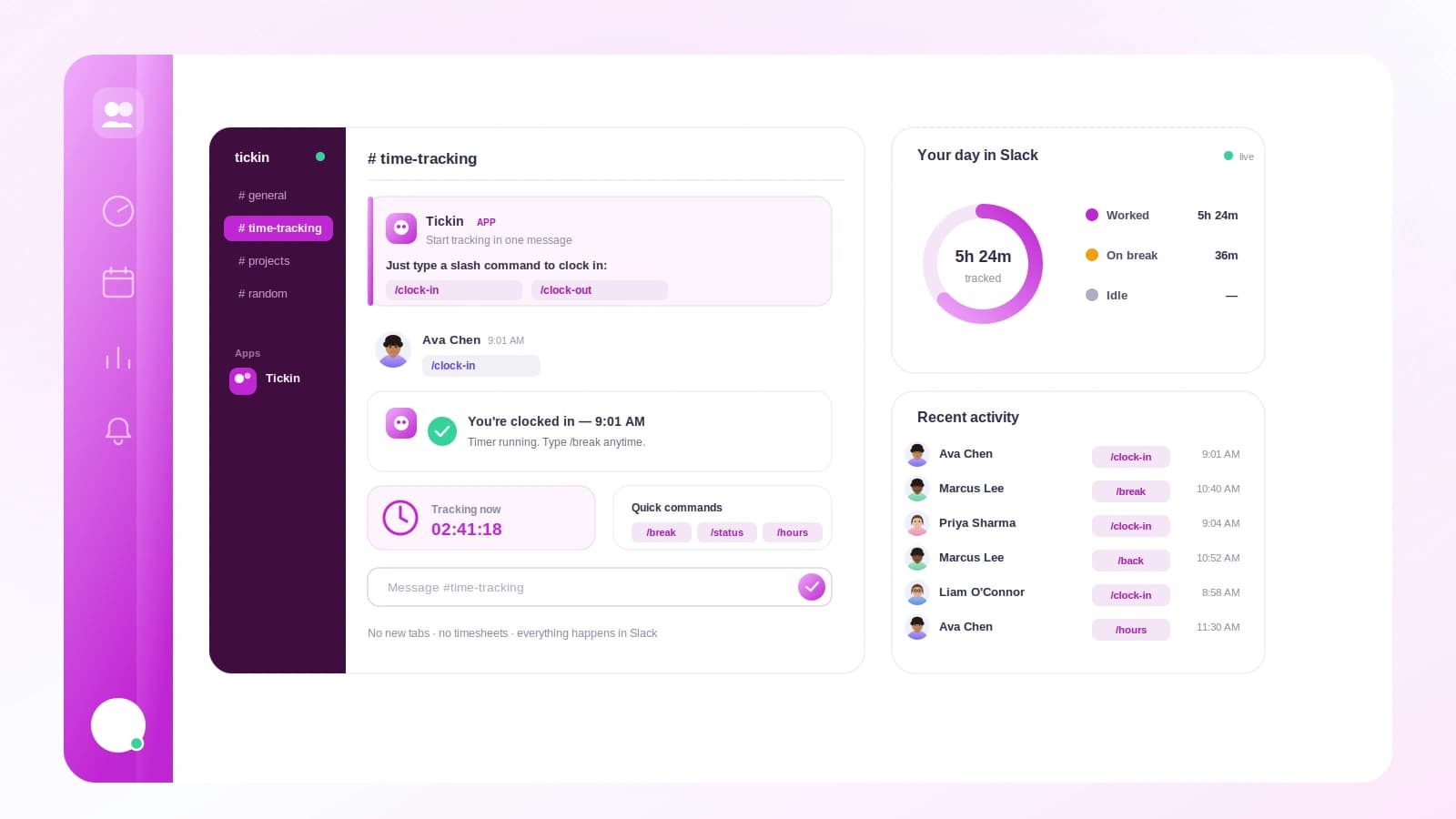
Slash commands are the heart of it. You type a slash, a keyword, and hit enter. The app responds in seconds, usually with a private confirmation only you see or a short public note.
Here is the core set most teams use:
| Command | What it does | When you use it |
|---|---|---|
/clockin |
Starts your shift and stamps the time | Beginning of the workday |
/break |
Pauses the clock for lunch or a rest | Stepping away for a while |
/back |
Ends the break, resumes the clock | Returning from a break |
/status |
Shows your state and hours so far | Anytime you want a quick check |
/clockout |
Ends your shift and totals the day | End of the workday |
A few things make this workflow stick:
- It reads like plain English. New hires learn
/clockinin one message. No training session, no manual. - Confirmations close the loop. The app replying "Clocked in at 9:02 a.m." tells you it worked, so you trust it.
- Corrections are quick. Forgot to clock out? A good tool lets you edit the entry or ping an admin, rather than losing the day.
For a deeper look at the on/off flow specifically, see the best way to clock in and out in Slack.
Breaks are where the numbers get real
Breaks are the part people underthink. Whether a break pauses paid time changes the total on the timesheet, and that has knock-on effects for overtime and payroll. If your /break command genuinely stops the clock, unpaid lunches come out correctly without anyone doing mental math.
The rules here vary by country and by company policy, so it is worth getting deliberate about. We wrote a full explainer on whether breaks count as hours worked that walks through the common cases.
What to watch for
In-Slack tracking is low friction, which is exactly why the edge cases deserve attention. Low friction also means low ceremony, and a few habits can quietly corrupt your data.
- Timezones. A distributed team spans zones. Make sure the tool stamps entries in a consistent way and shows each person their own local time, so a 9 a.m. start in Manila and a 9 a.m. start in Lisbon both read correctly.
- Forgotten clock-outs. The classic. Someone closes the laptop without
/clockoutand the clock runs to midnight. Look for auto clock-out after a set number of hours, or a gentle reminder ping. - Who sees what. Decide early whether clock-ins are private or posted to a channel. Both are valid. What matters is that the team knows the norm.
- Editing rights. People will occasionally mistype or forget. There must be a clean way to fix an entry, ideally self-service for small corrections and admin-approved for bigger ones.
- Server-side storage. Entries should live in the tool's database, not just as Slack messages that could be deleted. That is what makes them trustworthy for payroll.
A worked example: one full day
Let me walk through a realistic Tuesday for Maya, a support lead in a 12-person remote team. She works in Slack all day anyway, so tracking is just part of her normal typing.
- 9:03 a.m. Maya opens Slack, types
/clockin. The app replies: "Clocked in at 9:03 a.m." Her shift starts. - 1:15 p.m. Lunch. She types
/break. The clock pauses. Confirmation: "On break since 1:15 p.m." - 1:52 p.m. Back at her desk,
/back. "Break ended. Back on the clock." That break was 37 minutes, unpaid. - 3:30 p.m. A teammate wonders if Maya is free. Maya types
/statusand sees: "On since 9:03 a.m. · 5h 50m worked · 1 break." - 6:10 p.m. Done.
/clockout. The app totals it up.
Here is the math the tool does for her:
| Segment | Time | Counts as |
|---|---|---|
| Clock in to lunch | 9:03 a.m. to 1:15 p.m. | 4h 12m |
| Lunch break | 1:15 p.m. to 1:52 p.m. | 0m (unpaid) |
| Lunch to clock out | 1:52 p.m. to 6:10 p.m. | 4h 18m |
| Total worked | 8h 30m |
Maya never opened a separate app, never filled out a form, never did arithmetic. Five short commands produced a precise, payroll-ready entry. Multiply that across a team and across a month, and the timesheet more or less builds itself.
Tracking time in Slack with Tickin
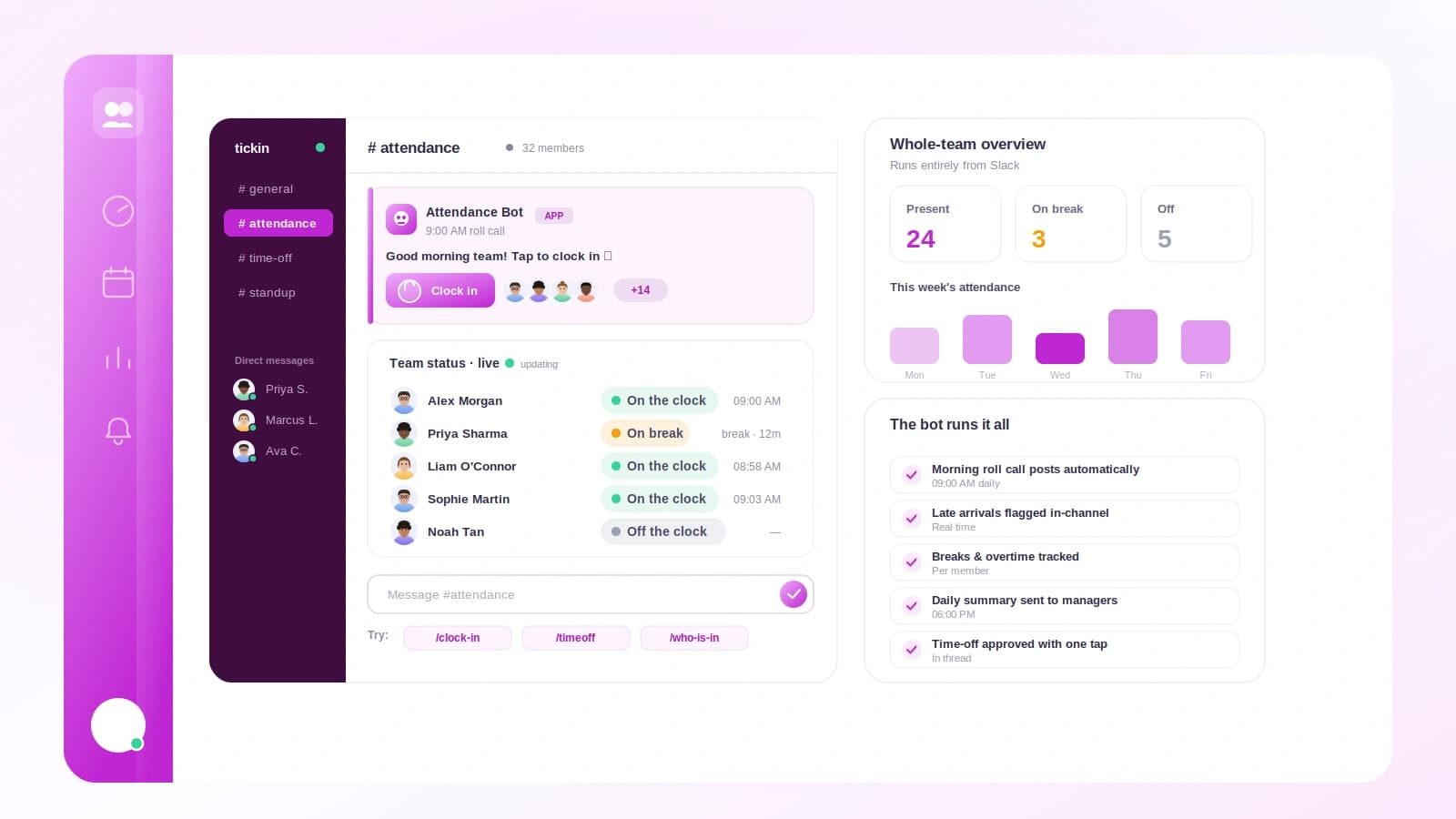
Tickin adds time tracking to your existing Slack workspace through a single command, /tickin. Your team runs /tickin start to clock in, /tickin break to pause and resume, /tickin attendance for a live status, and /tickin end to clock out, and every entry rolls into clean timesheets and attendance reports you can actually run payroll from. Connecting is a one-click Add to Slack, no tokens or webhooks to configure.
A few things we built for real teams:
- Live status so a lead can see who is on, on break, or done, without asking.
- Smart handling of forgotten clock-outs and quick edits when someone mistypes.
- Timezone-aware records for distributed teams, plus a Free plan for up to 10 employees.
If you would rather see the full feature set first, browse the features overview. When you are ready to try it with your own team, you can start free and have it running in a few minutes.
Frequently asked questions
Do people actually use time tracking inside Slack?
Yes, far more than standalone apps. Because Slack is already open all day, clocking in costs one line of typing instead of opening a separate tab, so adoption tends to be much higher.
What slash command starts the clock in Slack?
Most tools use a short command like /clockin to start your shift and /clockout to end it. Breaks and status usually have their own commands such as /break and /status.
Does Slack track time on its own?
No. Slack has no built-in time clock. You add a time tracking app that connects to your workspace and listens for slash commands, then records the entries into timesheets.
Can I see who is clocked in right now?
Yes. A good Slack time tracker gives a live status view, so a team lead can type a command or open a dashboard and see who is on, on break, or done for the day.
Is Slack time tracking accurate enough for payroll?
It is, as long as entries are timestamped and stored server side. Slack captures the exact moment of each command, which usually beats hand-written timesheets for accuracy.
The point of all this
Good time tracking disappears into the work. It doesn't ask for a new habit, a new tab, or a new login. It meets people where they already are, which for most modern teams is Slack, and asks for a single line of typing in return.
If you have tried standalone trackers and watched them fade, the fix is usually not a better standalone tracker. It is moving the whole thing into the tool your team never closes.
Ready to see it work with your team? Start free and set up your first /clockin today, then read the best way to clock in and out in Slack for the details of the daily flow.